
Views: 222 Author: Otechkabel Publish Time: 2026-05-16 Origin: Site


As an OEM USB cable manufacturer working with global brands, I've learned that mis-matching USB 2.0 and USB 3.0 hardware is one of the most common—and costly—sources of "mysterious" slow data transfer and unstable connections in the field. In this guide I'll walk you through how I would distinguish USB 2.0 from USB 3.0 in real projects, combining hands‑on checks, software tools, and purchasing best practices. [anker]
From an engineer's and buyer's perspective, the core differences are speed, power, and internal structure. [usbmemorydirect]
- USB 2.0 supports a maximum theoretical transfer rate of 480 Mbps, which is enough for basic peripherals, office file transfers, and low‑bandwidth devices. [jmtjm]
- USB 3.0 (also known as SuperSpeed USB or USB 3.2 Gen 1) supports up to 5 Gbps, about 10x faster in theory and dramatically faster for large files and backup. [anker]
- USB 3.0 connectors and ports add extra pins and improved signaling to handle higher bandwidth and better power delivery. [anker]
- Both standards are designed to be backward compatible, but the actual speed is always limited by the *slowest* link in the chain (port, cable, or device). [bestbuy]
For OEM projects, these differences drive key design decisions: which cable structure to use, how to label products, and how to avoid customer complaints about "fake" USB 3.0 performance. [cnblogs]
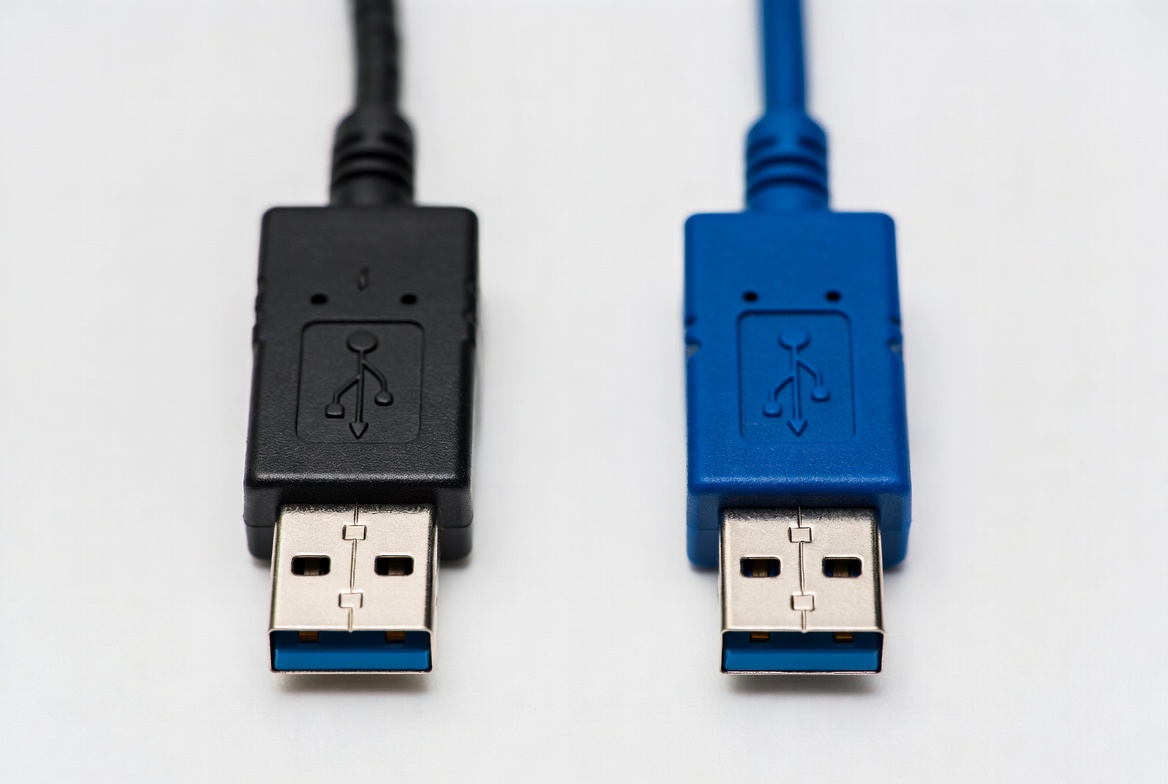
When I receive a sample from a customer or from our own production line, I start with simple, non‑destructive visual checks before touching any software or test equipment. [usbmemorydirect]
Most mainstream device makers still follow the color recommendation for USB 3.0. [bgr]
- USB 2.0 ports and Type‑A plugs are typically black or white inside.
- USB 3.0 ports and Type‑A plugs often use a blue plastic tongue, indicating SuperSpeed capability. [bgr]
Do note, as an expert I treat color as a hint, not absolute proof, because color coding is a recommendation, not a mandatory rule. [bgr]
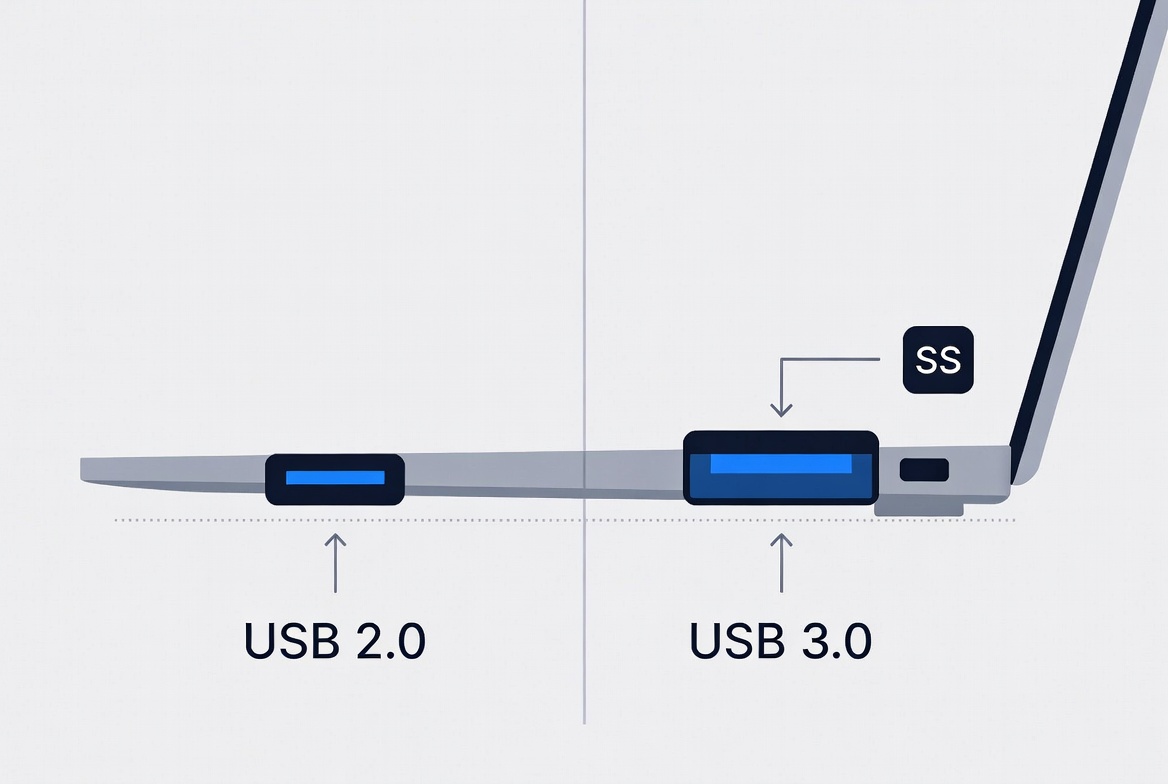
USB 3.0/3.2 Gen 1 compatible ports and cables may carry the "SS" (SuperSpeed) logo next to the USB symbol. [usbmemorydirect]
- If I see "SS" next to the USB icon, I treat it as a strong signal that the port or cable is designed for USB 3.0 speeds. [usbmemorydirect]
- On branded devices and docking stations, this is often more reliable than color, especially on dark or custom‑colored enclosures. [anker]
Internally, a USB 3.0 Type‑A connector adds five extra pins beyond the four pins of USB 2.0. [anker]
- USB 2.0 Type‑A: 4 pins and a simpler internal layout.
- USB 3.0 Type‑A: 9 pins total, which often makes the plug base a bit thicker and more complex when you look closely at the contact area.
For Type‑B and Micro‑B connectors, USB 3.0 variants have a visibly larger "double‑stacked" shape, which is easy to recognize once you've handled a few samples. [usbmemorydirect]
Visual inspection is fast, but when troubleshooting in the field or validating OEM samples, I always verify through the operating system. [learn.microsoft]
On Windows, Device Manager provides a practical way to confirm which controllers and hubs are actually USB 3.0. [learn.microsoft]
1. Right‑click "This PC" and select "Manage", then open Device Manager.
2. Expand "Universal Serial Bus controllers".
3. Look for entries containing "USB 3.0", "USB 3.1", or "xHCI", which usually indicate SuperSpeed controllers. [learn.microsoft]
4. Open Properties → Driver to review vendor and driver date; newer controllers from Intel, Renesas and others are typically 3.0/3.x. [learn.microsoft]
This method is especially useful when a user reports slow speeds but all the ports look physically the same on the chassis.
For deeper inspections, I often recommend lightweight utilities like USBView and USBDeview. [nirsoft]
- USBView (from Microsoft) enumerates host controllers, hubs, and attached devices, exposing supported speeds and descriptors. [learn.microsoft]
- USBDeview lists all current and previously connected USB devices and allows exporting detailed information. [sourceforge]
In an OEM QA lab, these tools help us confirm that a given cable and device are negotiating the correct link speed rather than falling back to USB 2.0 due to signal quality issues. [cnblogs]
From experience, users care less about the official standard name and more about actual transfer speed. This is where expectations often break. [reddit]
A few expert tips I follow when validating USB 3.0 performance:
- Test only with a USB 3.0 port + USB 3.0‑rated cable + USB 3.0 device; if any one of these is 2.0, speeds will drop to 2.0 levels. [bestbuy]
- Use a large file (for example a few GB) and a simple copy test to check if throughput is in line with what high‑quality USB 3.0 devices can deliver. [reddit]
- Remember that real‑world speeds are often much lower than theoretical maximums due to device limitations and protocol overhead. [reddit]
On our side as a cable manufacturer, we design conductor sizes, shielding structures, and connector plating to maintain signal integrity at higher data rates so that the link can consistently negotiate at 5 Gbps where the device allows. [voltacharger]
When our overseas partners send user feedback, several repeating misunderstandings show up: [cnblogs]
- "Blue = always faster." Blue color suggests USB 3.0 but doesn't guarantee quality or real‑world speed; poor‑quality cables can still underperform badly. [bgr]
- "Any USB 3.0 cable will fix a slow hard drive." Many external drives are limited by their own flash or HDD mechanics, not just the interface. [reddit]
- "My device says USB 3.0, so every port on my PC is 3.0." Some desktops or laptops still include a mix of 2.0 and 3.0 ports; you must plug into the correct one to benefit. [facebook]
- "USB 3.0 always runs at full 5 Gbps." Actual throughput depends on device controller, firmware, file system and workload. [reddit]
Clarifying these points early in product pages and manuals significantly reduces post‑sale complaints and return rates.
When auditing a batch of cables or troubleshooting for a client, I use a simple step‑by‑step checklist:
1. Visual inspection
- Check connector tongue color and presence of "SS" logo. [bgr]
- Inspect pin layout for 4 vs 9 pins on Type‑A and "double‑stacked" shape for 3.0 Type‑B/Micro‑B. [anker]
2. Port confirmation
- Identify which PC or hub ports are labeled or documented as USB 3.0/3.2 Gen 1. [facebook]
3. System verification
- Use Device Manager or USB utilities to confirm the active link speed and controller generation. [nirsoft]
4. Performance sanity check
- Run a quick file transfer test to confirm that speeds align with what you expect from modern USB 3.0 storage devices. [reddit]
For OEM buyers, having your internal team follow a checklist like this before accepting shipments helps catch mislabeling or substandard products early. [cnblogs]
| Aspect | USB 2.0 | USB 3.0 (SuperSpeed) |
|---|---|---|
| Max theoretical speed | 480 Mbps | 5 Gbps (about 10× 2.0) |
| Typical port color | Black or white tongue inside | Blue tongue, often with "SS" logo |
| Pin count (Type‑A) | 4 pins | 9 pins |
| Backward compatibility | Works with 1.x devices, slower standard | Backward compatible with 2.0 devices, speed falls back |
| Best use cases | Keyboards, mice, basic office storage, printers | External HDD/SSD, high‑res video, fast backup, hubs |
Data summarized from USB industry documentation and major accessory brands. [usbmemorydirect]
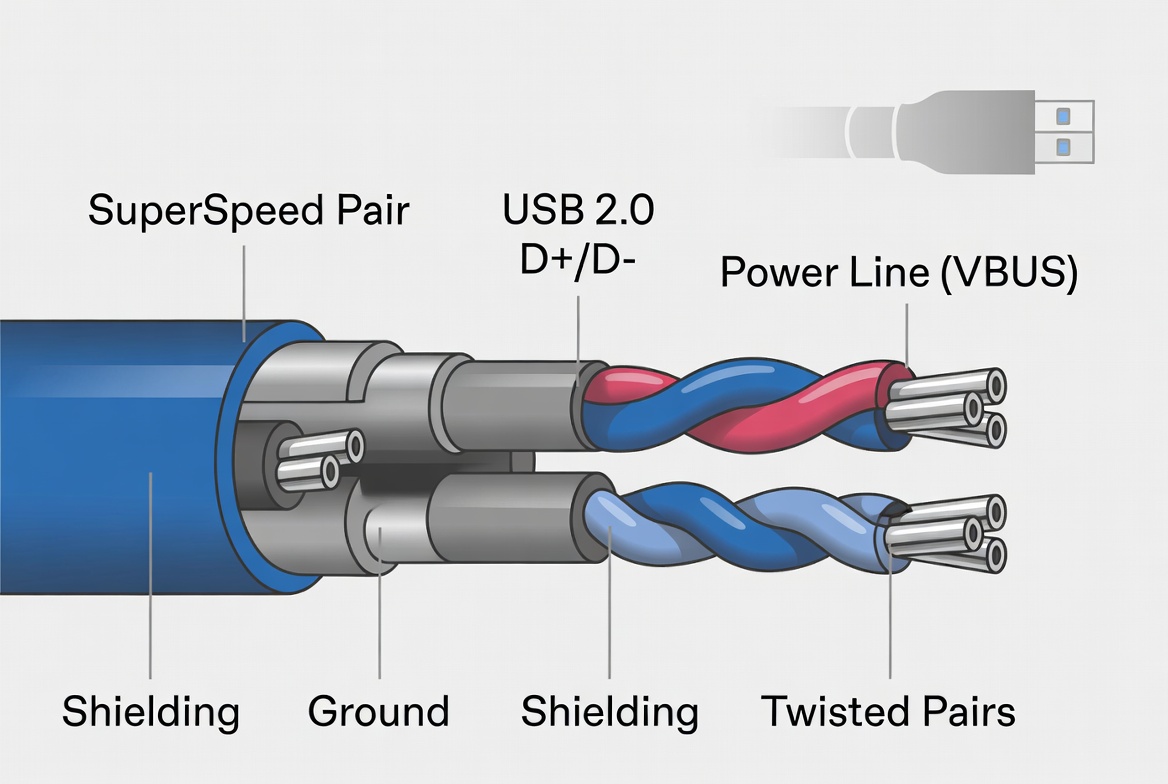
From the factory side in Shenzhen, USB version accuracy is not just a technical detail—it directly affects RMA rates, brand reputation, and long‑term partnerships. [cnblogs]
- If a cable is marketed as USB 3.0 but built using a 2.0 internal structure, customers will quickly notice slow speeds and question the brand's integrity. [cnblogs]
- Consistent compliance with USB‑IF specifications and clear labeling help distributors and system integrators avoid mixed inventories and mis‑shipments. [elecfans]
- In B2B projects, we often provide batch‑level test reports to prove that cables pass eye‑diagram, impedance, and high‑speed continuity checks appropriate for 5 Gbps signaling. [voltacharger]
This is also where a reliable OEM partner adds value: we design cable geometries, choose materials, and set process controls to ensure that a "USB 3.0" label actually reflects SuperSpeed capability.
For purchasing managers, engineers, or even advanced end users, a simple decision framework prevents over‑spend and under‑performance. [voltacharger]
- For basic peripherals (keyboard, mouse, barcode scanner): a well‑made USB 2.0 cable is usually sufficient.
- For external HDD/SSD, docking stations, and video‑capture devices: always select USB 3.0 or above to avoid bottlenecks. [jmtjm]
- For industrial and OEM deployments, consider environmental factors (EMI, cable length, bending cycles) and request specification sheets from your cable provider. [elecfans]
As a manufacturer, we help clients match conductor size (e.g., AWG24/28 vs finer gauges), shielding layers, and connector materials to their performance and cost targets. [elecfans]

If you are a brand owner, wholesaler, or device manufacturer, working with an experienced USB cable OEM ensures that the USB 2.0 vs 3.0 label on your products reflects real‑world performance, not just marketing. [voltacharger]
At Shenzhen Otechkabel Electronic Co., Ltd, we design and produce USB, VGA, HDMI, DVI, SATA and other custom cables for international clients, combining engineering‑level understanding of standards with strict production quality control. If you need reliable, correctly specified USB 2.0 or USB 3.0 cables for your next project, reach out to our team for OEM/ODM consultation, sampling, and technical support. [elecfans]
No. Blue is the recommended color for USB 3.0, but some manufacturers use custom colors, so color should be treated as a visual hint, not a guarantee. [bgr]
It can improve cable quality and stability, but the data rate will still be limited by the USB 2.0 device and port; the system will fall back to the slower standard. [bestbuy]
Check for blue ports or "SS" markings, then verify in Windows Device Manager under "Universal Serial Bus controllers" for USB 3.0/3.1/xHCI entries. [learn.microsoft]
Real‑world speed depends on the slowest component plus factors like device controller performance, file type, and overhead, so it is often below 5 Gbps. [anker]
Ask for cable structure drawings, conductor and shielding specs, confirmation of compliance with USB‑IF requirements, and if possible, test reports for sample batches. [voltacharger]
1. PCM Cable. "How to distinguish whether USB is 2.0 or 3.0." [Link]
2. Anker. "USB 2.0 vs 3.0: A Comparative Guide for Beginners 2026 – Anker US." [Link] [anker]
3. USB Memory Direct. "A Simple Guide to USB Port Colors and Their Meanings." [Link] [usbmemorydirect]
4. BGR. "What Does It Mean When A USB Port Is Blue?" [Link] [bgr]
5. NirSoft. "USBDeview: View any installed/connected USB device on your system." [Link] [nirsoft]
6. Microsoft Learn. "Universal Serial Bus Viewer in Windows." [Link] [learn.microsoft]
7. JMT. "USB 2.0 vs USB 3.0: Which Data Transfer Cable is Best for You?" [Link] [jmtjm]
8. Anker. "The Most Comprehensive Guide to USB Cable Identification." (blog overview) [Link] [voltacharger]
9. CNBlogs. "USB 1.0、1.1、2.0、3.0、4.0版本的技术鉴定标准." [Link] [cnblogs]
10. Reddit discussion on real‑world USB speeds. [Link] [reddit]


