
Views: 222 Author: Otechkabel Publish Time: 2026-05-18 Origin: Site


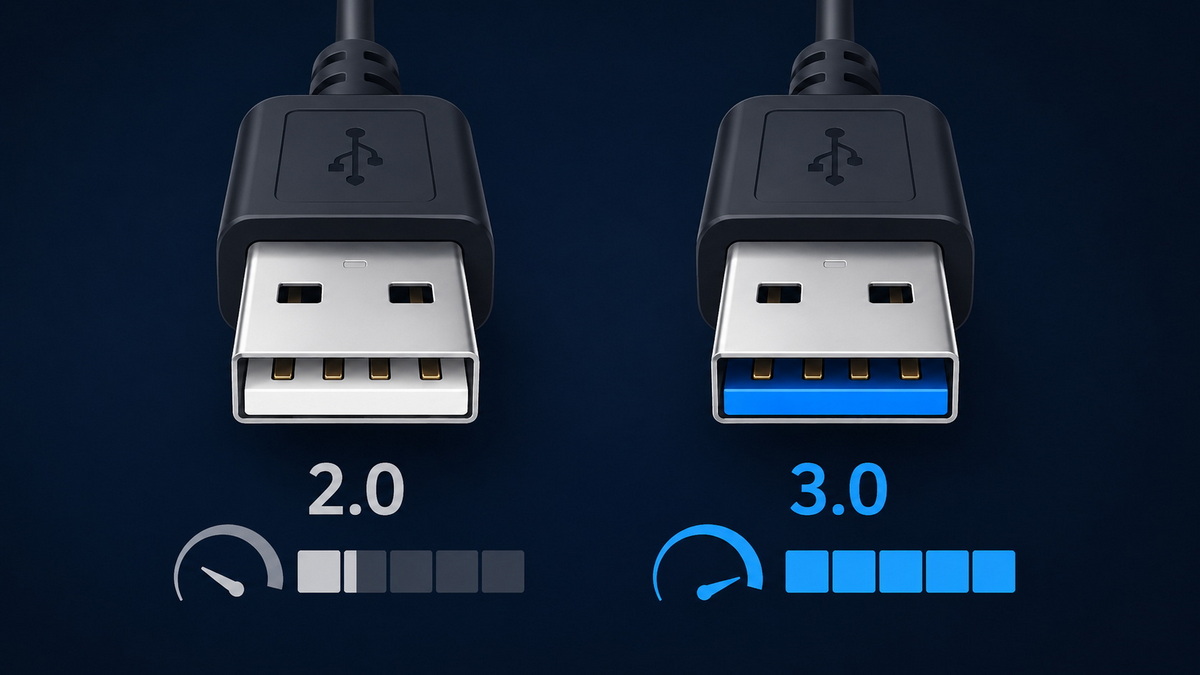
A USB 2.0 cable is mainly identified by its lower transfer speed, lower power output, and a connector with fewer pins and non‑blue plastic, while a USB 3.0 cable supports up to 5 Gbps "SuperSpeed," higher current, and typically has a blue inner piece plus extra pins and "SS" markings. For OEM buyers and engineers, recognizing these differences quickly on the production line or in the field helps avoid performance bottlenecks, failed certifications, and customer complaints. [digilent]
Choosing between USB 2.0 and USB 3.0 is not just about theory; it directly affects data throughput, charging time, and long‑term device reliability. [wyrestorm]
From my experience supporting overseas OEM and branding customers, the most common issues we see—slow data transfer, unstable connections, and overheating—often trace back to using the wrong USB cable version with the wrong device scenario. For a professional buyer or engineer, being able to identify cable versions at a glance reduces RMA rates, speeds up quality checks, and protects your brand reputation in competitive markets. [roirevolution]
Before we look at how to identify whether a USB cable is 2.0 or 3.0, we need a clear picture of the underlying standards. [digilent]
- Release timeline
- USB 2.0: Introduced in 2000, designed for general‑purpose connectivity and up to 480 Mbps transfers. [cmd-ltd]
- USB 3.0: Launched around 2008, branded as SuperSpeed USB with 5 Gbps theoretical bandwidth. [wyrestorm]
- Transmission speed
- USB 2.0: Up to 480 Mbps. [cmd-ltd]
- USB 3.0: Up to 5 Gbps (around 10x faster in theory), often labeled "SuperSpeed" or "SS." [digilent]
- Power output
- USB 2.0: Typically up to 500 mA. [cmd-ltd]
- USB 3.0: Typically up to 900 mA, enabling faster charging and more power‑hungry peripherals. [wyrestorm]
- Physical interface and pins
- USB 2.0: 4 pins in the standard Type‑A plug, with contacts usually connected to black or white plastic. [digilent]
- USB 3.0: 9 pins in a standard Type‑A plug (extra pins for SuperSpeed lanes), with inner plastic often blue and additional contact pads. [cmd-ltd]
In real‑world applications, actual performance also depends on the host port, device controller, firmware, and overall cable quality. However, using a USB 2.0 cable on a USB 3.0 device caps performance at USB 2.0 levels, even if the device itself supports SuperSpeed. [wyrestorm]
If you only have the cable in your hand, you can still identify whether it is USB 2.0 or 3.0 by checking several physical and labeling features. [digilent]
This is the quickest visual cue for standard Type‑A connectors. [digilent]
- USB 2.0 plug:
- Inner plastic is usually white or black. [cmd-ltd]
- USB 3.0 plug:
- Inner plastic is typically blue on the host‑side Type‑A connector. [cmd-ltd]
Important note: Some modern USB 3.x cables, especially Type‑C or minimalist designs, may not follow the blue color convention strictly. For these, you must combine color with other checks below. [wyrestorm]
Many USB 3.0 cables carry "SS" (SuperSpeed) marking on the connector housing or near the USB logo. [digilent]
- USB 2.0 cables typically have only the trident USB symbol.
- USB 3.0 cables often show USB symbol + "SS" text or "SuperSpeed" wording. [cmd-ltd]
If you are purchasing OEM cables with custom branding, you can specify that the SS logo be printed or engraved to help downstream users identify the version more easily. [johnpaulhernandez]
Many higher‑quality cables include model codes and specifications along the jacket. [cmd-ltd]
Look for:
- Explicit text such as "USB 3.0", "SS," or "SuperSpeed." [digilent]
- Part numbers that link to a spec sheet stating USB 2.0 or USB 3.0 on the manufacturer's website. [wyrestorm]
For OEM buyers, requiring clearly printed labels is a simple way to make warehouse and QC processes more efficient. [roirevolution]
USB 3.0 cables usually carry more conductors to support additional data lanes and higher current, so they tend to be thicker than basic USB 2.0 cables. [wyrestorm]
However, thickness is not a reliable standalone indicator because:
- Some premium USB 2.0 cables use thicker shielding.
- Some thin USB 3.0 cables use advanced materials to reduce diameter. [wyrestorm]
Use cable thickness only as a supporting clue alongside plug color, logo, and labeling. [digilent]
When physical indicators are unclear, you can resort to USB recognition tools and operating system utilities. [digilent]
On Windows, tools like USB Tree Viewer can list connected USB devices and their properties. [digilent]
- Plug your cable into a compatible USB 3.0 port and 3.0‑capable device.
- Open the tool and locate the device entry.
- Check fields such as "bcdUSB" (USB version), "Speed" (e.g., High‑Speed vs SuperSpeed), and device descriptors. [digilent]
If the cable and device are truly USB 3.0, you should see SuperSpeed capability or USB 3.0 indicators in the tool's output. [digilent]
Other utilities like USBDeview also list USB devices, their version, and connection history. [digilent]
On some systems:
- Windows: Device Manager and "System Information" can reveal whether a port/device connection is running at High‑Speed (USB 2.0) or SuperSpeed (USB 3.0). [cmd-ltd]
- Linux/macOS: System diagnostic tools and logs can show negotiated link speed and device capabilities. [wyrestorm]
Software checks are especially useful in environments where:
- Ports are not color‑coded,
- Chassis markings are missing, or
- You are auditing multiple workstations and hubs. [roirevolution]
To make "how to identify whether a USB cable is 2.0 or 3.0" more concrete, here are scenarios we see regularly when supporting overseas OEM clients. [johnpaulhernandez]
Example 1: Slow external hard drive
- Situation: A customer complains their USB 3.0 external HDD is "slow like USB 2.0."
- Investigation: They are using a generic black USB cable without SS marking that came from another device.
- Result: Replacing with a properly labeled blue SuperSpeed cable instantly increases transfer rates close to the drive's rated performance. [wyrestorm]
Example 2: Factory QC for mixed batches
- Situation: A distributor receives mixed batches of USB 2.0 and USB 3.0 cables from multiple suppliers.
- Risk: If labels and colors are inconsistent, warehouse staff may ship the wrong version.
- Solution: They adopt a standardized visual checklist (color, logo, label) and require factories to print version codes on the cable jacket and bag. [roirevolution]
These cases highlight that clear identification is as important as electrical performance when you design or purchase cables for global markets. [johnpaulhernandez]
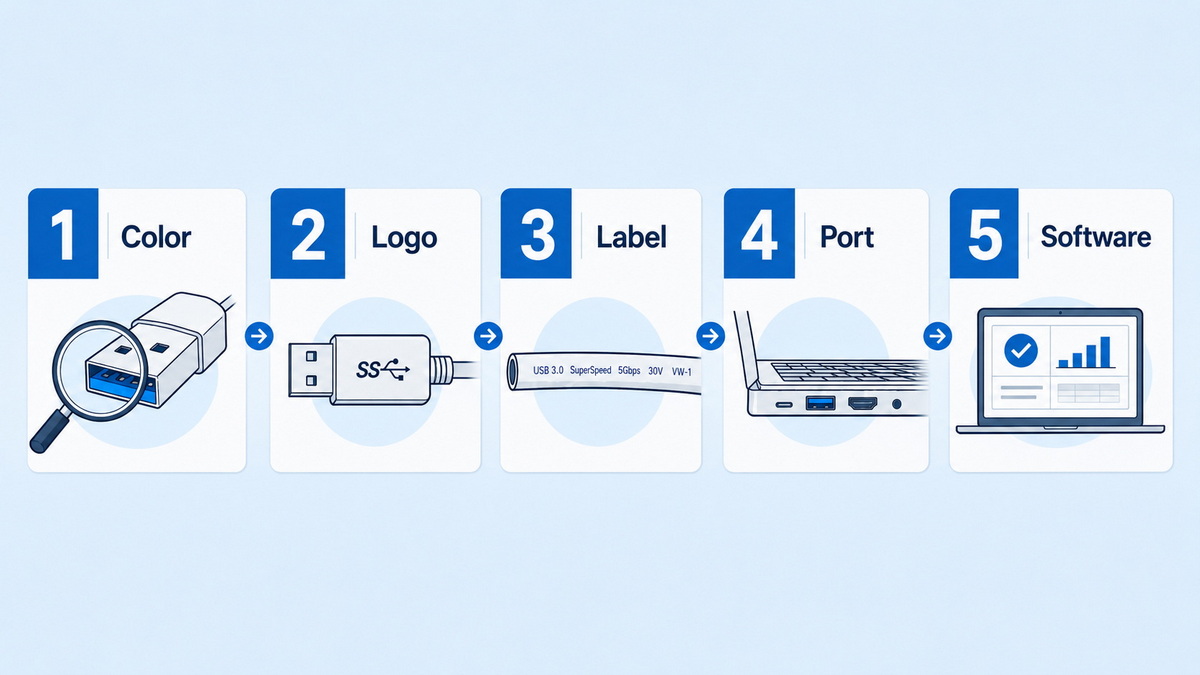
Use this simple process in your lab, warehouse, or office. [cmd-ltd]
1. Inspect the connector color
- Blue inner plastic on Type‑A often indicates USB 3.0.
- White or black usually indicates USB 2.0.
2. Check for "SS" or SuperSpeed marking
- USB 3.0 cables frequently have "SS" near the USB logo.
- Absence of "SS" is not definitive, but combined with other clues, it helps.
3. Look at the cable printing
- Find any printing along the jacket or near the plug.
- Confirm whether it states USB 2.0 or USB 3.0, or references SuperSpeed.
4. Match with port type
- Plug the cable into a known USB 3.0 port (blue or labeled SS).
- Ensure the target device also supports USB 3.0.
5. Verify with software (if needed)
- Use tools like USB Tree Viewer or USBDeview on Windows.
- Confirm that the connection is recognized as SuperSpeed/USB 3.0.
Following this checklist ensures you can identify cable versions reliably even in mixed inventories and customized OEM environments. [digilent]
| Feature | USB 2.0 | USB 3.0 (SuperSpeed) |
|---|---|---|
| Official release year | 2000 digilent | 2008 digilent |
| Max theoretical speed | 480 Mbps digilent | 5 Gbps digilent |
| Typical port color | Black or gray digilent | Blue digilent |
| Typical plug inner color | White or black digilent | Blue digilent |
| Host Type‑A pins | 4 pins digilent | 9 pins digilent |
| Typical max current | 500 mA digilent | 900 mA digilent |
| Common marking | USB trident logo digilent | USB logo + "SS" digilent |
This table can be used directly in your training documents, online product pages, or internal SOPs. [digilent]
As an OEM cable manufacturer working with global brand owners and distributors, we see how small identification mistakes lead to large downstream costs. [roirevolution]
Here are expert‑level best practices you can apply:
- Standardize your cable ID policy
- Mandate consistent color coding (blue for USB 3.0 Type‑A) in your specifications.
- Require clear printing of version (e.g., "USB 3.0 SS") on both cable and packaging. [roirevolution]
- Align documentation and BOMs
- Ensure your BOM, drawings, and datasheets clearly specify USB version, AWG, shielding, and compliance standards. [wyrestorm]
- This prevents mix‑ups when multiple factories or SKUs are involved. [roirevolution]
- Train your QC and warehouse teams
- Use visual guides with photos of 2.0 vs 3.0 connectors, color coding, and labels.
- Integrate the step‑by‑step identification checklist into incoming inspection routines. [johnpaulhernandez]
- Consider future‑proofing
- Many end users are transitioning to USB 3.x and Type‑C cables, so planning SKUs with clear version upgrade paths reduces rework later. [fetnet]
By treating version identification as part of your product design and QA, you can reduce returns, enhance user trust, and maintain consistent brand performance across markets. [johnpaulhernandez]

Understanding how to identify whether a USB cable is 2.0 or 3.0 is only half the story; you also need to know when each is appropriate. [wyrestorm]
Use USB 2.0 cables when:
- Connecting keyboards, mice, basic printers, and other low‑speed peripherals.
- Charging low‑power devices where speed is not critical.
- Cost optimization is more important than maximum throughput. [wyrestorm]
Use USB 3.0 cables when:
- Connecting external hard drives, SSD enclosures, and high‑resolution webcams.
- Running data‑intensive industrial equipment or high‑speed measurement devices.
- You need faster charging within the limits of the standard. [wyrestorm]
If your device supports USB 3.0 and your application involves frequent data transfers, investing in properly labeled USB 3.0 cables delivers tangible performance and durability benefits. [wyrestorm]
If you are an overseas brand owner, importer, or manufacturer looking for a reliable partner for USB, VGA, HDMI, DVI, SATA and other data cables, we can help translate the above best practices directly into your supply chain. [roirevolution]
- We provide OEM and custom branding services, including consistent color coding, version markings, and packaging design aligned with your market requirements.
- Our engineering team can co‑develop specifications with you, ensuring that every USB 2.0 or USB 3.0 cable is not only electrically compliant but also easy to identify for your customers and internal teams. [roirevolution]
You can reach out with your current drawings, performance needs, or sample photos, and we will propose a tailored cable solution that balances cost, performance, and identification clarity for your market segment. [johnpaulhernandez]
Yes, a USB 2.0 cable will physically fit into a USB 3.0 port, but the connection will operate at USB 2.0 speed and power levels, not SuperSpeed. [cmd-ltd]
No, color is a strong indicator but not a formal guarantee; always confirm with logos, labels, or documentation, especially when dealing with unbranded or very low‑cost cables. [wyrestorm]
Connect through a known USB 3.0 port with a USB 3.0 cable, then use system tools or utilities to check whether the connection is recognized as SuperSpeed rather than High‑Speed. [cmd-ltd]
Not necessarily; many phones charge adequately over USB 2.0, but USB 3.0's higher current capacity can help in some scenarios; for modern fast‑charging standards, USB‑C and dedicated power protocols matter even more. [fetnet]
For most new designs, at least USB 2.0 plus USB 3.0 or 3.x where high throughput matters, and consider USB‑C on forward‑looking products; your exact mix depends on target markets and backward‑compatibility needs. [stellarcontent]
1. PCM‑Cable. "How to identify whether a USB cable is 2.0 or 3.0?" (original article content used as base material and expanded).
<https://www.pcm-cable.com/info/how-to-identify-whether-a-usb-cable-is-2-0-or-86457652.html> [digilent]
2. Digilent Blog. "Unleash the Speed: How to Identify the Right USB Cable for Blazing‑Fast Data Transfer – USB 3.0 vs 2.0."
<https://digilent.com/blog/unleash-the-speed-how-to-identify-the-right-usb-cable-for-blazing-fast-data-transfer-usb-3-0-vs-2-0-an> [digilent]
3. CMD Ltd. "Identifying Your USB Connector and Cable Types – A Full Guide."
<https://www.cmd-ltd.com/advice-centre/usb-chargers-and-power-modules/usb-and-power-module-product-help/identifying-usb-connector-and-cable-types> [cmd-ltd]
4. WyreStorm. "10 Types of USB Cables: How to Tell the Difference?"
<https://www.wyrestorm.com/blog/usb-cable-types-difference-guide/> [wyrestorm]
5. Semrush. "Google E‑E‑A‑T: What It Is & How It Affects SEO."
<https://www.semrush.com/blog/eeat/> [semrush]
6. ROI Revolution. "Optimizing Your Site for Google E‑E‑A‑T."
<https://roirevolution.com/blog/google-e-e-a-t-how-to-optimize-your-site-to-align-with-the-search-quality-rater-guidelines/> [roirevolution]
7. Stellar Content. "The Complete Guide to Google E‑E‑A‑T: How to Improve SEO."
<https://www.stellarcontent.com/blog/seo/the-complete-guide-to-google-e-a-t-what-is-it-why-is-it-and-how-do-you-create-it/> [stellarcontent]
8. Modern Marketing Partners. "How to Write Product Comparison Content That Readers Will Love."
<https://www.modernmarketingpartners.com/2021/07/08/how-to-write-product-comparison-content-that-readers-will-love/> [modernmarketingpartners]
9. John Paul Hernandez. "How to Write a Product Comparison Article."
<https://johnpaulhernandez.com/product-comparison-article/> [johnpaulhernandez]
10. Chunghwa Telecom (FET). "USB‑C線材選購眉角 (Chinese USB‑C cable buying tips)."
<https://www.fetnet.net/content/cbu/tw/lifecircle/topics/2023/11/usbc.html> [fetnet]


