


Views: 222 Author: Rebecca Publish Time: 2026-02-07 Origin: Site


Content Menu
● What Is USB 3.2? (Protocol, Not Plug)
● What Is USB‑C? (Connector, Not Speed)
● USB 3.2 vs USB‑C at a Glance
● Are USB 3.2 and USB‑C the Same?
● USB 3.2 Gen 1 vs Gen 2: What Changes?
● How USB‑C Works with Different USB Standards
● New Section: Practical Use Cases for USB 3.2 and USB‑C
● How to Choose the Right USB 3.2 or USB‑C Cable
>> Step‑by‑Step Selection Checklist
● New Section: Common Buyer Mistakes and How to Avoid Them
● New Section: Future‑Proofing Your USB Projects
● OEM‑Focused: USB 3.2 and USB‑C Cable Solutions from Your Manufacturer
● Frequently Asked Questions (FAQ)
>> 1. Does a USB‑C connector always mean USB 3.2 speed?
>> 2. Can USB 3.2 work with older USB devices?
>> 3. Do I need USB 3.2 Gen 2 for 4K or 8K video over USB‑C?
>> 4. How can I quickly tell if a cable is USB 3.2?
>> 5. Why are some USB‑C cables cheaper than others?
For brands, wholesalers and OEM buyers in the cable industry, confusing USB 3.2 with USB‑C can lead to wrong product choices, performance issues and costly returns. This guide explains the real difference between the USB 3.2 standard and the USB‑C connector, and shows you how to choose and specify the right cable for your projects.

USB 3.2 is a data transfer standard, not a connector shape. It defines how fast data moves and which features are supported.
Key points:
- USB 3.2 builds on earlier USB 1.0, 2.0 and 3.0 specifications.
- USB 3.2 Gen 1 supports data rates up to 5 Gbps.
- USB 3.2 Gen 2 supports up to 10 Gbps and enables advanced features such as DisplayPort Alt Mode for video.
- Renaming (USB 3.0 → USB 3.1 Gen 1 → USB 3.2 Gen 1) was done by USB‑IF to “simplify” naming, but it often creates confusion in the market.
In practical terms, when you specify USB 3.2, you are talking about:
- Maximum data rate
- Supported features (e.g., DP Alt Mode)
- Backward compatibility with previous USB versions
USB‑C (USB Type‑C) is a connector type, not a speed rating or protocol. It describes the physical plug and port design.
Core characteristics:
- Small, compact, and reversible plug that works in both orientations.
- Widely used in smartphones, tablets, ultra‑thin laptops and portable SSDs.
- Can carry different protocols: USB 2.0, USB 3.2 and, with the right implementation, DisplayPort Alt Mode and power delivery.
Critical insight: Not all USB‑C cables are high‑speed USB 3.2 cables. A USB 2.0 C‑to‑C cable may look identical to a USB‑C 3.2 Gen 2 cable, but the internal wiring and performance are very different.
This is why technical buyers must check:
- Supported standard (USB 2.0, 3.2 Gen 1, 3.2 Gen 2)
- Power rating (e.g., 60 W vs 100 W)
- Video support (DP Alt Mode)
The most important distinction is simple: USB 3.2 = performance standard; USB‑C = connector shape.
| Aspect | USB 3.2 | USB‑C (USB Type‑C) |
|---|---|---|
| What it is | Data transfer standard/protocol | Physical connector type |
| Typical speeds | 5 Gbps (Gen 1), 10 Gbps (Gen 2) | Depends on underlying standard (USB 2.0, 3.2, etc.) |
| Video capability | Gen 2 can support DP Alt Mode for 4K/8K over USB cable. | Only if port + cable support DP Alt Mode. |
| Backward compatibility | USB 3.2 Gen 1 is backward compatible with USB 2.0. | Connector can be used with many standards, including USB 2.0 and 3.2. |
| Typical confusion | Often mistaken as “the same as USB‑C” | Often assumed to “guarantee” high‑speed 3.2 performance |
No. USB 3.2 and USB‑C are not the same thing.
- USB 3.2 is the industry standard that defines how data is transferred (bandwidth, protocols, compatibility).
- USB‑C is the connector type that can host different standards, including USB 2.0 and USB 3.2.
- A USB‑C port on a device does not automatically guarantee USB 3.2 speeds.
For example:
- A laptop can have a USB‑C port wired only for USB 2.0 speeds.
- A desktop motherboard might offer USB‑A connectors that support USB 3.2 performance.
Understanding this separation prevents over‑promising performance to customers and helps you specify the correct cable assemblies for OEM projects.
USB 3.2 comes in multiple generations with different speeds and capabilities.
- USB 3.2 Gen 1 (formerly USB 3.0 / USB 3.1 Gen 1)
- Data rate: up to 5 Gbps
- Backward compatible with USB 2.0
- Suitable for typical peripherals such as external hard drives, cameras and general data transfer.
- USB 3.2 Gen 2 (formerly USB 3.1 Gen 2)
- Data rate: up to 10 Gbps
- Supports DisplayPort Alt Mode, enabling 4K and even 8K video over a USB cable when combined with compatible devices.
- Ideal for high‑performance SSDs, professional audiovisual applications and docking stations.
| Feature | USB 3.2 Gen 1 (USB 3.1 Gen 1) | USB 3.2 Gen 2 (USB 3.1 Gen 2) |
|---|---|---|
| Max data rate | 5 Gbps | 10 Gbps |
| Backward compatibility | USB 2.0 | USB 2.0 (through host/device support) |
| Video support | Indirect (via compatible hubs/adapters) | Supports DP Alt Mode for 4K/8K video. |
| Common use cases | General peripherals, office devices | High‑resolution displays, fast SSDs, pro docking |
The USB‑C connector is designed to be flexible. It can be wired for different standards and features.
Typical combinations:
- USB‑C + USB 2.0
- Used in cost‑sensitive cables and chargers.
- Suitable for basic charging and low‑speed data.
- USB‑C + USB 3.2 Gen 1
- Good balance of speed and cost for mainstream devices.
- USB‑C + USB 3.2 Gen 2 + DP Alt Mode
- High‑end solution for modern laptops, hubs and docking stations.
- Enables 10 Gbps data plus 4K/8K video over the same cable when supported by host and device.
Because the external look is similar, the printed specs, cable markings and technical datasheets become critical for OEM buyers and system integrators.
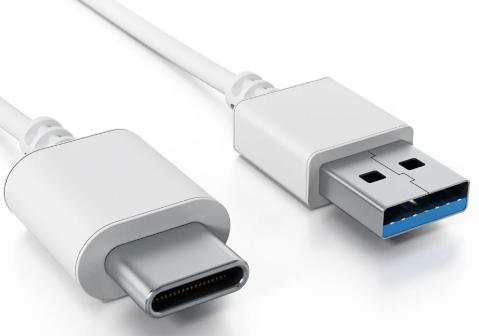
Different industries use USB 3.2 and USB‑C in distinct ways. Choosing the wrong combination can limit product performance.
Typical scenarios:
- Consumer electronics brands
- Use USB‑C connectors for smartphones, tablets and laptops to deliver a modern, reversible interface.
- Combine USB‑C with USB 3.2 Gen 1 or Gen 2 to support fast data and video in slim designs.
- Industrial and embedded systems
- May still rely on USB‑A connectors for ruggedness and legacy compatibility while upgrading the internal spec to USB 3.2.
- Select reinforced USB‑C solutions when compact size and high bandwidth are required in tight spaces.
- Professional AV and content creation
- Prefer USB‑C with USB 3.2 Gen 2 plus DP Alt Mode for high‑resolution displays and fast external SSDs.
For OEM and project buyers, defining the application scenario first greatly simplifies cable and connector decisions.
Selecting the right cable starts from the requirements of your device and application, not just the connector shape.
1. Define your primary goal
- High‑speed data transfer?
- Video output (4K/8K)?
- Simple charging and basic connectivity?
2. Confirm required USB standard
- USB 2.0 only (e.g., basic peripherals).
- USB 3.2 Gen 1 (up to 5 Gbps).
- USB 3.2 Gen 2 (up to 10 Gbps, video over DP Alt Mode).
3. Select connector types
- USB‑C to USB‑C for modern laptops, phones and hubs.
- USB‑A to USB‑C for compatibility with legacy hosts.
- Other interfaces (VGA, HDMI, DVI, SATA) via dedicated or combo cables, depending on your product portfolio.
4. Check feature support
- DP Alt Mode for video over USB.
- Power delivery level (e.g., 60 W vs 100 W).
- Backward compatibility with USB 2.0 devices and ports.
5. Review cable construction
- Shielding and conductor size for signal integrity.
- Over‑molding and strain relief for durability.
- Certification or compliance documentation for OEM projects.
When fast data transfer is critical, a USB 3.2‑rated cable is necessary, even if it uses a traditional connector such as USB‑A. When connector orientation and compact size matter most, a USB‑C cable is often the better choice.
In B2B and OEM projects, a few recurring mistakes often cause performance issues and customer complaints.
Typical mistakes:
- Equating USB‑C with high speed
- Assuming every USB‑C port or cable supports USB 3.2 leads to disappointed end users when speeds match USB 2.0 only.
- Ignoring DP Alt Mode support
- Not all USB‑C ports or cables can carry video; DP Alt Mode must be supported at both host and device level, plus the cable.
- Not checking labels and datasheets
- Relying on visual appearance instead of reading technical specifications risks choosing the wrong product grade.
How to avoid them:
- Always specify both the connector type (USB‑C, USB‑A, etc.) and the USB standard (USB 2.0, USB 3.2 Gen 1, Gen 2) in your RFQs and internal BOMs.
- Request testing reports and compliance information from your cable supplier, especially for 10 Gbps and video applications.
USB technology continues to evolve rapidly. While this article focuses on USB 3.2 and USB‑C, forward‑looking planning can protect your designs from early obsolescence.
Best practices for future‑proofing:
- Design products around USB‑C connectors where possible to align with global market trends and user expectations.
- Use cables and assemblies that at least support USB 3.2 Gen 1, even if current applications are less demanding.
- For performance‑critical products, choose USB 3.2 Gen 2 and DP Alt Mode‑capable solutions to support higher resolutions and faster storage devices.
This approach helps brands reduce redesign cycles and gives wholesalers and OEM partners a more competitive, long‑lasting product line.
If you are a brand owner, wholesaler or device manufacturer, you need more than theory. You need reliable, specification‑accurate cable assemblies that match your project requirements.
A professional cable OEM can support you with:
- Custom USB 3.2 Gen 1 and Gen 2 cables with USB‑A, USB‑C and other connectors.
- USB‑C cables optimized for reversible connection, compact devices and modern industrial designs.
- Mixed‑interface cables and accessories, including USB‑to‑VGA, USB‑to‑HDMI, USB‑to‑DVI and SATA cables, to support legacy displays and storage in hybrid systems.
By partnering with a specialized manufacturer, you gain:
- Engineering support to interpret USB specifications correctly.
- Product consistency across large orders.
- Faster time‑to‑market for new device launches.
If you are planning or upgrading a USB‑based device line and need the right mix of USB 3.2 performance and USB‑C connectivity, now is the time to define your cable strategy.
Contact our team to:
- Review your current USB cable and connector specifications.
- Get tailored recommendations for USB 3.2 Gen 1 / Gen 2 and USB‑C solutions.
- Develop OEM or private‑label cable products for global markets.
Reach out today to discuss your project requirements and request a customized quotation from our cable engineering specialists.
Contact us to get more information!
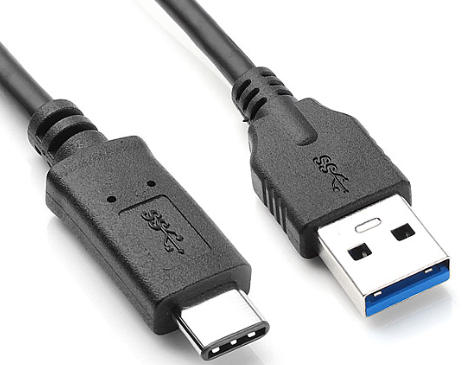
No. A USB‑C connector can be wired only for USB 2.0, for USB 3.2 Gen 1 or for USB 3.2 Gen 2, depending on device and cable design.
Yes. USB 3.2 Gen 1 is backward compatible with USB 2.0, but performance will be limited by the slowest component in the chain (device, host or cable).
For 4K and 8K video over USB‑C, you typically need USB 3.2 Gen 2 with DisplayPort Alt Mode support on host, device and cable.
You should check the printed specifications on the cable jacket, product label or datasheet, looking for references such as “USB 3.2 Gen 1,” “USB 3.2 Gen 2,” or “10 Gbps.”
Lower‑cost USB‑C cables are often limited to USB 2.0 speeds or reduced power capability, whereas higher‑quality cables support USB 3.2 data rates, DP Alt Mode and higher power delivery.


