
Views: 222 Author: Otechkabel Publish Time: 2026-05-14 Origin: Site


USB 2.0 and USB 3.0 ports can be distinguished quickly by their color, markings, internal pins, and real-world transfer speed, and understanding these differences helps users choose the right cable and port for their devices. As a cable manufacturer and OEM partner, you can also use this topic to build trust with buyers by explaining how you design, test, and label your USB cables for reliable performance. [anker]
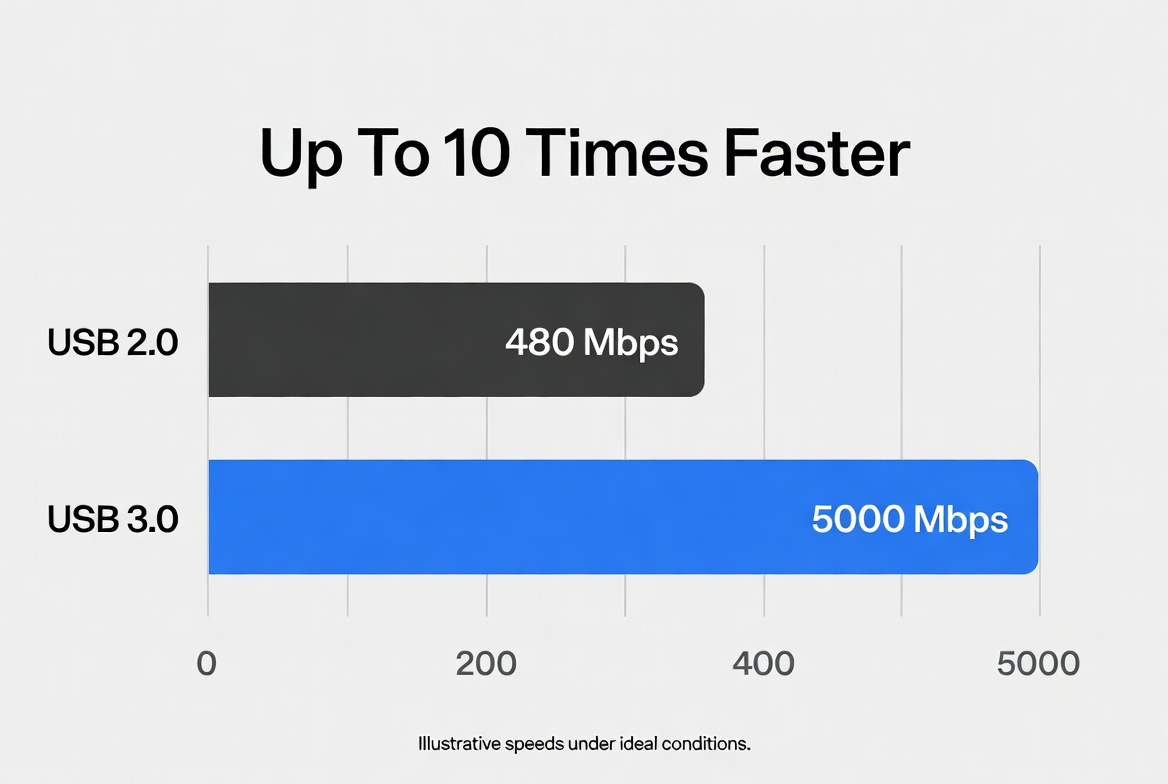
From a user's point of view, the main differences between USB 2.0 and USB 3.0 ports are speed, power delivery, and internal pin design. USB 3.0 (often called SuperSpeed USB) is up to 10 times faster than USB 2.0 and was designed to handle modern workloads such as HD video, external SSDs, and docking stations. [e-consystems]
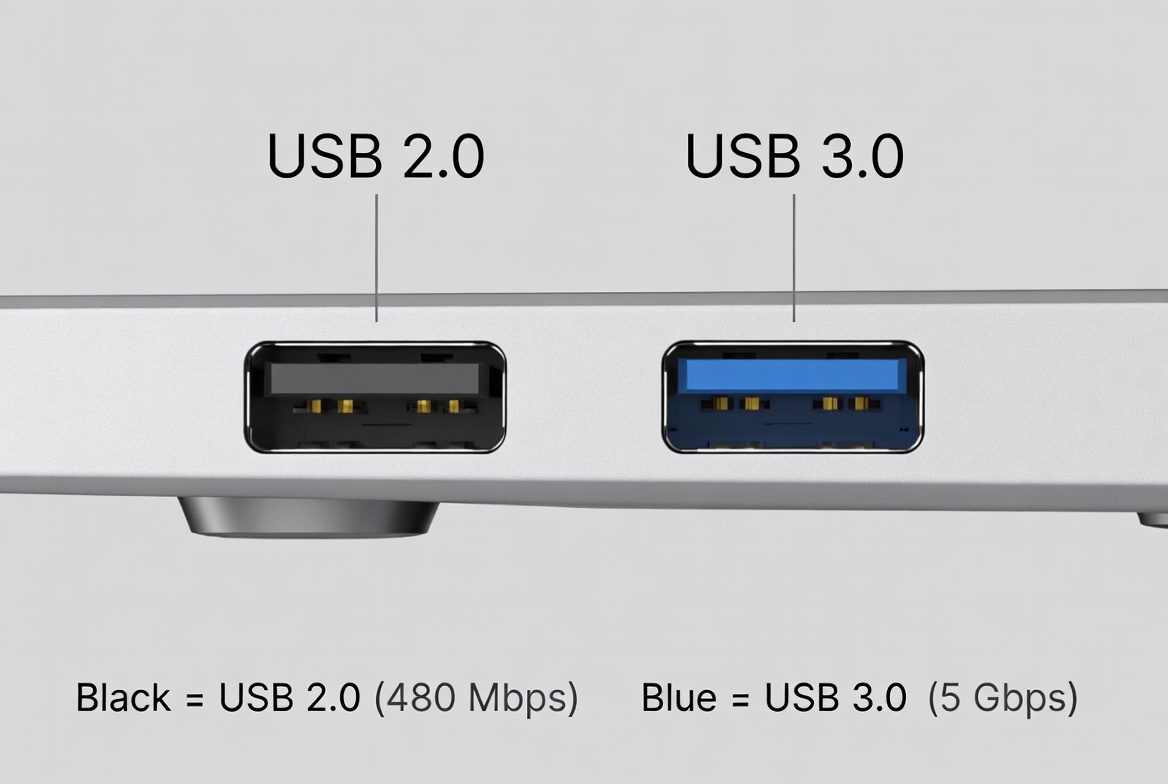
In real‑world troubleshooting, the fastest way most technicians use to distinguish USB 2.0 vs USB 3.0 ports is by port color. [adata]
- USB 2.0 ports
- Often black or white inside. [adata]
- Some OEMs use gray or other neutral tones, so color alone is not a guarantee.
- USB 3.0 ports
- Commonly blue inside, especially on PCs, laptops, and hubs. [wyrestorm]
- Blue is associated with SuperSpeed USB, but not all manufacturers follow this convention for aesthetic or branding reasons. [adata]
Best practice: Treat port color as a quick indicator, not a final verdict; always combine it with markings and pin layout. [adata]
When I audit customer devices in the field, I always look next at the markings next to the port. [wyrestorm]
Typical markings:
- USB 2.0 port
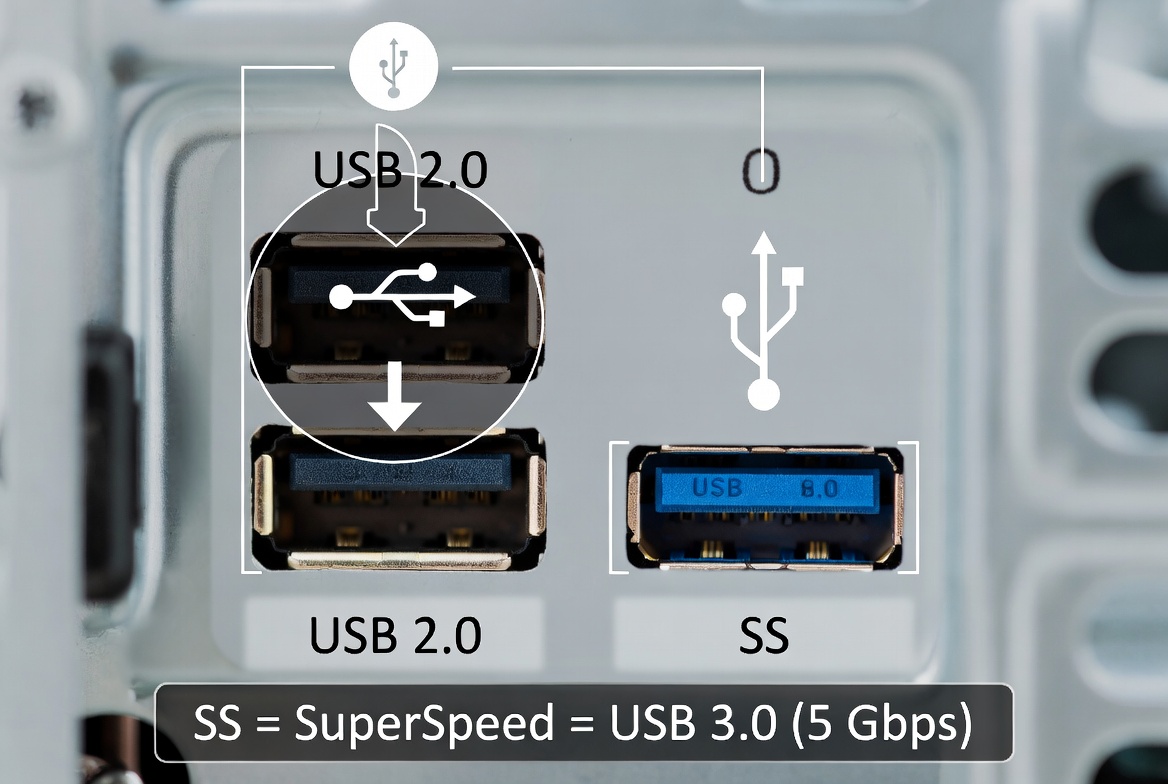
- Standard USB "trident" logo only (no speed label). [adata]
- USB 3.0 port
- USB trident logo plus "SS" (SuperSpeed) marking. [simplex-it]
- Sometimes marked with "3.0" or "SS10" on newer SuperSpeed+ variants. [embedded]
On many desktop motherboards and branded laptops, these markings are printed near the port or on the back panel text. [wyrestorm]
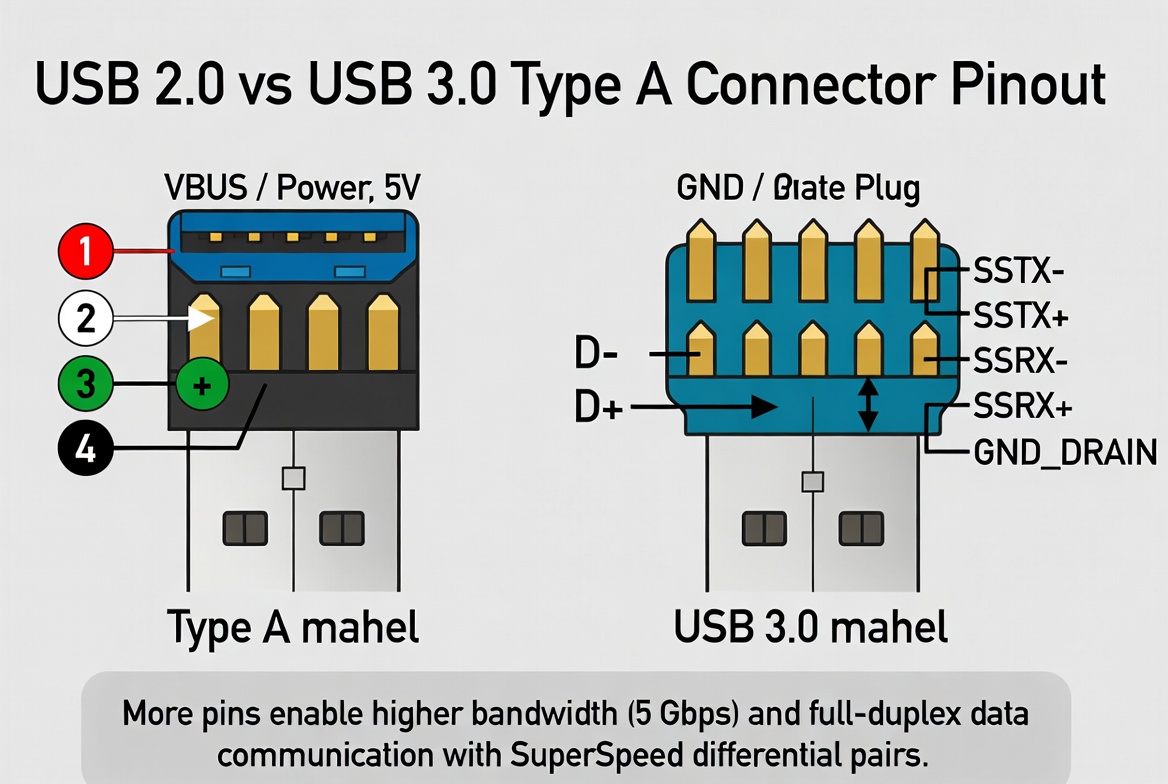
From a manufacturing and engineering perspective, the most fundamental difference between USB 2.0 and USB 3.0 ports is the number of metal contacts (pins) inside the connector. [sekorm]
- USB 2.0 port
- Typically 4 pins: power, ground, and a pair of data lines. [adata]
- USB 3.0 port
- Usually 9 pins: the original 4 pins plus 5 extra SuperSpeed pins to handle higher bandwidth and full‑duplex data. [e-consystems]
You can often see extra contacts deeper in the port or in the plastic tongue of the connector, especially when you compare a USB 2.0 and USB 3.0 plug side by side. [wyrestorm]
As a cable OEM, we design USB 3.0 cables with additional twisted pairs and shielding to support these extra SuperSpeed data lines, ensuring stable performance even at 5 Gbps. [embedded]
If users are still unsure, the most reliable way to distinguish USB 2.0 vs USB 3.0 is to test transfer speed. [wyrestorm]
- USB 2.0
- Theoretical maximum: 480 Mbps (about 60 MB/s). [anker]
- In practice, sustained speeds are often lower, depending on device and cable quality. [wyrestorm]
- USB 3.0
- Theoretical maximum: 5 Gbps (about 625 MB/s). [anker]
- Real‑world speeds depend on SSD/HDD performance, controller design, and firmware, but still far exceed USB 2.0 under the same conditions. [e-consystems]
Many users notice this when copying large video files: a USB 3.0 port can complete a transfer in a fraction of the time compared with USB 2.0 on the same device. [anker]
Pro tip: Encourage users to run a quick benchmark using widely available USB speed test tools; this quickly reveals if a port is truly SuperSpeed capable. [simplex-it]
For IT departments and power users, checking the operating system's device information is another robust method. [simplex-it]
On Windows: [simplex-it]
1. Open Device Manager.
2. Expand "Universal Serial Bus controllers."
3. Look for entries labeled "USB 3.0," "SuperSpeed," or "xHCI" controllers.
On other platforms, similar information may be available under System Information or About This Mac → System Report, with USB controllers categorized by version. [simplex-it]
This approach is especially useful when ports are not color‑coded or the markings are obscured. [wyrestorm]
| Parameter | USB 2.0 | USB 3.0 (SuperSpeed) |
|---|---|---|
| Max data rate | 480 Mbps | 5 Gbps (≈10× faster) |
| Typical use cases | Mice, keyboards, printers, low‑speed storage | External HDD/SSD, HD webcams, docks, displays |
| Number of contacts | 4 pins | 9 pins |
| Power delivery (bus) | Up to ~2.5 W | Up to ~4.5 W (higher power budget) |
| Signaling mode | Half‑duplex, "Hi‑Speed" | Full‑duplex, "SuperSpeed" |
| Backward compatibility | N/A | Backward compatible with USB 2.0 devices |
[embedded]
These technical differences explain why USB 3.0 is recommended for high‑bandwidth, high‑power applications, while USB 2.0 remains sufficient for basic peripherals. [e-consystems]
From the standpoint of a cable manufacturer working with overseas OEM brands, we see clear patterns in when USB 3.0 is essential and when USB 2.0 is still acceptable. [numerous]
Use USB 3.0 ports and cables when:
- Connecting external SSDs or high‑capacity HDDs for backup or video editing. [e-consystems]
- Running HD or 4K webcams, especially for conferencing or live streaming. [e-consystems]
- Driving USB docks with multiple displays, Ethernet, and hubs. [e-consystems]
- Handling large media transfer workloads in professional environments (studios, labs, factories). [anker]
USB 2.0 ports are still adequate for:
- Keyboards, mice, barcode scanners, and simple control interfaces. [e-consystems]
- Low‑resolution webcams, audio interfaces, and small peripherals with modest bandwidth needs. [e-consystems]
By aligning port and cable choices with actual application requirements, brands can optimize both cost and user experience. [sellerscommerce]
For non‑technical users, here's a step‑by‑step checklist to distinguish USB 2.0 vs 3.0 ports on a PC or device: [wyrestorm]
1. Look at the port color
- Blue inside: likely USB 3.0.
- Black/white: likely USB 2.0.
2. Check for markings
- "SS" or "3.0" = USB 3.0.
- USB logo only = often USB 2.0.
3. Test with a high‑speed device
- Connect an external drive and copy a large file; note the speed.
4. Confirm in the OS
- Use Device Manager or System Information to verify controller type.
5. Match cable to port
- Use labeled USB 3.0 cables (often with blue connectors or "SS" marking) for SuperSpeed ports.
Following this process reduces confusion and ensures that users fully benefit from SuperSpeed performance when it's available. [wyrestorm]
As an OEM cable producer for USB, VGA, HDMI, DVI, and SATA applications, we see firsthand how cable design and manufacturing influence the final user experience. [numerous]
Key factors:
- Conductor material and gauge
- Proper copper gauge reduces signal loss and voltage drop over longer lengths. [embedded]
- Twisted pair layout and shielding
- Correctly paired SuperSpeed lines and effective shielding help maintain stability at higher frequencies. [embedded]
- Connector precision and plating
- Tight tolerances and quality plating improve contact reliability and reduce wear over repeated insertions. [embedded]
- Compliance testing
- Professional manufacturers validate cables according to the relevant USB Implementers Forum specifications before mass production. [embedded]
When OEM brands select a cable partner who understands these details, they reduce field failures, RMA rates, and user frustration, especially for USB 3.0 and above. [sellerscommerce]
In practice, not all "USB 3.0" branded cables deliver consistent real‑world performance, especially at longer lengths or in noisy environments. Poor shielding, sub‑standard copper, or inconsistent manufacturing can limit speed to levels closer to USB 2.0, even when the ports and controllers are compliant. [embedded]
Some devices use blue ports for branding or aesthetics without full SuperSpeed capability, especially on very low‑cost hardware. That's why expert users always double‑check with OS information or a real‑world transfer test rather than relying on color alone. [simplex-it]
- If a "USB 3.0" port feels slow, test with a known‑good SuperSpeed cable and device.
- Ensure drivers and firmware are up to date, especially on Windows PCs. [simplex-it]
- Try a different port; some front‑panel connectors are wired only for USB 2.0 even on modern cases. [adata]
To improve user experience and engagement on your product or knowledge pages: [blog.contactpigeon]
- Insert annotated photos of USB ports on laptops, PCs, and hubs next to sections on color and markings.
- Add a simple infographic summarizing speed differences (USB 2.0 vs USB 3.0).
- Embed a short explainer video showing users how to test their ports with a USB drive.
- Use bold text for critical numbers (480 Mbps, 5 Gbps), port markings ("SS"), and key actions ("check Device Manager," "use SuperSpeed cables").
These elements help readers scan quickly, understand key differences, and apply them in real situations. [numerous]
For overseas brands, wholesalers, and device manufacturers, the choice of USB cable OEM partner directly affects product reliability and customer satisfaction. [sellerscommerce]
A capable partner should:
- Understand USB 2.0 and 3.0 specifications and testing requirements. [embedded]
- Offer customized lengths, connectors, and labeling for different target markets. [numerous]
- Provide consistent batch quality and clear documentation for OEM customers. [sellerscommerce]
- Support other interfaces such as VGA, HDMI, DVI, and SATA to simplify sourcing. [numerous]
When your cables and ports are correctly matched and clearly labeled, end users experience fewer failures, clearer guidance, and more confidence in your brand. [blog.contactpigeon]
If you need reliable USB 2.0 and USB 3.0 cables, or you want to standardize port and cable labeling across your device lineup, working with an experienced OEM manufacturer in Shenzhen can give you both technical assurance and competitive pricing. [sellerscommerce]
Whether you are a brand owner, wholesaler, or device manufacturer, you can:
- Request custom USB cable solutions tailored to your products.
- Align your port labeling and documentation with industry best practices.
- Improve your customers' experience by ensuring they always get the right speed from the right port.
Contact our team to discuss your next project, from USB, VGA, HDMI, and DVI cables to custom OEM packaging and branding. [numerous]
Check if the port is blue inside and has an "SS" or "3.0" marking next to the USB logo; then confirm by testing transfer speed with a high‑speed device or checking Device Manager. [simplex-it]
Yes, USB 3.0 ports are backward compatible, so USB 2.0 devices will work, but they will operate at USB 2.0 speeds. [adata]
You need a USB 3.0‑compliant cable with the extra pins and proper shielding; using a USB 2.0 cable with a USB 3.0 port and device will limit you to USB 2.0 performance. [e-consystems]
Bottlenecks can come from slow drives, outdated drivers, poor‑quality cables, or front‑panel ports wired for USB 2.0 only, so it's important to test each element in the chain. [simplex-it]
For basic peripherals like keyboards, mice, printers, and simple storage tasks, USB 2.0 is still sufficient, but for HD video, fast backup, and docking, USB 3.0 provides a much better experience. [anker]
1. Anker. "USB 2.0 vs 3.0: A Comparative Guide for Beginners 2026."
<https://www.anker.com/blogs/hubs-and-docks/usb-2-vs-usb-3> [anker]
2. WyreStorm. "USB 2.0 vs 3.0 Comparison: Do You Really Need USB 3.0?"
<https://www.wyrestorm.com/blog/usb-2-0-vs-usb-3-0-comparison/> [wyrestorm]
3. ADATA. "What are the differences between USB 2.0 and 3.0?"
<https://www.adata.com/in/quikTips/usb-2-vs-3-differences-speed-compatibility/> [adata]
4. e-con Systems. "USB 2.0 vs 3.0: Choosing the Right Standard for Your Application."
<https://www.e-consystems.com/blog/camera/technology/usb-2-0-vs-3-0-choosing-the-right-standard-for-your-application/> [e-consystems]
5. Simplex-IT. "USB 2.0 vs. USB 3.0: What's the Difference?"
<https://www.simplex-it.com/blog/usb-20-vs-usb-30-whats-the-difference> [simplex-it]
6. Varn. "How to write and review E-E-A-T SEO content."
<https://varn.co.uk/insights/how-to-write-eeat-content/> [varn.co]
7. ContactPigeon. "Product page best practices: The 38 most efficient tactics."
<https://blog.contactpigeon.com/product-page-best-practices/> [blog.contactpigeon]
8. SellersCommerce. "Practical Guide to Optimising Ecommerce Product Pages."
<https://www.sellerscommerce.com/blog/ecommerce-product-page-optimisation-guide/> [sellerscommerce]
9. PCM Cable. "How to distinguish between USB 2.0 and 3.0 ports?"
<https://www.pcm-cable.com/info/how-to-distinguish-between-usb-2-0-and-3-0-por-97562742.html>


