


Views: 249 Author: Otechkabel Publish Time: 2026-08-26 Origin: Site


Content Menu
● Quick Comparison of Soundbar Connection Methods
● 1. Connect a Soundbar to a TV With an Optical Cable
>> How to Set Up an Optical Connection
>> Select the Correct Audio Output Setting
● 2. Connect a Soundbar to a TV Through Bluetooth
>> How to Pair a Bluetooth Soundbar With a TV
>> How to Reduce Bluetooth Audio Delay
● 3. Use RCA Cables for Older TVs and Soundbars
>> How to Connect RCA Audio Cables
>> Check Whether the RCA Ports Are Outputs
● 4. Connect a Soundbar With a 3.5 mm AUX Cable
>> How to Connect a 3.5 mm AUX Cable
>> Fix Low Volume With AUX Connections
● 5. Use Wi-Fi, AirPlay, Chromecast, or Wireless Audio Systems
>> What to Check Before Using Wi-Fi Audio
● How to Choose the Best Connection Method
● Troubleshooting Common Soundbar Connection Problems
>> Sound Is Delayed Behind the Picture
>> Sound Comes From Both the TV and Soundbar
>> The Soundbar Produces Distorted or Intermittent Audio
● Cable and Adapter Selection Considerations
● FAQ
>> Can I connect a soundbar to a TV without HDMI?
>> Is optical better than Bluetooth for connecting a soundbar?
>> Can an optical cable provide surround sound?
>> Why is there no sound from my soundbar after using an optical cable?
>> Can I use my TV headphone jack for a soundbar?
>> Why is my Bluetooth soundbar audio delayed?
>> Can I use RCA cables for a soundbar?
>> How do I stop sound from playing through both my TV and soundbar?
| Connection Method | Cable Required | Audio Type | Audio Delay Risk | Best For |
|---|---|---|---|---|
| Optical / TOSLINK | Yes | Digital stereo and supported compressed surround sound | Low | Most TV and soundbar setups |
| Bluetooth | No | Wireless compressed audio | Medium to high | Cable-free installations |
| RCA | Yes | Analog stereo | Low | Older TVs and soundbars |
| 3.5 mm AUX | Yes | Analog stereo | Low | Simple and budget-friendly setups |
| Wi-Fi / Casting | Usually no | Depends on device ecosystem | Variable | Smart-home and multi-room audio |

An optical cable is also called a TOSLINK cable or digital optical audio cable. It transfers audio as light signals through a fiber-optic core, rather than through conventional electrical conductors.
This is one of the most reliable ways to connect a TV to a soundbar without HDMI. Optical audio is widely available on televisions, including many older models that do not support HDMI ARC.
An optical connection can carry stereo PCM audio and, when both devices support it, compressed surround sound formats such as Dolby Digital. However, optical does not have enough bandwidth for advanced lossless formats typically associated with HDMI eARC.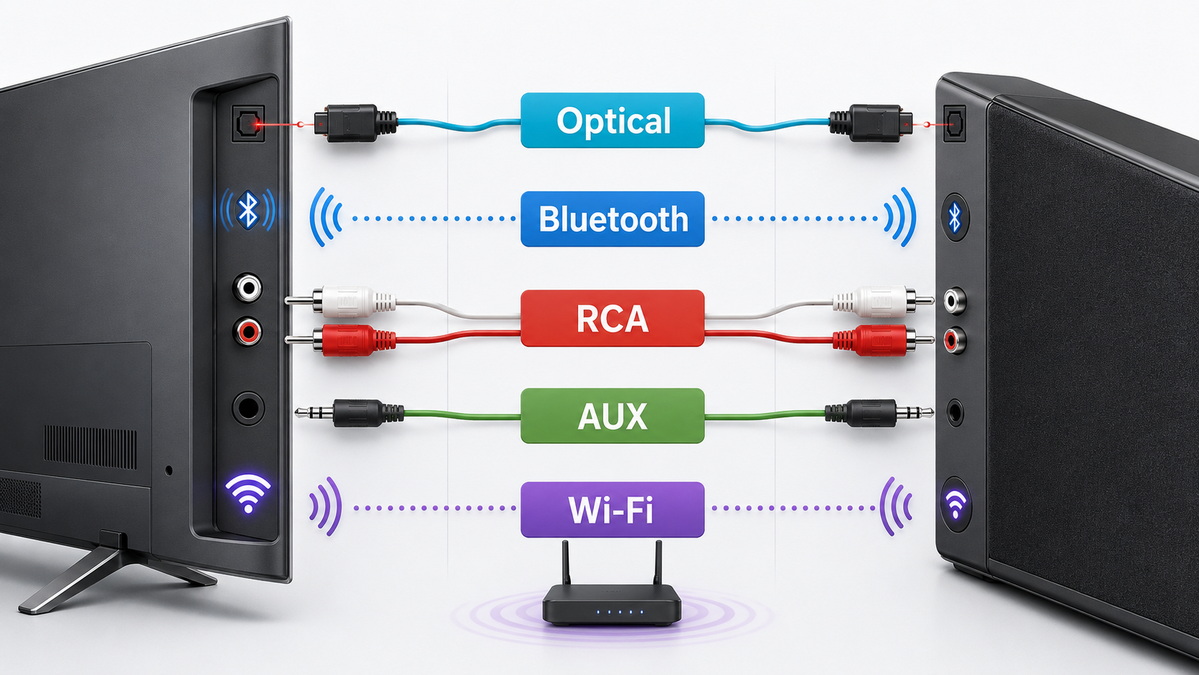
- A TV with an Optical Out or Digital Audio Out (Optical) port
- A soundbar with an Optical In port
- One optical TOSLINK audio cable
1. Remove the protective caps from both ends of the optical cable.
2. Locate the square-shaped Optical Out port on the TV.
3. Insert one end into the TV's optical output port.
4. Connect the other end to the soundbar's Optical In port.
5. Turn on the soundbar and select the optical input.
6. Open the TV sound settings.
7. Choose Optical, Digital Audio Out, or External Speaker.
8. Test the connection using a TV show, movie, or music video.
The soundbar input may be marked as OPT, Optical, D.IN, Digital In, or TV. The exact label depends on the product design.
If you hear no sound after connecting an optical cable, the TV output format may not match the soundbar's supported format.
Try these settings:
- Select Auto, Bitstream, or Dolby Digital if your soundbar supports Dolby Digital.
- Select PCM if the soundbar supports only stereo audio or if Auto produces no sound.
- Select External Speaker to stop sound from playing through the TV's built-in speakers.
- Restart both devices after changing audio settings.
Bluetooth is a convenient option when you want to avoid visible cables. It can be useful for wall-mounted televisions, rented apartments, offices, hotel rooms, and simple home entertainment setups.
However, Bluetooth may create a slight delay between video and sound. This is known as lip-sync delay. The delay can vary depending on the TV, soundbar, Bluetooth version, wireless interference, and internal audio processing.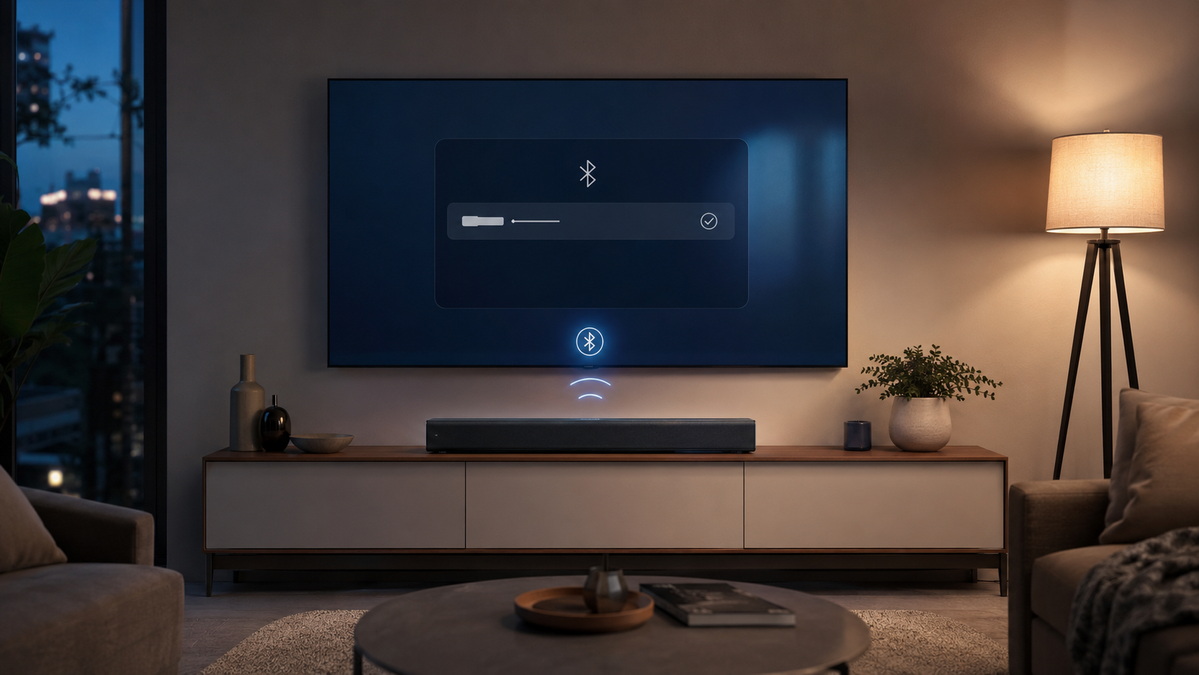
- A Bluetooth-enabled TV
- A Bluetooth-enabled soundbar
- Access to the Bluetooth pairing settings on both devices
1. Turn on the TV and soundbar.
2. Press the Bluetooth or Pair button on the soundbar.
3. Wait until the soundbar enters pairing mode.
4. Open the TV settings menu.
5. Select Sound, Audio Output, or Bluetooth Devices.
6. Search for available Bluetooth devices.
7. Choose your soundbar from the device list.
8. Confirm the connection and play a video to test audio.
Some soundbars automatically reconnect when they are powered on. Others may require you to select the soundbar again from the TV's Bluetooth menu.
- Enable Lip Sync, AV Sync, or Audio Delay in the TV settings.
- Update the firmware of both the TV and soundbar.
- Keep the soundbar close to the TV.
- Reduce interference from Wi-Fi routers, wireless keyboards, and other Bluetooth devices.
- Turn off unnecessary motion processing or image enhancement features.
- Select PCM or stereo output if advanced audio processing creates delays.
- Use optical audio if delay remains noticeable.
Bluetooth is usually suitable for everyday television, news, casual streaming, and background audio. It may be less suitable for fast gaming, live performances, sports, or movies with frequent close-up dialogue.
RCA cables are one of the most common analog audio connection methods. They use a red connector for the right audio channel and a white connector for the left audio channel.
This method is useful for older TVs, entry-level soundbars, hospitality displays, and basic audio systems. RCA delivers stereo sound, but it does not carry advanced digital surround sound formats.
- A TV with red-and-white Audio Out ports
- A soundbar with red-and-white *Audio In ports
- One stereo RCA audio cable
1. Locate the red and white RCA Audio Out ports on the TV.
2. Insert the white plug into the port marked L or Left.
3. Insert the red plug into the port marked R or Right.
4. Connect the other ends to the soundbar's RCA input ports.
5. Select AUX, Line In, or RCA on the soundbar.
6. Open the TV audio settings and select External Speaker or Audio Out.
This is an important step. Some TVs have RCA ports designed only for incoming signals from DVD players, game consoles, or other media devices.
Look carefully at the port labels:
- Audio Out means the port can send audio to a soundbar.
- Audio In means the port receives audio from another device.
- AV In usually means the port is for video and audio input.
- Component In is not normally used to send audio from the TV to a soundbar.
A 3.5 mm AUX cable is another simple way to connect a soundbar to a TV without HDMI. This connection uses the TV's headphone jack and the soundbar's AUX or Line In port.
It is especially useful when the TV does not have optical output or RCA audio output but does include a standard 3.5 mm headphone jack.
- A TV with a 3.5 mm headphone or audio output
- A soundbar with a 3.5 mm AUX or Line In port
- One male-to-male 3.5 mm stereo AUX cable
If the soundbar has RCA inputs instead of a 3.5 mm AUX input, use a 3.5 mm-to-RCA audio cable.
1. Plug one end of the cable into the TV's headphone jack.
2. Plug the other end into the soundbar's AUX or Line In port.
3. Select AUX or Line In on the soundbar.
4. Open the TV sound menu.
5. Select Headphone, Audio Out, or External Speaker.
6. Start at a low volume level and increase it gradually.
A headphone output is often a variable-level output. This means the TV remote may control its volume directly. If the sound seems weak, check these settings:
- Headphone Volume
- Audio Out Level
- Fixed Output
- Variable Output
- TV Speaker
- Headphone Speaker Link
When possible, select a fixed-level output and control the listening volume from the soundbar. This makes day-to-day operation easier and provides more consistent audio levels.
Some soundbars support Wi-Fi-based audio systems. These may include AirPlay, Chromecast, multi-room audio platforms, or brand-specific wireless technologies.
This can be convenient if your soundbar is already part of a smart-home audio environment. However, not every wireless soundbar can receive all TV audio without a cable.
A soundbar may support music streaming through Wi-Fi but still require a wired connection for live TV, game consoles, cable boxes, or other video sources.
- Confirm that the TV supports the same wireless audio platform as the soundbar.
- Confirm that both devices are connected to the same Wi-Fi network.
- Check whether TV audio works from all input sources.
- Test whether there is a noticeable sound delay.
- Confirm whether the feature supports stereo only or enhanced audio modes.
- Check whether the connection remains stable after power cycling the TV or soundbar.
The best connection is not always the newest one. It is the method that matches your equipment, sound expectations, installation environment, and budget.
Choose an optical cable when both devices have optical ports and you want stable digital audio.
Choose Bluetooth when you want a clean installation with no visible cable and can accept possible audio delay.
Choose RCA when you are working with older TVs or basic stereo soundbars.
Choose 3.5 mm AUX when your TV has a headphone output and you need an affordable stereo audio solution.
Choose Wi-Fi audio when the TV and soundbar are part of the same compatible wireless ecosystem.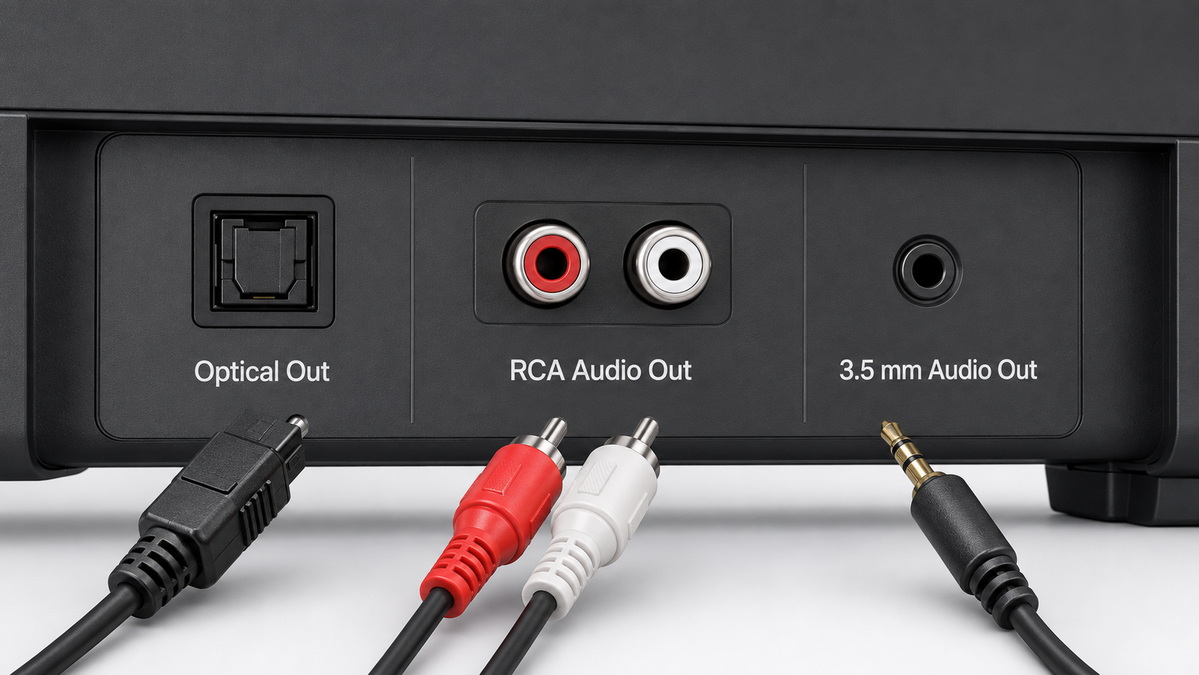
Most soundbar connection problems are caused by settings, port confusion, input selection, or audio-format mismatch. Before replacing your cable or soundbar, work through the following checklist.
1. Make sure the soundbar is switched on.
2. Confirm the soundbar is set to the correct input.
3. Confirm the TV is set to External Speaker, Audio Out, or the correct audio output.
4. Check that the cable is connected to a TV output and soundbar input.
5. Try another program, streaming app, or external source.
6. Restart the TV and soundbar.
7. Test the connection with another compatible cable.
8. Change the TV digital audio output to PCM.
- Use the TV's Lip Sync, AV Sync, or Audio Delay control.
- Test a wired optical connection instead of Bluetooth.
- Update device firmware.
- Disable heavy TV image processing.
- Re-pair Bluetooth devices.
- Reduce wireless interference near the TV.
Disable the TV's internal speakers by selecting External Speaker, Audio System, Audio Out, or a similar setting. If the TV offers a speaker-link setting, turn it off unless it is required for the selected connection method.
- Reconnect the cable firmly.
- Check whether the cable is sharply bent, loose, or damaged.
- Set the TV output to PCM.
- Test another sound source.
- Move Bluetooth devices closer together.
- Turn off other nearby wireless devices temporarily.
For TV and soundbar connections, cable quality is not only about appearance. The connector fit, conductor structure, shielding, molding design, and product labeling can affect installation convenience and long-term use.
When selecting or developing audio cables and adapters, consider the following:
- Connector type: Optical TOSLINK, 3.5 mm stereo, RCA, or conversion cable
- Connection direction: Important for active audio converters and some adapter designs
- Port function: Confirm whether the TV port is an output and whether the soundbar port is an input
- Cable length: Choose a length that reaches comfortably without unnecessary loops
- Connector housing: A compact molded plug can fit better behind wall-mounted TVs
- Packaging information: Clear port diagrams and connection instructions can reduce support requests
- Customization requirements: Cable color, logo, packaging, connector design, labeling, and technical specifications
Shenzhen Otechkabel Electronic Co., Ltd. manufactures cable and cable-accessory products for overseas brands, wholesalers, and manufacturers. Its OEM capabilities cover a wide range of cable and connectivity products, including USB, VGA, HDMI, DVI, SATA cables, adapters, hubs, splitters, switches, and related accessories.
For soundbar and home-entertainment product ranges, suitable product categories may include optical audio cables, 3.5 mm AUX cables, RCA audio cables, audio adapters, and customized retail-ready cable packaging.
A TV without HDMI ARC or eARC can still connect to a soundbar through several practical methods. An optical cable is usually the strongest all-around option because it offers stable digital sound and avoids most wireless delay issues.
Bluetooth is useful for cable-free rooms, but users should check for lip-sync delay. RCA and 3.5 mm AUX remain dependable choices for older equipment and stereo audio. Wi-Fi-based audio can work well in compatible ecosystems, although its functionality varies by device and source.
Before selecting a cable, check the exact ports on both devices and confirm whether the TV is sending audio through an output port. A compatible cable, correct input selection, and proper TV audio settings are the foundation of a stable soundbar connection.
For brands, wholesalers, and manufacturers planning soundbar accessories or home-entertainment cable ranges, Shenzhen Otechkabel Electronic Co., Ltd. supports custom cable specifications, connector options, private-label branding, retail packaging, and OEM production requirements.
Yes. You can connect a soundbar through an optical cable, Bluetooth, RCA cables, a 3.5 mm AUX cable, or a compatible Wi-Fi audio system. The available ports on your TV and soundbar determine which option will work.
Optical is usually better for TV viewing because it provides a stable wired digital connection and has a lower risk of audio delay. Bluetooth is more convenient when you want no visible cable, but it may cause lip-sync issues.
An optical cable can support stereo PCM audio and some compressed surround formats when the TV, soundbar, and content all support them. It does not support the high-bandwidth lossless audio formats generally associated with HDMI eARC.
Check that the soundbar is set to Optical or Digital In. Then check that the TV audio output is set to Optical, Digital Audio Out, or External Speaker. If there is still no sound, change the TV output format to PCM.
Yes. If your TV has a 3.5 mm headphone jack and your soundbar has an AUX or Line In port, you can use a 3.5 mm stereo AUX cable. If the soundbar only has RCA input ports, use a 3.5 mm-to-RCA cable.
Bluetooth requires wireless audio processing, which can delay the sound behind the video. Use the TV's audio-delay controls, update both devices, reduce interference, or switch to an optical cable for a more stable connection.
Yes, provided the TV has red-and-white RCA Audio Out ports and the soundbar has RCA Audio In ports. RCA supports analog stereo audio and is a practical choice for many older TVs and soundbars.
Open the TV sound settings and select *External Speaker*, *Audio Out*, or *Audio System*. This normally disables the built-in TV speakers and directs audio to the soundbar.
1. FYCables. "[Connecting a Soundbar to TV Without HDMI: 5 Simple Methods]."
2. Sony. "[My TV Doesn't Output Sound Through the Digital Audio Out (Optical) Port]."
3. Sony. "[Setting Sound for Digital Audio Output]."
4. Sony. "[How to Switch Between Dolby Digital Sound and LPCM Sound]."
5. Monoprice Support. "[What Audio Formats Does S/PDIF Support?]."
6. Cabletime. "[HDMI ARC Versus Optical Cables: A Comparison of Sound Quality]."
7. Google TV Help Community. "[Bluetooth Audio Delay With Google TV]."
8. XGIMI. "[Projector Bluetooth Audio Lag: 5 Fast Fixes for Lip Sync]."


