
Views: 222 Author: Rebecca Publish Time: 2026-02-24 Origin: Site


Content Menu
● USB Type A vs Type C: Physical Design and User Experience
>> Reversibility and Ease of Use
● USB Speed: How Fast Are USB Type A and Type C?
● Power Delivery and Charging Performance
>> Power Capabilities of USB Type A
>> Power Capabilities of USB Type C
● Functionality: Data, Power, Video, and Audio
>> Where USB Type A Is Still Strong
>> Where USB Type C Is Dominant
● Common Cable Types: USB-A to USB-C vs USB-C to USB-C
● How to Identify Your USB Connector at a Glance
● Expert Tips for Choosing USB Cables for Different Applications
● How OTECHKABEL Supports Your USB-A and USB-C Projects
● FAQ: USB Type A and USB Type C
>> 1. Is USB Type C always faster than USB Type A?
>> 2. Can I plug USB Type A into a USB Type C port directly?
>> 3. Do all USB Type C cables support fast charging?
>> 4. Why do many chargers still have USB Type A ports if USB Type C is more advanced?
>> 5. How can I know if my USB Type C port supports video output?
Learn the key differences between USB Type A and USB Type C, including connector design, data speed, power delivery, and real-world use cases. Discover how to identify each connector at a glance, when to use USB-A or USB-C in different scenarios, and how to select the right cable structure for your devices and projects. At the end, you will also see how OTECHKABEL can support your OEM and customized cable needs.

USB Type A is the classic, rectangular USB connector that has been used on computers and chargers for more than two decades.
- Flat, rectangular plug, approximately 12 mm × 4.5 mm.
- Can only be inserted in one direction.
- Common on desktops, laptops, TVs, game consoles, set-top boxes, and power adapters.
Typical use cases include:
- Connecting keyboards, mice, printers, scanners, barcode readers, and USB flash drives.
- Connecting external hard drives and many older USB hubs.
- Charging phones, tablets, and power banks via USB-A ports on chargers, sockets, or power strips.
USB Type A remains extremely common thanks to its long history and huge installed base, especially in office, home, and industrial environments that still rely on legacy devices.
USB Type C, often called USB-C, is a newer connector designed to be smaller, reversible, and more versatile than older USB types.
- Compact, slightly oval connector, around 8.3 mm × 2.5 mm.
- Fully reversible, so you can plug it in either way.
- Supports high-speed data, high-power charging, and multiple signal types over a single port in many devices.
Typical use cases include:
- Smartphones, tablets, and most modern laptops and ultrabooks.
- Docking stations, USB-C hubs, and external SSDs.
- Monitors and displays with USB-C input, as well as many new accessories and peripherals.
USB Type C has quickly become the preferred connector standard in new consumer and professional electronics, especially where compact design and high performance are required.
- USB Type A has a larger, flat rectangular profile that requires more panel space and does not suit very thin devices.
- USB Type C has a smaller, rounded-rectangle profile that is much more suitable for slim phones, tablets, and laptops.
The compact size of USB-C allows manufacturers to design thinner devices and combine multiple functions through a single port, which is difficult with the larger USB-A interface.
- USB Type A is not reversible. Users must align the plug correctly with the port, which often leads to trial-and-error.
- USB Type C is fully reversible, so it can be inserted in either orientation.
This simple change significantly improves everyday usability, especially when plugging cables in low-light environments or behind equipment racks.
The maximum data rate depends on the USB version (USB 2.0, USB 3.0, USB 3.1, USB 3.2, USB4, etc.), not only the connector shape. However, USB Type C is more commonly associated with the latest high-speed standards.
| Connector & Typical Standard | Typical Max Speed | Typical Usage Scenario |
|---|---|---|
| USB-A (USB 2.0) | Up to 480 Mbps | Basic peripherals, simple storage, low-cost devices. |
| USB-A (USB 3.0 / 3.2 Gen 1) | Up to 5 Gbps | External HDDs, faster USB flash drives, newer PCs. |
| USB-C (USB 3.1 / 3.2) | Up to 10–20 Gbps | External SSDs, high-speed interfaces, docks. |
| USB-C (USB4 / Thunderbolt) | Up to 40 Gbps | Professional docking, high-res displays, fast external storage. |
In real-world use, USB-C connections are usually the best choice for tasks such as:
In real-world use, USB-C connections are usually the best choice for tasks such as:
- Transferring large media files and backups.
- Running external SSDs at high speed.
- Handling multiple high-bandwidth functions through a single port, such as data, video, and network.
USB Type A originated in an era of lower power requirements.
- Early USB Type A ports based on USB 2.0 typically provided up to 2.5 W (5 V, 0.5 A).
- With later charging standards and USB 3.x, some USB-A ports can offer more power, but they are still limited compared to modern USB-C PD.
These levels are adequate for basic phone charging, small accessories, and low-power devices, but they are not ideal for fast charging or powering modern laptops.
USB Type C was designed with much higher power delivery in mind, especially when combined with USB Power Delivery (USB PD):
- USB-C with PD can support high power profiles, suitable for fast charging smartphones, tablets, and notebooks.
- Newer PD revisions support up to very high wattages, enough for power-hungry devices such as gaming laptops and some monitors.
This is why many new laptops and higher-end smartphones now use USB-C as the primary or only charging port.
USB Type A primarily carries data and power. When used for video or more complex functions, it usually relies on special adapters and is more limited in capability.
USB Type C, by contrast, is often implemented as a multi-function interface:
- It can transport data, power, and in many devices also video and audio.
- Many USB-C ports support alternate modes, such as DisplayPort Alt Mode, allowing a direct connection between a USB-C port and a monitor.
- Through a single USB-C cable, a laptop can connect to a docking station that adds Ethernet, USB-A ports, audio, and one or more displays.
This combination of functions makes USB-C very attractive for modern workstations and mobile setups, where users want to reduce the number of cables.
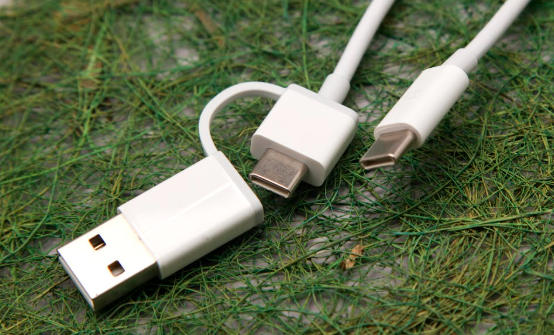
USB Type A remains important because of its long history and large installed base:
- Many desktop PCs, industrial PCs, older laptops, printers, TVs, and network equipment offer only USB-A ports.
- Numerous chargers, power strips, and car adapters still feature USB-A outputs.
- Many low-cost peripherals and accessories continue to use USB-A connectors.
In these environments, USB-A cables and accessories continue to be essential.
USB Type C has become the default choice on many new devices:
- Most new Android phones and tablets.
- Many ultrabooks and thin-and-light laptops.
- Docking stations, hubs, newer external SSDs, and a growing number of monitors.
During this long transition period, users often need both types of cables and adapters: USB-A on the host side and USB-C on the device side, or USB-C on both ends for the newest devices.
Choosing the right cable is critical for stable performance and safety.
These cables have a USB-A plug on one end and a USB-C plug on the other.
They are typically used when:
- The charger, PC, or hub has only USB-A ports.
- The target device (phone, tablet, power bank, some accessories) uses USB-C.
Key characteristics:
- Speed and charging performance are often limited by the USB-A side and the supported USB generation.
- Suitable for everyday charging and moderate data transfer, especially when no USB-C port is available on the host device.
These cables use USB-C connectors on both ends.
They are typically used when:
- Both the charger and the device feature USB-C ports.
- You need high-speed data transfer and advanced functions.
- You want to take full advantage of USB Power Delivery or USB4/Thunderbolt features.
Key characteristics:
- Required for many laptop fast-charging applications.
- Often essential for docking stations and high-end external drives.
In general, USB-C to USB-C cables are the better option for new device ecosystems, while USB-A to USB-C cables help bridge the gap between older and newer equipment.
To avoid confusion, you can quickly identify connector types from their shape and markings.
- If the plug is wide and rectangular, and only fits one way, it is most likely USB-A.
- If the plug is smaller, more rounded, and works in both orientations, it is USB-C.
- Many USB-A ports with higher-speed support use colored plastic (for example, blue) or markings such as “SS” to indicate USB 3.x.
- USB-C ports may carry symbols for Thunderbolt, display output, or charging to indicate special capabilities.
Checking these visual clues on your equipment helps you choose the correct cable type and performance level.
When selecting USB-A or USB-C cables for personal, commercial, or industrial use, consider the following points.
1. Connector Types on Both Ends
- Identify the port type on the host side (PC, charger, docking station) and the device side (phone, tablet, storage, monitor).
- Choose USB-A to USB-C or USB-C to USB-C accordingly.
2. Required Data Speed
- For simple peripherals and basic charging, cables that support USB 2.0 speeds are usually sufficient.
- For external SSDs, high-resolution video, and docking stations, choose cables that support USB 3.x or USB4 over USB-C.
3. Power Requirements
- For small devices like phones and earbuds, lower-power cables can work.
- For laptops, tablets, and high-power equipment, select USB-C cables rated for the necessary wattage and compliant with USB Power Delivery.
4. Environment and Durability
- In automotive, industrial, and embedded environments, use shielded cables with robust overmolding and strain relief.
- Consider panel-mount or flush-mount cable designs when you need fixed connectors on enclosures or control panels.
5. Compliance and Quality
- Use cables that follow relevant USB specifications to ensure stable performance and safety.
- For professional and OEM applications, work with manufacturers who can provide testing reports and consistent quality control.
As a professional manufacturer of USB, VGA, HDMI, DVI, SATA cables, and cable accessories, OTECHKABEL provides OEM services for overseas brands, wholesalers, and device manufacturers.
Our capabilities include:
- Customized USB-A to USB-C and USB-C to USB-C cable assemblies for consumer, industrial, automotive, and embedded applications.
- Flexible design options covering wire gauge, shielding, jacket materials, connector plating, and molding styles to match both performance needs and market positioning.
- Engineering support to help you define the right cable structure according to your devices' power, data, and environmental requirements.
- Stable production capacity and quality management suitable for long-term OEM cooperation and multi-country distribution.
Whether you are developing a new device series, upgrading an existing product line, or integrating USB connections into system-level solutions, you can work with OTECHKABEL to obtain reliable, consistent, and brand-matched cable products.
If you are planning a new project or upgrading your product line and need reliable USB-A or USB-C cable solutions, OTECHKABEL is ready to support you. Tell us about your connector requirements, cable length, performance targets, and application environment, and our engineering team will help you define the right cable structure and specifications.
Contact OTECHKABEL today to discuss your OEM USB cable needs, request samples, and start building customized, high-quality cables that match your brand and market.
Contact us to get more information!
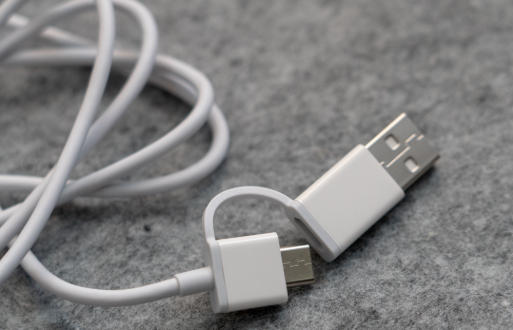
USB Type C is often associated with the latest high-speed standards, but the actual speed depends on the USB version, such as USB 2.0, USB 3.2, or USB4. A USB-C port that only implements USB 2.0 will not be faster than a USB-A port that supports USB 3.0. However, in modern devices, USB-C is more likely to support higher speeds, making it the better choice for demanding tasks.
No. USB Type A and USB Type C connectors have different shapes and sizes, so they are not directly interchangeable. To connect devices with different connector types, you need a suitable adapter, a hub with multiple port types, or a USB-A to USB-C cable.
Not all USB-C cables are created equal. Some are designed only for basic charging and low-speed data, while others support high-current USB Power Delivery and fast charging. When choosing a cable for fast charging, check the rated current, voltage, and compatibility with your charger and device.
Many households and offices still use a large number of USB-A cables and devices. To maintain broad compatibility and reduce replacement costs, many chargers and multi-port power strips continue to include USB-A outputs alongside newer USB-C ports. This hybrid design helps users transition more smoothly to the USB-C ecosystem.
Not every USB-C port supports video. To confirm, check your device's specifications or look for specific symbols near the port, such as a small display icon or a Thunderbolt logo. These markings usually indicate that the USB-C port can carry video signals, often via DisplayPort Alt Mode or a similar technology.
1. https://www.maplin.co.uk/blogs/expert-advice/usb-a-vs-usb-c-differences-benefits-and-more
2. https://www.anker.com/blogs/cables/usb-a-vs-usb-c
3. https://www.ecoflow.com/us/blog/usb-a-vs-usb-c-whats-the-difference
4. https://www.usbmemorydirect.com/blog/usb-a-vs-usb-c
5. https://www.l-com.com/resources/blog/what-is-usb-a-understanding-the-classic-connector
6. https://www.tomsguide.com/news/usb-c-vs-usb-a


