


Views: 222 Author: Rebecca Publish Time: 2026-02-15 Origin: Site


Content Menu
● What Are USB Type A and USB Type C?
>> USB Type A: The traditional rectangular connector
>> USB Type C: The modern reversible standard
● USB-A vs USB-C: Quick Technical Comparison
● Key Characteristics of Type A Cables
>> Form factor and compatibility
>> Power and charging capabilities
>> Typical applications of Type A cables
● Key Characteristics of Type C Cables
>> Physical design and user convenience
>> High-speed data and multi-protocol support
>> Power Delivery (USB PD) and fast charging
>> Advanced safety and identification features
● A–C vs C–C Cables: Practical Use Cases
● Real-World Scenarios: When to Choose Type A or Type C
>> Choose Type A cables if you:
>> Choose Type C cables if you:
>> Typical A–C and C–C scenarios
● Best Practices for Selecting High-Quality USB Cables
>> Check connector type and application
>> Match cable specifications to performance needs
>> Prioritize safety, durability, and certification
● How a Professional OEM Cable Manufacturer Can Support Your Projects
● Clear Call to Action: Start Your Next USB Cable Project With Confidence
● Frequently Asked Questions (FAQ)
>> 1. Is USB-C always faster than USB-A?
>> 2. Can I charge my phone with any USB-C cable?
>> 3. Do all USB-C cables support video output?
>> 4. Are USB-A ports going away completely?
>> 5. How can I tell if a USB-C cable is high quality?
USB Type A and USB Type C are the two most common connector standards in today's devices, but they differ greatly in shape, speed, and power capabilities. Understanding these differences helps buyers, engineers, and IT teams select the right cable for each application and avoid compatibility issues.

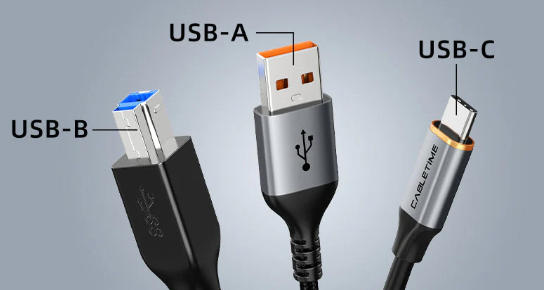
USB Type A is the classic rectangular USB connector found on PCs, chargers, TVs, and many legacy devices. It has a one-way plug orientation, which means it is not reversible and must be inserted in a specific direction.
USB Type A is common on desktops, docking stations, wall chargers, and older peripherals. It typically supports USB 2.0 or USB 3.0 data standards, depending on the device and cable construction.
USB-A ports usually offer 480 Mbps (USB 2.0) or 5 Gbps (USB 3.0) maximum data rates. This makes them suitable for everyday peripherals and storage devices that do not require the very highest data throughput.
USB Type C is a smaller, reversible connector designed to unify data, power, and video in a single interface. The connector can be inserted in either orientation, which greatly improves ease of use.
USB-C is widely used on modern laptops, tablets, smartphones, and monitors. It can support advanced protocols such as USB 3.1, USB 3.2, USB4, Thunderbolt, DisplayPort Alt Mode, and USB Power Delivery (USB PD), depending on the implementation.
In many new devices, USB-C has replaced USB-A as the main port for charging and high-speed data. It is increasingly becoming the default connector standard in both consumer and professional equipment.
| Feature | USB Type A | USB Type C |
|---|---|---|
| Connector shape | Large rectangular, one-way insert | Small oval, fully reversible insert |
| Typical data standard | USB 2.0 / USB 3.0 | USB 3.1, USB 3.2, USB4, Thunderbolt (varies by device) |
| Typical max data rate | 480 Mbps (2.0), 5 Gbps (3.0) | Up to 10–20 Gbps (3.1/3.2), higher with USB4/Thunderbolt |
| Power delivery capacity | Commonly up to around 7.5 W for charging | Up to 100 W with USB PD; newer specs up to 240 W |
| Video output | Requires dedicated ports like HDMI/DP, or adapters | Supports DisplayPort/Alt Mode on capable devices |
| Device adoption | Legacy PCs, TVs, printers, older peripherals | New phones, laptops, tablets, hubs, docks |
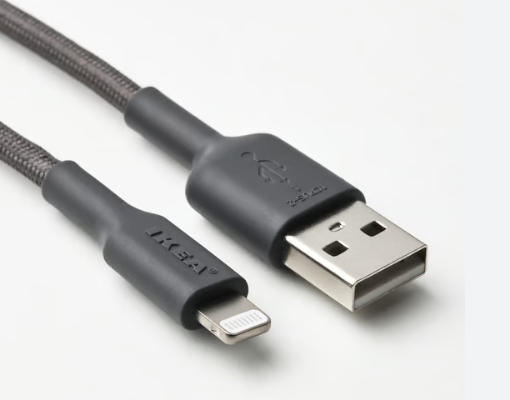
A Type A cable usually has a USB-A male connector on at least one end, designed to plug into host devices like PCs, laptops, or chargers. It can be paired with various connectors on the other end, depending on the target device.
Common configurations include A–B, A–micro-B, A–Lightning, and A–C. Type A cables are backward compatible with older USB versions such as 2.0 and 3.0, subject to host and device capabilities.
In many office, industrial, and home environments, Type A cables remain important because of the large installed base of equipment that still relies on USB-A ports.
Most USB-A ports and cables are associated with USB 2.0 or USB 3.0 standards. USB 2.0 offers up to 480 Mbps, which is adequate for basic peripherals such as keyboards, mice, and simple storage.
USB 3.0, also called USB 3.1 Gen 1 in some branding, can reach up to 5 Gbps. This is suitable for external hard drives, SSDs, high-speed interfaces, and data-intensive peripherals.
Even though USB-A can deliver high speeds at 5 Gbps, it generally does not reach the maximum bandwidth offered by the latest USB-C, USB4, or Thunderbolt solutions.
USB-A ports are more limited in power delivery compared with USB-C. Standard USB-A charging ports provide modest power levels, sufficient for smartphones, small electronics, and low-power accessories.
Some USB-A chargers and cables use proprietary fast-charging methods, but these are not as flexible or standardized as USB Power Delivery over USB-C. For devices that require higher power, USB-A is not always enough.
As a result, Type A cables are well suited for simple charging and data transfers, but less ideal for powering high-performance laptops, large monitors, or demanding professional equipment.
Type A cables are still widely used in many day-to-day applications, such as:
- Connecting mice, keyboards, printers, and scanners to PCs.
- Linking external hard drives and USB flash drives that use Type A plugs.
- Using USB-A chargers and power banks to charge phones and small gadgets.
- Connecting certain industrial or commercial devices that still rely on USB-A interfaces.
For businesses and organizations that operate a lot of legacy hardware, Type A cables remain essential for maintaining compatibility and keeping systems running.
The reversible USB-C plug solves a major usability issue that affected older connectors. Users no longer need to check orientation before inserting the cable.
Because of its slim form factor, USB-C is well suited to thin laptops, tablets, and compact devices. It saves space on the device chassis and supports modern minimalist industrial designs.
This combination of convenience and compactness makes USB-C particularly attractive for mobile and professional use.
USB-C can support the latest data standards and transport modes, depending on both the cable and the host device. This includes USB 3.1, USB 3.2, and USB4, which offer significantly higher bandwidth than older standards.
These high-speed capabilities are crucial for external SSDs, high-resolution cameras, docking stations, and professional audio or video interfaces. In some systems, USB-C ports can also carry Thunderbolt signals.
In addition, certain USB-C ports support Alternate Modes such as DisplayPort, enabling video output through the same connector that carries data and power.
One of the most important advantages of USB-C is USB Power Delivery. USB PD allows much higher power levels than traditional USB-A, enabling fast charging and support for more power-hungry devices.
USB-C PD can deliver up to 100 W, and newer specifications can reach up to 240 W, which is enough for many laptops, monitors, and other large devices. The charger, cable, and device negotiate power levels to ensure safe and efficient operation.
This high power capability allows a single USB-C cable to handle charging, data transfer, and video output for a laptop, simplifying cable management on the desk and in the field.
Higher-end Type C cables often include E-marker chips that communicate cable capabilities during USB PD negotiation. The host can read the maximum current, supported data rates, and whether the cable is active or passive.
These identification features help the system avoid overloading the cable and maintain stable operation at high currents or high speeds. This is especially important for professional, industrial, or mission-critical environments.
Selecting properly rated and certified USB-C cables is a key step toward ensuring safety, reliability, and long-term performance.
An A–C cable has a USB-A connector on one end and a USB-C connector on the other. It bridges the gap between legacy USB-A hosts and modern USB-C devices.
Typical uses include connecting a USB-C smartphone or accessory to a USB-A charger, power bank, or PC port. This is very common in scenarios where chargers and computers have not yet transitioned to USB-C.
In some cases, certain devices are designed to work best when connected to a USB-A power source using an A–C cable, especially if they expect power to be always available without advanced negotiation.
A C–C cable uses USB-C connectors on both ends. It is the standard choice for modern laptops, tablets, docking stations, and USB-C chargers.
C–C cables are required for many full-feature USB-C applications, such as high-wattage USB PD charging, USB4, or Thunderbolt, depending on the specific cable and devices involved.
When you use a USB-C power adapter with a C–C cable, the power source and the device can negotiate voltage and current more precisely, delivering the best balance of speed and safety.
- Work with older desktops, servers, or industrial PCs that only have USB-A ports.
- Connect traditional peripherals such as printers, barcode scanners, and USB serial adapters.
- Need an economical solution for basic charging and data transfer without advanced protocols.
- Maintain environments with large inventories of legacy devices that still rely on USB-A.
- Deploy modern laptops, tablets, or smartphones equipped with USB-C only.
- Require high-speed external storage, multi-display docking, or professional AV workflows.
- Need fast charging and higher power levels for ultrabooks, mobile workstations, or USB-C monitors.
- Want to reduce port clutter by combining power, data, and video through a single cable.
For an A–C cable, a common scenario is using a classic USB-A wall charger or PC USB-A port to power or sync a USB-C smartphone, headset, or accessory.
For a C–C cable, a typical case is connecting a USB-C dock to a laptop, allowing the same cable to carry power, network data, USB peripherals, and video to one or more monitors.
Before selecting a cable, confirm the ports on both the host and the device. This step prevents mismatches and unnecessary returns.
- USB-A host to USB-C device: choose an A–C cable.
- USB-C host to USB-C device: choose a C–C cable.
- USB-A host to USB-A device: use A–A cables only when explicitly supported and safe.
Matching connector types to actual usage scenarios ensures that cables will work correctly across your product lines or installations.
The correct cable specifications depend on how the cable will be used. Over-specifying can increase cost, while under-specifying can cause performance bottlenecks.
- For external SSDs or high-speed cameras, select cables that support USB 3.1, USB 3.2, or USB4.
- For basic peripherals like keyboards or mice, USB 2.0 cables are usually sufficient.
- For high-wattage charging, verify that the cable supports the required current and USB PD profile.
Aligning cable performance with application requirements helps you control costs and ensure reliable operation.
In professional and industrial deployments, cable quality and consistency are critical. Poor-quality cables can cause intermittent faults, overheating, or device damage.
Look for products that are tested against relevant international standards and, where applicable, certified for compliance with USB specifications. Pay attention to conductor size, shielding, strain relief, and connector molding.
Working with reliable suppliers and manufacturers that use robust testing and inspection processes significantly reduces field failures and warranty issues.
For brand owners, wholesalers, and equipment manufacturers, choosing the right OEM cable partner is as important as selecting the right connector type. A specialized manufacturer can translate your functional requirements into stable, repeatable production.
A professional cable manufacturer can provide:
- Custom cable assemblies and wire harnesses tailored to your device ports, target lengths, and performance specifications.
- High-volume production capacity and flexible order arrangements to support different market demands.
- Comprehensive testing, including continuity checks, high-voltage tests, environmental tests, and IP protection where required.
- Engineering support to optimize cable structure, materials, and shielding for your application.
By partnering with an experienced OEM factory, you can standardize USB Type A and Type C cable specifications across your product portfolio, ensure consistent quality, and reduce after-sales service costs.
If you are planning a new device series, upgrading from USB-A to USB-C, or consolidating your cable portfolio, this is the ideal time to define a clear strategy for A-type and C-type cables. Clarify your requirements for data rate, charging power, cable length, and operating environment, and then turn these requirements into formal specifications.
As a dedicated manufacturer of USB, VGA, HDMI, DVI, SATA cables and cable accessories, OTECHKABEL supports brand owners, wholesalers, and equipment manufacturers worldwide with customized OEM solutions. Contact our engineering and sales team to discuss your project, obtain tailored recommendations for USB Type A and Type C cables, and receive a quotation that matches your technical and commercial targets.
Contact us to get more information!
USB-C is not automatically faster in every case. The speed depends on the underlying USB version, such as USB 2.0, USB 3.0, USB 3.1, USB 3.2, or USB4, and on the device and cable capabilities. However, USB-C ports and cables are more likely to implement the newer, faster standards than typical USB-A ports.
Most phones can charge with any compatible USB-C cable, but the charging speed may vary. To achieve fast charging, you need both a cable and a charger that support the required USB Power Delivery profile or the specific fast-charging standard used by your phone.
Not all USB-C cables support video output. Video transmission requires that the device's USB-C port supports Alternate Modes such as DisplayPort Alt Mode and that the cable is capable of handling the necessary bandwidth. Many basic charging or low-speed data cables are not designed for video.
USB-A ports are still common on legacy and cost-sensitive devices, and they will remain in use for some time. However, new laptops, tablets, and smartphones increasingly favor USB-C, especially in mid-range and high-end models, because it offers higher performance and more flexibility.
A high-quality USB-C cable usually has clear specifications for USB version, maximum data rate, and supported current. It may also carry relevant certifications or compliance markings. Choosing cables from reputable manufacturers that document their quality control and testing processes is one of the most reliable ways to ensure long-term performance.


