


Views: 222 Author: Otechkabel Publish Time: 2026-05-11 Origin: Site


As an engineer working with OEM USB, HDMI, VGA, DVI, and SATA cables for international brands, I have seen "mystery" device failures that turned out to be nothing more than unstable USB port voltage. When a laptop USB port silently drops below spec under load, even a perfectly designed cable or device can behave unpredictably.
From a power integrity and data reliability perspective, verifying USB port voltage is one of the most cost‑effective diagnostics you can run before blaming the mainboard, the cable, or the device. This article walks through how I (and many lab teams) actually test USB ports in the field, using the same methods we rely on when validating USB cables for overseas OEM customers.
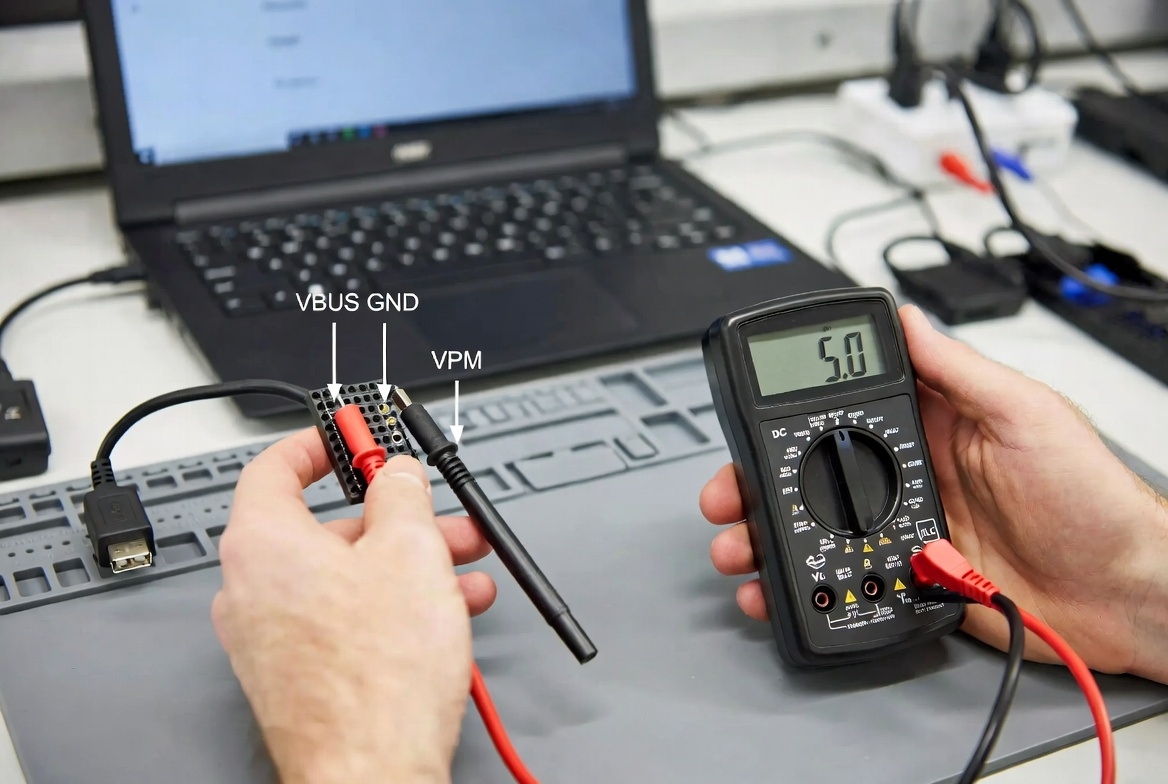
Before you connect a multimeter, you need to understand what "normal" looks like for different USB generations and charging modes.
- Most standard USB ports are designed around a nominal 5 V DC output.
- Traditional USB 2.0 ports typically support up to 500 mA current (2.5 W).
- USB 3.0 ports generally provide up to 900 mA (4.5 W).
- Dedicated charging ports and USB Power Delivery (PD) implementations can negotiate much higher power, up to about 100 W in current mainstream designs, depending on voltage and current profiles.
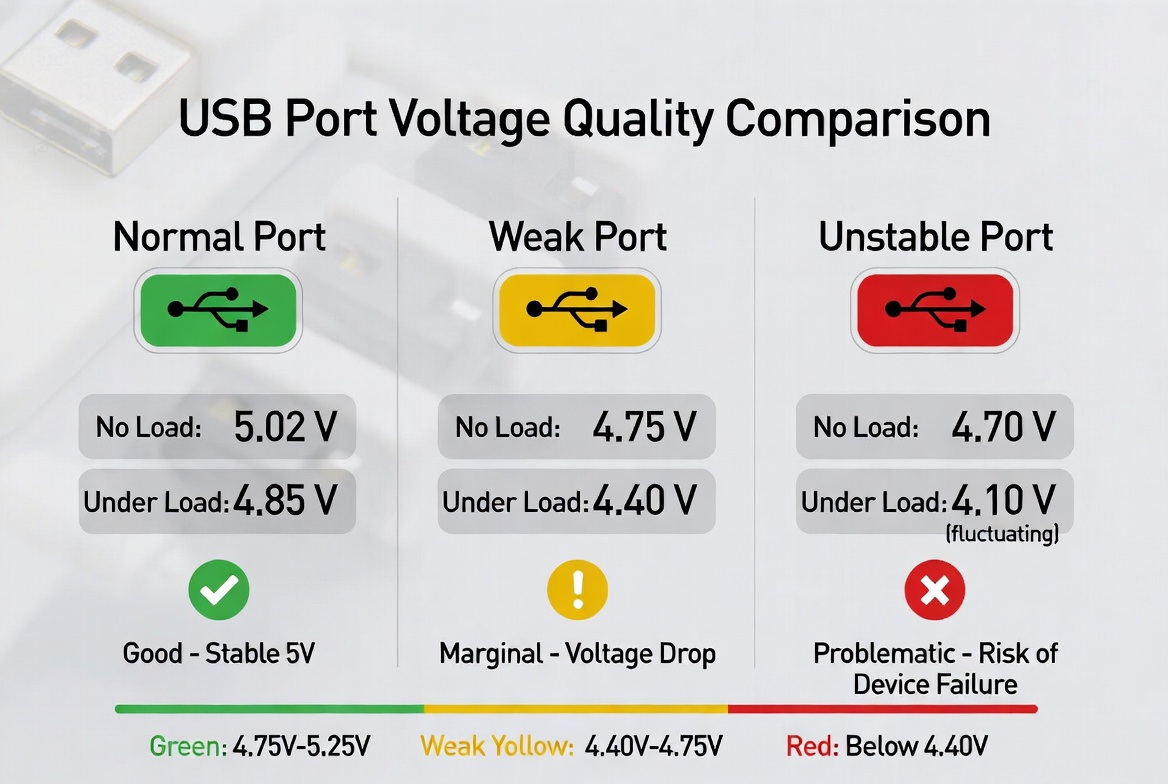
In a healthy system, you expect the idle (no‑load) voltage to stay close to 5 V, and under load, a slight drop is normal, but not more than about 10% in typical consumer scenarios. Larger or sudden drops often indicate issues with the host power stage, the connector, or the cable.
From a practical lab standpoint, you do not need expensive equipment to perform meaningful USB voltage checks.
- Digital Multimeter (DMM) – Preferably a reliable unit with DC voltage and current ranges; a True RMS model helps when you suspect noisy or non‑ideal waveforms.
- USB test cable or breakout connector – Gives safe access to VBUS and GND without tearing open a port.
- Known‑good USB device as load – For example, a smartphone, USB drive, or external HDD to simulate real‑world power draw.
For OEM validation, we usually prepare multiple test loads (low, medium, high) and at least one long cable run, because marginal voltage issues often appear only with higher current or longer cable lengths.
Even though USB ports are low voltage, good lab discipline matters.
- Work in a dry, stable environment, away from flammable materials or conductive debris.
- Disconnect non‑essential power sources around the test bench to avoid accidental shorts.
- Make sure your hands and tools are dry, and remove metal jewelry that could bridge contacts.
I recommend using insulated probes and, if possible, probe clips that lock onto the VBUS and GND pads or wires, so you don't have to hold the tips in place while the system is powered.
Getting accurate readings starts with proper multimeter configuration.
1. Select DC voltage mode. Turn the knob or menu to DC Voltage (V⎓).
2. Choose an appropriate range. For USB, a 20 V range (or auto‑range) is ideal.
3. If available, enable True RMS when testing USB‑C PD or when you suspect complex or noisy signals.
4. Verify your probes are in the correct jacks (COM for black, V/Ω for red) before you connect to a live USB port.
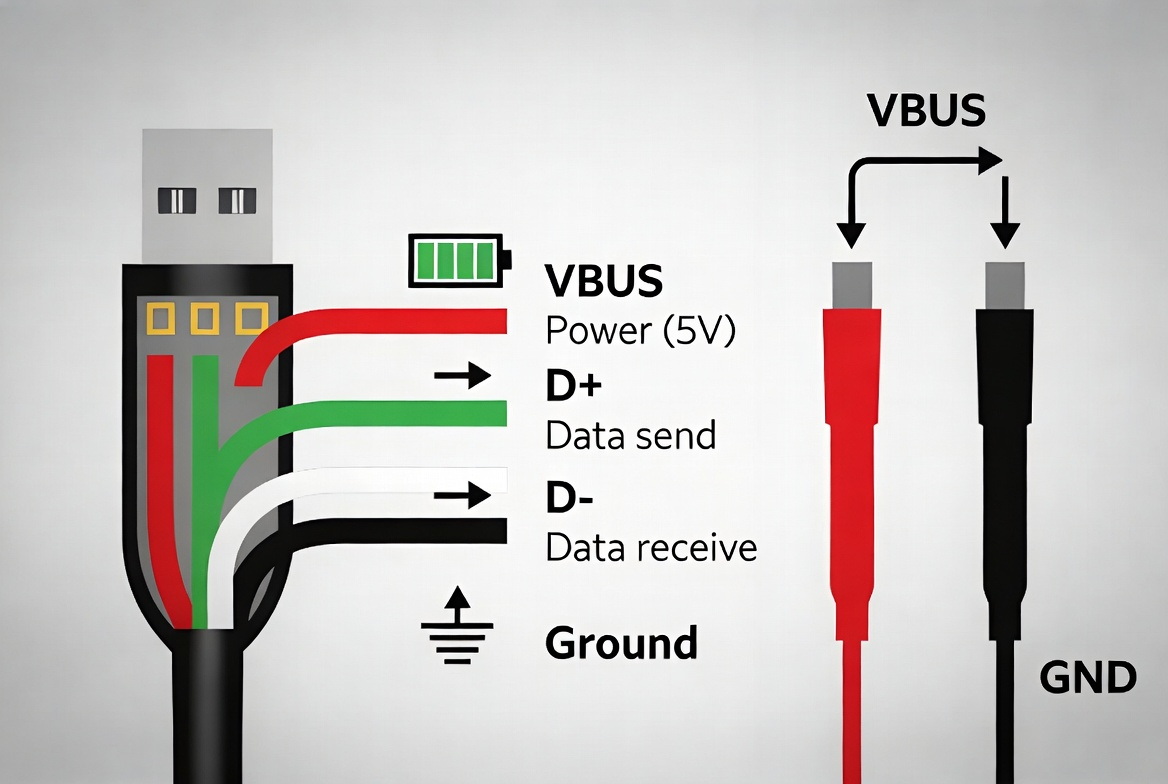
Directly probing inside a USB receptacle is risky and error‑prone. Instead, use a breakout or test cable whenever possible.
- Red probe (positive) goes to VBUS, which typically corresponds to the red conductor in a standard USB cable.
- Black probe (negative) goes to GND, usually the black (or sometimes white) wire.
- Ensure the connection is mechanically stable and cannot slip while you manipulate the device or cable.
In our OEM verification tests, we use a panel‑mount or breakout USB connector that exposes clearly labeled pads for VBUS and GND. This minimizes measurement noise and reduces the risk of shorting adjacent pins.
Start by characterizing the port with no load attached.
1. Leave the USB port empty (no device connected).
2. Power on the host (PC, laptop, hub, or charger).
3. Read the idle voltage between VBUS and GND.
4. Record the value for each port under test in a simple table.
A typical reading will be close to 5.0 V. If you see significant deviation (for example, under 4.75 V or above 5.25 V on a nominal 5 V bus), that is a potential sign of power circuit issues or port damage.
Real‑world performance matters more than idle values. Load testing reveals whether the port can maintain voltage when supplying current.
1. Plug a known USB device (such as a phone or portable SSD) into the port under test.
2. Keep the multimeter connected across VBUS and GND through your test cable.
3. Observe the voltage while the device is actively drawing power, for example while charging or transferring data.
4. Record the minimum voltage observed over 30–60 seconds.
A slight voltage drop under load is expected, but in consumer and professional environments we generally aim to keep this drop within 10% of nominal. If the voltage sags more than this, you risk data errors, random disconnects, and accelerated component wear in connected devices.
If you suspect the USB port cannot supply enough current, you can switch to a current measurement.
- Configure the multimeter for DC current and move the red probe to the appropriate current jack as specified by the meter.
- Insert the multimeter in series with the load, following the wiring diagram from the DMM manufacturer.
- Avoid shorting any terminals while rewiring the circuit.
Current measurement is especially helpful when validating high‑current USB‑C or PD ports to ensure they deliver their advertised profiles without early current limiting.
Once you have both static and load readings, you can classify port health.
| Scenario | Typical Observation | What It Usually Means |
|---|---|---|
| Normal, stable port | ~5 V idle, small drop under load (≤10%) | Port and cable are performing within spec. |
| Low idle voltage | <4.75 V with no load | Possible internal regulator or board issue. |
| Large drop only under heavy load | >10% drop when device draws current | Port current limit, weak power rail, or high cable resistance. |
| Random dips or fluctuation | Voltage oscillates or spikes | Intermittent connection, poor solder joints, or mechanical damage. |
If you see consistently abnormal readings across multiple known‑good cables and loads, the root cause is most likely the host side rather than the cable.
When lab readings suggest a problem, we typically walk through a structured troubleshooting sequence.
- Check the cable first. Replace the cable with a known‑good one and repeat the test; poor copper quality or damaged conductors can cause local voltage drops.
- Inspect the connector. Look for bent, oxidized, or contaminated contacts on both host and device. Physical damage can increase contact resistance and cause heat and drops.
- Update drivers and firmware. In some systems, USB power behavior is partially controlled by firmware; updating the OS and BIOS can resolve quirks.
- Test other ports and other devices. If one port is consistently worse than others, it may be a localized hardware issue.
- Consider professional repair. For laptops, industrial PCs, or integrated machines, persistent abnormal USB voltage often requires a technician to inspect the mainboard or power subsystem.
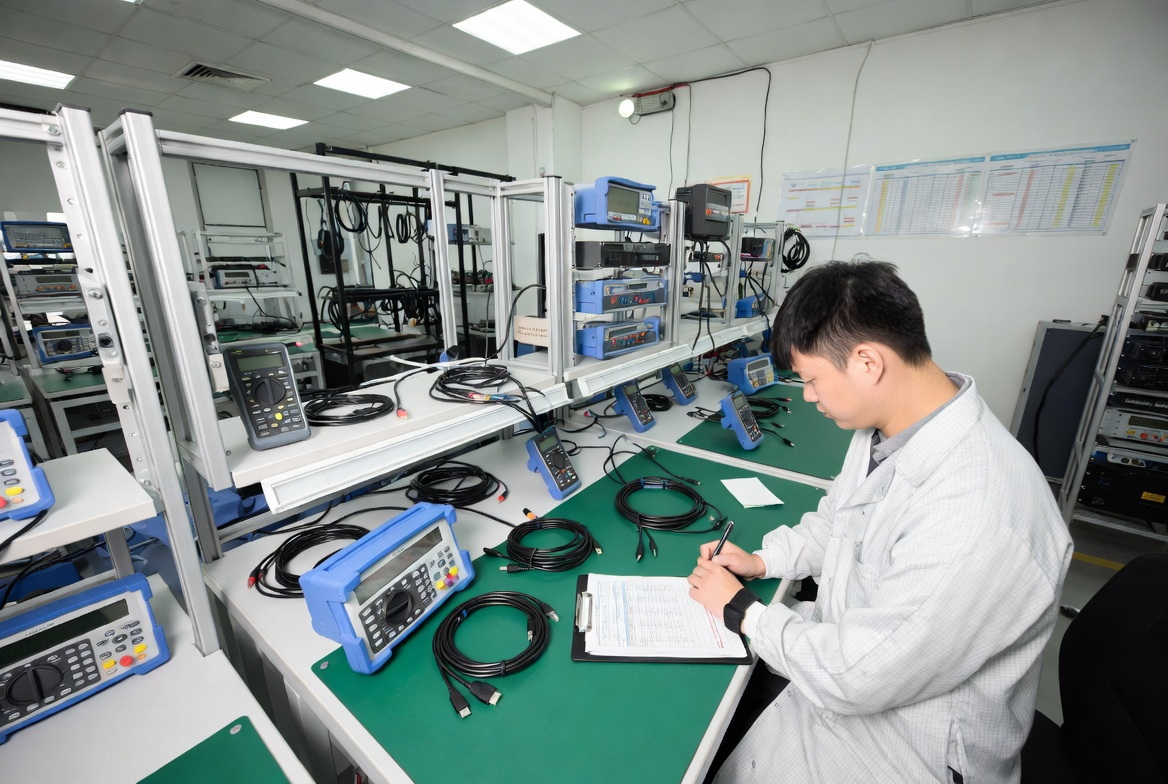
From an OEM perspective, we also document these findings in test reports so that our customers can correlate field complaints with measurable electrical behavior.
Modern USB‑C and PD ports support multiple voltage and current profiles, negotiated digitally between host and device.
- Without a PD‑aware tester, you will often only see the default 5 V profile.
- For accurate PD validation, dedicated USB‑C PD analyzers or smart testers are ideal, as they can trigger 9 V, 12 V, 15 V, or 20 V modes and log current draw.
- Even with these tools, the fundamental principle remains the same: measure under realistic load and look for stable voltage within the negotiated range.
If your applications depend heavily on PD (for example, powering monitors or embedded systems over USB‑C), integrating PD‑specific testing into your routine quality checks is essential.
As a manufacturer of USB, VGA, HDMI, DVI, and SATA cables for global OEM and branding partners, we see firsthand how cable design influences voltage at the device end. [uk.rs-online]
Key factors include:
- Copper conductor size and purity. Thicker, high‑purity conductors reduce voltage drop over distance.
- Shielding and twist quality. Good shielding minimizes interference that can exacerbate marginal power and signal conditions. [uk.rs-online]
- Connector plating and strain relief. Quality plating resists corrosion, and proper strain relief prevents internal breaks that increase resistance over time. [conwire]
In our internal lab tests, we often run side‑by‑side comparison measurements using long cables and high‑current devices, because that is where low‑cost cables usually fail. Well‑engineered cables help maintain stable voltage and signal integrity, especially in longer runs or higher‑power use cases.
If your business relies on stable USB power—whether in production lines, test benches, or office environments—incorporating routine checks can prevent downtime.
- Create a simple test protocol that covers at least idle and load voltage measurements on representative ports.
- Log results with port IDs, device types, and cable part numbers so you can spot trends over time.
- Re‑test ports that show borderline values after system updates, hardware changes, or environmental events (such as overheating episodes).
For OEM customers, we recommend including USB power verification in incoming inspection when deploying new laptops, hubs, or docking stations into critical workflows.
Based on both field feedback and lab experience, there are some practical thresholds that trigger replacement rather than further experimentation.
- Replace the cable if voltage is normal at the host port but drops significantly at the device end with that cable only.
- Replace or service the host port if multiple known‑good cables show the same abnormal readings on that port, while other ports are normal.
- Consider replacing the hub or docking station if all ports on the hub exhibit poor voltage behavior compared to direct host connections.
Treat consistently abnormal USB voltage as an early warning sign. Addressing it proactively is almost always cheaper than troubleshooting intermittent failures in the field.
If you regularly test USB port voltage because your products or systems are sensitive to power quality, it may be time to standardize on trusted, lab‑verified cables. As a dedicated Chinese manufacturer (Shenzhen Otechkabel Electronic Co., Ltd) supplying USB, VGA, HDMI, DVI, and SATA cables, we support OEM, ODM, and private‑label projects for overseas brands, wholesalers, and device manufacturers.
Our engineering team can help you:
- Select optimal cable specifications for your voltage, current, and length requirements.
- Design and validate custom cables and harnesses for specialized equipment.
- Coordinate batch testing and documentation so you can align internal QA with supplier reports.
Yes, measuring USB port voltage is generally safe if you use insulated probes, avoid shorting pins, and follow basic safety steps such as working in a dry environment and not forcing probes into connectors.
For critical systems, we recommend including USB voltage checks in quarterly preventive maintenance or after major hardware changes; for home users, testing when you notice issues is usually enough.
Yes, both sustained undervoltage and overvoltage can shorten component life, cause unstable operation, and in extreme cases damage sensitive electronics connected to the port.
No, many USB‑C ports only provide 5 V standard power; PD support and higher voltage profiles depend on both the host implementation and the connected device capabilities.
Beyond visible build quality, the key differences are conductor size, copper quality, shielding, and connector engineering, all of which directly affect voltage drop, signal integrity, and long‑term reliability. [conwire]
1. PCM Cable – "How to check the voltage output of the USB port?"
2. RS Components – "Ultimate Guide to USB Cables by StarTech.com." [](https://uk.rs-online.com/web/content/discovery/ideas-and-advice/usb-cable-guide)
3. Consolidated Electronic Wire & Cable – "USB Cables 101 – A Guide to USB Connector Types." [](https://www.conwire.com/blog/ultimate-guide-usb-cables/)
4. ActualTech Media – "The Smart Guide to Technical Writing for Tech Companies." [](https://www.actualtechmedia.com/blog/the-smart-guide-to-technical-writing-for-tech-companies/)


