


Views: 222 Author: Rebecca Publish Time: 2026-02-09 Origin: Site


Content Menu
● What Is Thunderbolt (3, 4, and 5)?
● Thunderbolt vs USB-C: Side-by-Side Comparison
● Are Thunderbolt and USB-C the Same?
● Compatibility: Ports, Cables, and Docks
>> Port and Cable Compatibility
● Real-World Use Cases: Which One Do You Need?
>> When You Should Choose Thunderbolt
● How to Read Labels and Logos on Ports and Cables
● Best-Practice Cable Selection Checklist
● Where High-Performance Cables Matter Most
● Clear Next Step: Choose the Right Cable and Get Reliable Connectivity
>> 1. Can I plug a USB-C cable into a Thunderbolt port?
>> 2. Do I need a Thunderbolt cable for a Thunderbolt dock?
>> 3. Is USB4 the same as Thunderbolt 4?
>> 4. How do I know if my USB-C port can drive two 4K monitors?
>> 5. What cable should I choose for everyday charging and data transfer?
USB-C is a reversible physical connector used by multiple USB standards, from USB 2.0 up to USB4 and USB4 v2. It defines the plug shape, not the protocol speed by itself.
- Supports legacy USB 2.0, USB 3.x, USB4, and USB4 v2.
- Can carry data, power (USB Power Delivery), and video (DisplayPort Alt Mode, HDMI via adapters).
- Widely adopted on laptops, tablets, smartphones, hubs, and docks, making it ideal for mainstream connectivity.
In practice, a USB-C port labeled only as “USB 3.2” may be much slower and less capable than a USB-C port that supports USB4 or Thunderbolt.

Thunderbolt is an Intel-defined high-performance protocol that uses the USB-C connector starting from Thunderbolt 3. Earlier Thunderbolt 1 and 2 ports used Mini DisplayPort rather than USB-C.
- Thunderbolt 3, 4, and 5 all use the USB-C connector.
- Thunderbolt 3 and 4 run up to 40 Gbps; Thunderbolt 5 reaches 80 Gbps with up to 120 Gbps using Bandwidth Boost.
- Integrates PCI Express, DisplayPort, and power delivery over a single cable, supporting advanced docks, external GPUs, and multi-display setups.
Ports that support Thunderbolt 3, 4, or 5 are usually marked with a lightning bolt icon near the USB-C receptacle.
The table below summarizes the most important differences for everyday users and professional buyers of high-performance cables and hubs.
| Feature | USB-C (USB 2.0–USB4 v2) | Thunderbolt 3 / 4 / 5 |
|---|---|---|
| Connector type | USB-C physical connector used across USB 2.0, 3.x, USB4, USB4 v2. | Also uses USB-C connector for TB3, TB4, TB5. |
| Max data speed | USB 2.0: 480 Mbps; USB 3.0: 5 Gbps; USB 3.1: 10 Gbps; USB 3.2: 20 Gbps; USB4: up to 40 Gbps; USB4 v2: up to 80–120 Gbps (implementation-dependent). | TB3: 40 Gbps; TB4: 40 Gbps (stricter minimums); TB5: 80–120 Gbps with Bandwidth Boost. |
| Speed consistency | Highly variable; some USB4 devices implement only 20 Gbps. | Tight spec: all certified devices must support full 40 Gbps for TB4 and the defined speeds for TB5. |
| Power delivery | Up to 240 W with USB PD 3.1, depending on device and cable. | Also up to 240 W via USB PD 3.1; many laptop implementations support at least 100 W. |
| Video output | DisplayPort Alt Mode via USB-C: up to 1×8K or 2×4K with 4 lanes, HDMI via adapter. | Thunderbolt + DP: TB3 up to 2×4K or 1×5K; TB4 up to 2×4K or 1×8K; TB5 up to 2×8K or 1×16K (device-dependent). |
| Daisy-chaining | Limited; usually through USB hubs and DisplayPort daisy-chain if supported. | Strong daisy-chain support for storage, docks, and multiple displays. |
| Backward compatibility | Works with USB 2.0/3.x and many display adapters (device dependent). | Thunderbolt ports accept USB-C devices; non-Thunderbolt USB-C ports cannot use Thunderbolt features. |
| Typical use cases | Charging, data transfer, single display, basic docks, adapters such as HDMI, VGA, DVI, SATA through bridges. | Professional displays, 4K/8K video, external GPUs, high-speed storage arrays, advanced multi-port docks. |
Thunderbolt 3, 4, and 5 use the USB-C connector but add a richer protocol stack with strict performance requirements. USB-C, on the other hand, is only the connector and can carry anything from slow USB 2.0 to cutting-edge USB4 v2 or Thunderbolt signals.
- A Thunderbolt 4 port can work as a high-end USB-C port, handling standard USB-C devices and cables.
- A normal USB-C port cannot “turn into” a Thunderbolt port; it cannot support features like external GPUs or full-bandwidth Thunderbolt daisy-chains.
This distinction is critical when selecting cables and docks for professional workstations or multi-monitor office setups.
Understanding what works with what helps you avoid speed bottlenecks and unreliable docking behavior.
- Thunderbolt 3/4/5 ports on computers are compatible with USB4, USB 3.2/3.1/3.0, and USB 2.0 cables and peripherals, which then run at the respective USB speeds.
- Many passive Thunderbolt 3/4/5 cables can also carry USB4 and older USB protocols; some active optical Thunderbolt 3 cables, however, do not support USB modes.
- Thunderbolt ports generally support USB Power Delivery, allowing charging via USB PD-compliant chargers and cables, often up to at least 100 W.
If you connect a basic USB-C cable between a Thunderbolt laptop and a Thunderbolt dock, the dock may fall back to USB mode and lose advanced Thunderbolt features.
Some docks and hubs dynamically switch between Thunderbolt and USB depending on the cable and host capability.
- When a Thunderbolt dock is connected with a certified Thunderbolt cable to a Thunderbolt host, it can unlock full 40 Gbps bandwidth, multi-display output, and PCIe-class peripheral performance.
- When the same dock is connected with a non-Thunderbolt USB-C cable, it may downgrade to USB mode, limiting speed and display support.
This is why matching port, protocol, and cable is essential for high-end applications like video editing or CAD.
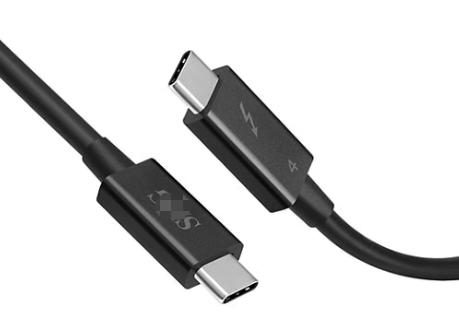
Choosing between USB-C and Thunderbolt depends on your workload and devices.
USB-C is usually the best value for:
- Charging smartphones, tablets, and ultrabooks.
- Connecting single monitors via USB-C–to–HDMI or USB-C–to–VGA adapters.
- Everyday peripherals such as USB flash drives, keyboards, mice, and basic USB hubs.
- External SATA, USB, and legacy interfaces connected through bridges or multi-port hubs (USB-to-HDMI, USB-to-VGA, USB-to-DVI, USB-to-SATA, and similar).
For mainstream office and home setups, a high-quality USB-C cable that supports USB 3.2 or USB4 and 100–240 W power delivery is typically sufficient.
Thunderbolt makes a clear difference in performance-sensitive scenarios.
- 4K/8K video editing with large file transfers to external SSD arrays.
- Running multiple high-resolution monitors (dual 4K or higher) from a single host.
- Connecting external GPUs for gaming or GPU-accelerated workloads.
- Complex desktop docking with many USB, HDMI, DisplayPort, and Ethernet ports through one cable.
In these cases, a Thunderbolt 4 or Thunderbolt 5 dock and certified Thunderbolt cable deliver more consistent high-end performance than a generic USB-C solution.
Correctly identifying ports and cables helps you avoid buying the wrong accessories.
- Thunderbolt ports: Look for the lightning bolt icon, sometimes with a number like “4” next to it.
- USB-C ports: May be labeled with “SS” (SuperSpeed), “10”, “20”, or “40” to indicate Gbps rating, or with a monitor icon for DisplayPort Alt Mode.
- Cables: Thunderbolt cables usually have the lightning bolt logo plus a number; USB4 cables often carry a “40” or “80” marking near the connector.
If a cable has no speed or logo markings, it is safer to assume it supports only basic USB 2.0 or low-end USB 3.x data rates.
Use the steps below to reduce performance issues in your setup.
1. Identify the host port. Confirm whether it is USB-C only, USB4, Thunderbolt 3, 4, or 5 (check the icons and device specifications).
2. Check the peripheral requirement. Note its maximum data rate, display needs, and power draw.
3. Match protocol and speed. For Thunderbolt docks, external GPUs, or multi-4K displays, choose Thunderbolt 4 or 5 cables; for everyday devices, high-quality USB-C or USB4 cables are typically enough.
4. Confirm power rating. Ensure the cable supports the wattage you need, especially for 100–240 W laptop charging under USB Power Delivery 3.1.
5. Plan for future expansion. If you expect to upgrade to higher-resolution monitors or faster storage, investing in Thunderbolt-ready cables and hubs now can extend system life.
In professional and industrial environments, cable quality directly impacts stability and throughput.
- Long-distance runs between laptops and docking stations, especially above 2 meters.
- Mixed signal use cases, such as simultaneous data, power, and multi-display video over one cable.
- Use with protocol-sensitive hardware like external GPUs, high-speed NVMe enclosures, and 10GbE network adapters.
For these scenarios, certified USB4 or Thunderbolt cables with guaranteed performance over their full length help reduce troubleshooting and downtime.
If you are planning or upgrading your setup with USB-C, Thunderbolt, HDMI, VGA, DVI, or SATA connections, using the right cables and accessories is the fastest way to avoid bottlenecks and compatibility issues. As a professional manufacturer of USB, VGA, HDMI, DVI, SATA cables and cable accessories, OTECHKABEL can provide stable, high-quality OEM and custom cable solutions for brand owners, wholesalers, and device manufacturers. Contact our team now to discuss your device requirements, interface combinations, and cable specifications, so you can deploy a reliable, future-ready connectivity solution for your next project.
Contact us to get more information!
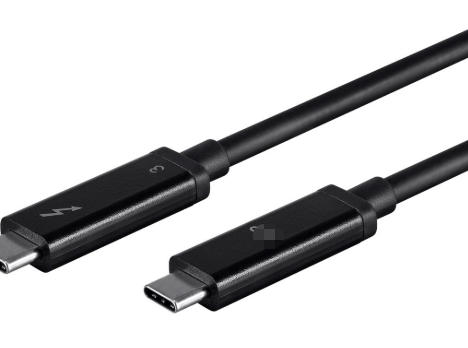
Yes, Thunderbolt 3/4/5 ports accept USB-C cables and devices, but the connection will work at USB speeds and capabilities, not full Thunderbolt performance.
To unlock all features of a Thunderbolt dock, such as full 40 Gbps bandwidth and multiple 4K displays, you should use a certified Thunderbolt cable between the Thunderbolt port on the computer and the dock.
No, USB4 and Thunderbolt 4 share similar top-end speeds, but USB4 implementations can be limited to 20 Gbps and fewer guaranteed features, while Thunderbolt 4 requires a consistent 40 Gbps and stricter capabilities.
Check your device documentation for Thunderbolt 3/4/5 support or advanced USB-C DisplayPort Alt Mode. Thunderbolt 4 and 5 generally support dual 4K or higher, while basic USB-C ports may support only one display.
For typical office and home use, a certified USB-C cable that supports at least USB 3.2 or USB4 speeds and the required power delivery wattage (for example, 65–240 W depending on your laptop) offers an excellent balance of cost, compatibility, and performance.
1. https://newnex.com/thunderbolt-vs-usb-c.php
2. https://newnex.com/usb-type-c-guide.php
3. https://newnex.com/usb-connector-type-guide.php
4. https://www.tomsguide.com/features/thunderbolt-4-vs-usb4-whats-the-difference
5. https://www.cablematters.com/Blog/USB-C/thunderbolt4-vs-USB4-whats-the-difference
6. https://kb.plugable.com/general-support-articles/usb-c-vs-thunderbolt
7. https://www.yuanshan-tech.com/blog/usb-c-and-thunderbolt-differences-speed-compatibility-2025.html
8. https://www.benq.com/en-us/knowledge-center/knowledge/what-is-usb4-thunderbolt4-usbc.html
9. https://www.hp.com/us-en/shop/tech-takes/usb-c-vs-thunderbolt
10. https://www.anker.com/ca/blogs/cables/thunderbolt-cable-vs-usb-c


