


Views: 269 Author: Otechkabel Publish Time: 2026-09-17 Origin: Site


Content Menu
● What Is a USB-C to HDMI Cable?
● USB-C Does Not Always Support HDMI Video
>> How to Check Whether a USB-C Port Supports Video
>> Why a USB-C to HDMI Cable May Not Work
● How USB-C to HDMI Video Transmission Works
>> The Complete Signal Path Matters
● Understanding Resolution and Refresh Rate
>> Common USB-C to HDMI Display Modes
● USB-C to HDMI Cable, Adapter, Hub, or Dock?
● What Can You Do With a USB-C to HDMI Cable?
>> Connect a Laptop to an External Monitor
>> Present in Conference Rooms and Classrooms
>> Stream Video and Audio to a TV
>> Support Digital Signage and Commercial Displays
● What a USB-C to HDMI Cable Cannot Do
>> It Cannot Add Video Output to a Data-Only USB-C Port
>> It Cannot Exceed Hardware Limits
>> It Usually Does Not Charge the Laptop
>> It Does Not Automatically Create Dual Independent Displays
● How to Select the Right USB-C to HDMI Cable
>> Step 1: Check the Source Device
>> Step 2: Define the Target Display Mode
>> Step 3: Verify the Display Input
>> Step 4: Choose the Correct Cable Length
>> Step 5: Check Construction Quality
● OEM Product Development Considerations
>> Essential Product Specification Points
>> Why Accurate Product Language Matters
● Quality Testing for USB-C to HDMI Cables
● Troubleshooting USB-C to HDMI Problems
● FAQ
>> Can every USB-C port connect to an HDMI display?
>> Can a USB-C to HDMI cable support 4K at 60Hz?
>> Why does my USB-C to HDMI cable show no signal?
>> Can a USB-C to HDMI cable charge my laptop?
>> Can I connect two HDMI monitors with one USB-C port?
>> Is a USB-C to HDMI cable the same as a standard USB-C cable?
>> Can USB-C to HDMI work in reverse?
A USB-C to HDMI cable makes it possible to connect a compatible laptop, tablet, smartphone, docking station, or industrial device to an HDMI monitor, TV, projector, or commercial display. It is widely used in offices, classrooms, conference rooms, home entertainment setups, digital-signage systems, and mobile workstations.
However, the USB-C connector alone does not guarantee video output. USB-C is a connector format that can support different functions, including charging, data transfer, video transmission, and high-speed device connectivity. To achieve stable video output, the source device, cable, display, and system settings must work together.
For brands, wholesalers, and device manufacturers, selecting or developing a USB-C to HDMI product requires more than choosing a connector type. Resolution, refresh rate, chipset design, compatibility, cable length, shielding, product labeling, and quality testing all influence the real user experience.
A USB-C to HDMI cable connects a USB-C source device to an HDMI display. The USB-C connector plugs into the source device, while the HDMI connector plugs into a monitor, television, projector, AV receiver, capture device, or commercial display.
The cable transfers digital video and often digital audio from the source device to the HDMI display. Depending on the product design and the connected devices, it may support Full HD, 4K, HDR, high refresh rates, and protected content playback.
Typical USB-C to HDMI applications include:
- Connecting a laptop to an external monitor
- Connecting a tablet to a classroom projector
- Displaying a presentation on a conference-room screen
- Extending a desktop workspace
- Streaming video from a compatible USB-C device to a TV
- Connecting a compact PC to a digital-signage display
- Using an external screen for design, editing, coding, finance, or engineering work
- Building portable workstation kits for travel or field service
Although USB-C to HDMI products are easy to use, they are not all identical. Cable performance depends on the source device's video capability, the target display's HDMI input, the supported signal format, and the cable's internal design.
One of the most important compatibility points is that <strong>not every USB-C port supports video output</strong>.
A USB-C port may be designed only for charging, data transfer, or both. Some devices include USB-C ports that support external displays, while others do not. The physical connector looks the same, but the underlying function can be very different.
Many devices send video through USB-C by using DisplayPort Alternate Mode. This allows compatible USB-C ports to transmit video signals through the USB-C connector. A USB-C to HDMI cable or adapter converts that compatible signal into an HDMI signal that can be recognized by a monitor, TV, or projector.
Other devices may support external displays through Thunderbolt or USB4-based connectivity. These technologies can offer strong display capabilities, but actual output performance still varies by device model, operating system, processor, graphics hardware, docking configuration, and display setup.
Before connecting a USB-C device to an HDMI display, review the device manufacturer's technical specifications. Look for terms such as:
- DisplayPort Alternate Mode
- DP Alt Mode
- DisplayPort over USB-C
- Thunderbolt 3
- Thunderbolt 4
- USB4 display output
- External display support
- Video output through USB-C
Some laptops and tablets include symbols near the USB-C port. A DisplayPort icon may indicate display output support. A lightning-bolt icon may indicate Thunderbolt capability. However, icons are not always included, so official product specifications are the most reliable source of information.
A USB-C to HDMI cable cannot create video output if the USB-C port does not support it.
For example, a USB-C port may charge a laptop, connect a USB flash drive, or transfer files successfully, yet still fail to send video to an HDMI monitor. In this situation, changing to a more expensive cable usually will not solve the problem because the limitation is in the source device.
For product sellers and private-label brands, it is important to use accurate compatibility language. Instead of stating that a cable works with all USB-C devices, a clearer statement is:
> "Designed for USB-C source devices that support video output through DisplayPort Alternate Mode, Thunderbolt, USB4, or another compatible display-output function."
This type of wording helps customers understand what they need before purchasing and reduces unnecessary returns.
A USB-C to HDMI cable is usually more advanced than a basic charging or data cable. Many USB-C to HDMI products use active signal conversion. The source device sends a video signal through its USB-C port, and the cable or adapter converts that signal into HDMI output for the display.
This means the product may contain internal electronic components, including a conversion chipset. These components are responsible for handling the signal pathway between USB-C video output and HDMI display input.
A basic USB-C charging cable may look similar from the outside, but it may not support video transmission. The difference is often hidden inside the cable assembly.
A successful display connection depends on the entire signal chain.
| Part of the Setup | Main Role | Important Question |
|---|---|---|
| Source device | Produces the video signal | Does the laptop, tablet, or phone support external displays? |
| USB-C port | Sends video through a supported mode | Does this USB-C port support video output? |
| USB-C to HDMI cable | Converts or carries the video signal | What resolution and refresh rate does the cable support? |
| HDMI display | Receives and shows the image | Does the monitor or TV support the selected video mode? |
| HDMI input port | Determines available display features | Is the selected HDMI port capable of supporting 4K or high refresh rates? |
| Operating system | Configures screen settings | Is the display set to the correct resolution and refresh rate? |
The actual performance of a USB-C to HDMI setup is limited by the weakest part of this chain.
For example, even if a cable supports 4K at 60Hz, the final output may be limited to 4K at 30Hz if the laptop, monitor, HDMI port, or system configuration does not support 60Hz operation. Similarly, an 8K-capable cable cannot make a Full HD monitor display 8K resolution.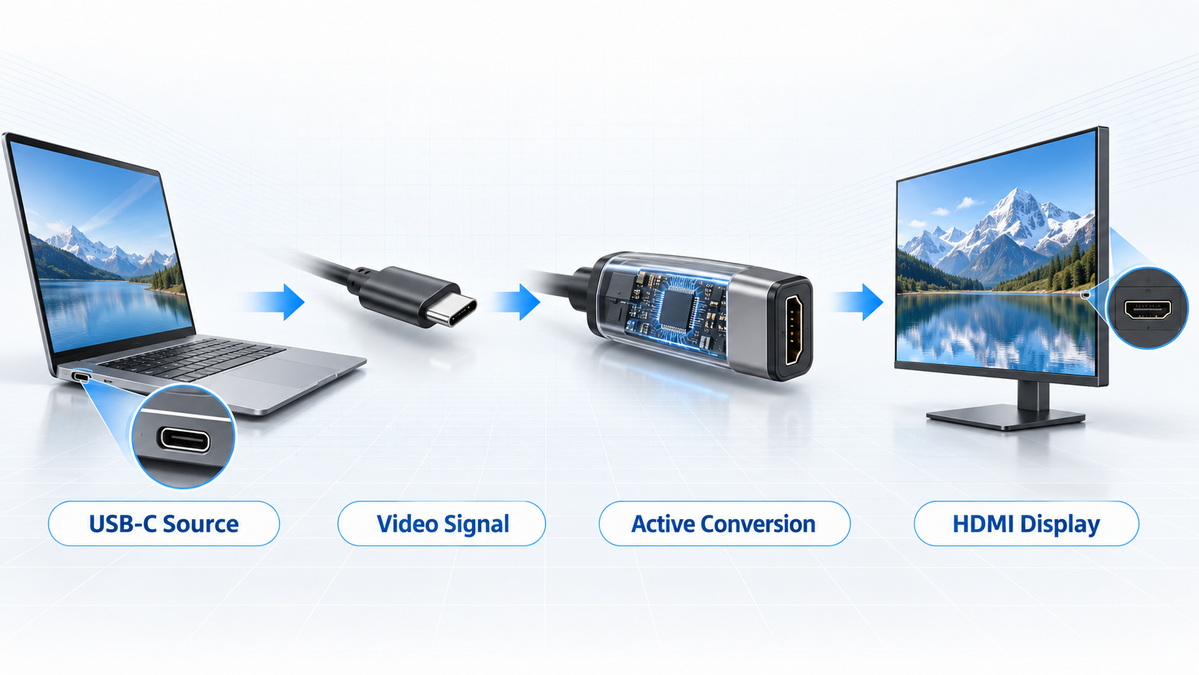
Resolution and refresh rate are two of the most important factors when selecting a USB-C to HDMI cable.
Resolution describes the number of pixels shown on the display. Refresh rate describes how many times the image updates each second.
A higher resolution can provide more desktop space and sharper image detail. A higher refresh rate can make motion, scrolling, cursor movement, gaming, and video playback feel smoother.
| Display Mode | Typical Use | User Experience |
|---|---|---|
| 1080p at 60Hz | Office work, presentations, classrooms, standard monitors | Smooth and widely compatible |
| 4K at 30Hz | Slides, static content, basic TV output | Clear image, but movement may feel less smooth |
| 4K at 60Hz | Professional work, home office, streaming, 4K monitors | Sharp and smooth for everyday use |
| 4K at 120Hz | Gaming, high-refresh monitors, advanced visual work | Very smooth motion when fully supported |
| 8K at 60Hz | Premium displays, specialized visual applications | Requires high-bandwidth hardware and full compatibility |
For most office, education, retail, and business-display applications, <strong>4K at 60Hz</strong> is a practical and popular target specification. It provides a smooth working experience while supporting high-resolution content on modern monitors and televisions.
A complete cable specification should also consider:
- Color depth, such as 8-bit, 10-bit, or 12-bit
- HDR support
- Audio output capability
- HDCP support for protected video content
- Chroma subsampling
- Cable length
- Connector durability
- Jacket material
- Shielding performance
- Flexibility and bend resistance
- Compatibility with different display brands
- Directional installation requirements
For commercial buyers, it is better to define the exact required display mode than to use broad terms such as "high resolution" or "ultra HD." For example, "supports 3840 × 2160 at 60Hz" is clearer and more useful than simply saying "4K cable."
USB-C to HDMI solutions are available in several product types. Each option has different advantages depending on the application.
| Product Type | Best For | Main Benefit | Main Consideration |
|---|---|---|---|
| USB-C to HDMI cable | Direct connection to one display | Simple setup with fewer separate parts | Fixed length and usually one-way operation |
| USB-C to HDMI adapter | Users who already own HDMI cables | Flexible cable length choices | Adds an additional connection point |
| USB-C multiport hub | Laptops requiring HDMI, USB ports, charging, and card readers | Combines several functions in one accessory | Bandwidth and heat management must be considered |
| USB-C docking station | Desk setups and multi-device workstations | Expands displays, charging, USB, Ethernet, and peripherals | Requires more detailed compatibility testing |
| Active optical USB-C to HDMI cable | Long-distance display installations | Supports longer cable runs in selected applications | Higher cost and more specific installation requirements |
A direct USB-C to HDMI cable is often the best option for users who want a lightweight, straightforward connection between a compatible laptop and an HDMI monitor.
A docking station or multiport hub is often more suitable for office workers, professional workstations, conference rooms, and users who also need charging, USB peripherals, memory-card access, Ethernet, or multiple displays.
A compatible USB-C to HDMI cable can support many practical applications across consumer, business, education, and industrial environments.
External monitors help users create a more productive workspace. A second display can be used for email, spreadsheets, video calls, design applications, documents, dashboards, coding, and research.
A USB-C to HDMI cable can allow a laptop user to:
- Extend the desktop across two screens
- Mirror the laptop screen for a presentation
- Work on a larger monitor
- Connect to a meeting-room display
- Use a television as a temporary second screen
- Display video content at higher resolution
For office use, 4K at 60Hz is often preferred because it offers smooth cursor movement, readable text, detailed visuals, and comfortable daily operation.
USB-C has become common on modern laptops and tablets, while HDMI remains widely used on projectors, televisions, and meeting-room displays. A USB-C to HDMI cable provides a simple bridge between these two interfaces.
It can be useful in:
- Corporate meeting rooms
- Training centers
- University classrooms
- Exhibition booths
- Sales demonstrations
- Hotel conference facilities
- Temporary event installations
For this type of product, clear connector labeling is valuable. Users should immediately understand which end connects to the USB-C source device and which end connects to the HDMI display.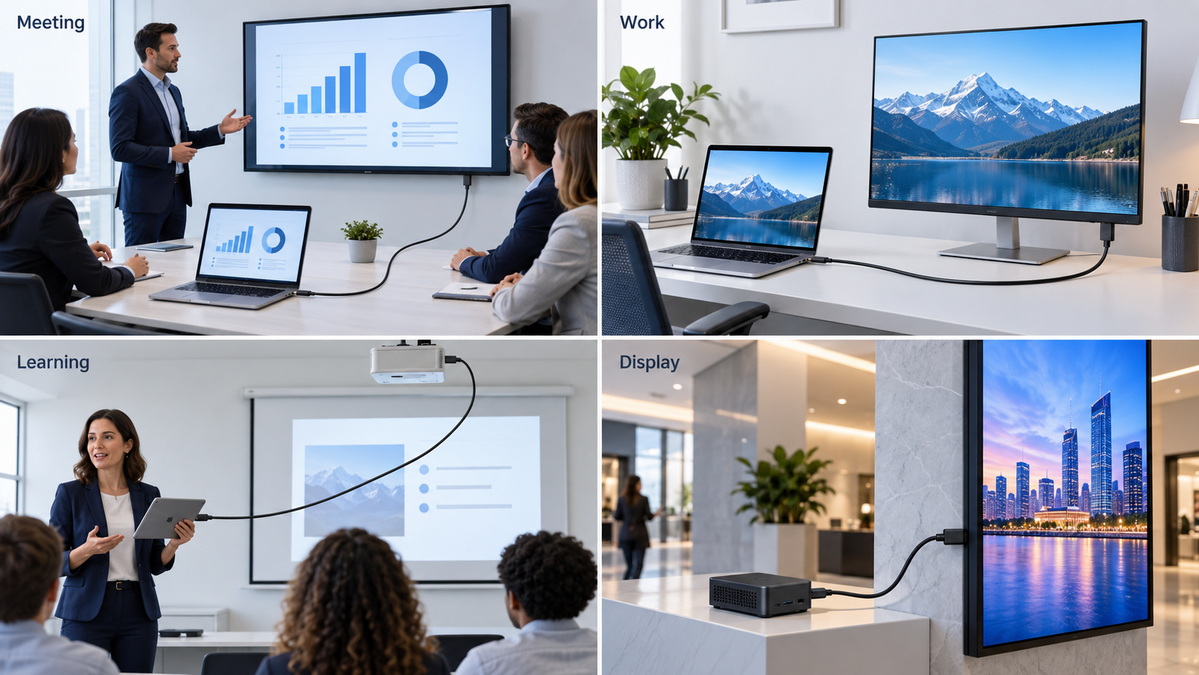
A USB-C to HDMI cable can allow compatible devices to display movies, online videos, presentations, photos, and other media on a larger television screen.
Depending on the device and system setup, audio may also be transferred through HDMI. This can simplify the installation because a single cable connection can carry both video and sound to the display.
USB-C to HDMI solutions are also used in digital signage, point-of-sale systems, mini PCs, test equipment, compact workstations, and embedded-display environments.
Commercial applications may require more controlled cable design than everyday consumer use. Buyers may need:
- Stable operation over long working hours
- Custom cable lengths
- Stronger strain relief
- Higher shielding performance
- Flexible cable jackets
- Specific connector angles
- Custom overmolding
- Private-label packaging
- Lot traceability
- Functional testing before shipment
These requirements make cable design and quality control especially important.
A USB-C to HDMI cable is highly useful, but it also has important limitations.
If the USB-C port does not support video output, the cable cannot produce an HDMI signal. This is a device-level limitation rather than a cable-level limitation.
The final display result depends on the complete system. A cable cannot force a source device to output 4K at 120Hz if the graphics hardware supports only 4K at 60Hz. It also cannot make an older monitor accept a resolution or refresh rate beyond its design.
A standard USB-C to HDMI cable is usually intended for display output, not laptop charging. Users who need power delivery while using an external display should select a USB-C hub or docking station with a dedicated USB-C power input.
Most USB-C to HDMI cables are designed to operate in one direction:
<strong>USB-C source device → HDMI display</strong>
They generally do not work in reverse from an HDMI source device to a USB-C monitor. An HDMI-to-USB-C setup usually requires a different active converter designed specifically for that signal direction.
Connecting two external monitors requires compatible graphics hardware, operating-system support, and appropriate docking or hub technology. Some products may mirror the same image on two displays rather than extend the desktop independently.
Selecting the right cable begins with understanding the real application rather than choosing the highest number on a product package.
Confirm that the device supports video output through USB-C. Review the official specifications for the laptop, tablet, smartphone, mini PC, or docking station.
Choose the performance level the user actually needs.
Examples include:
- 1080p at 60Hz for office displays and projectors
- 4K at 30Hz for static presentations
- 4K at 60Hz for everyday professional use
- 4K at 120Hz for high-refresh applications
- 8K at 60Hz for advanced premium setups
Check that the monitor, TV, or projector supports the desired resolution and refresh rate through its HDMI input. Some displays support different capabilities on different HDMI ports.
Cable length should match the installation environment. A short cable is convenient for portable use, while longer cables may be needed for meeting rooms, wall-mounted displays, or commercial installations.
Longer cable lengths require stronger attention to signal stability, shielding, connector quality, and internal design.
For private-label brands and professional buyers, cable construction should be evaluated carefully.
Important design elements include:
- Connector housing material
- Strain-relief structure
- Cable flexibility
- Outer-jacket material
- Shielding design
- Wire quality
- Internal chipset performance
- Connector plating
- Directional labels
- Package protection
- Product identification marks
A cable should not only function during a brief test. It should remain stable through repeated plugging, bending, travel, installation, and long-duration use.
For cable brands, wholesalers, retailers, and equipment manufacturers, a USB-C to HDMI cable should be developed around a defined target market.
A premium office cable may prioritize 4K at 60Hz output, aluminum connector shells, braided jackets, and retail-ready packaging. A digital-signage cable may prioritize custom length, secure strain relief, stable long-duration performance, and controlled production consistency. A travel-focused product may prioritize a compact connector design, lightweight materials, and portability.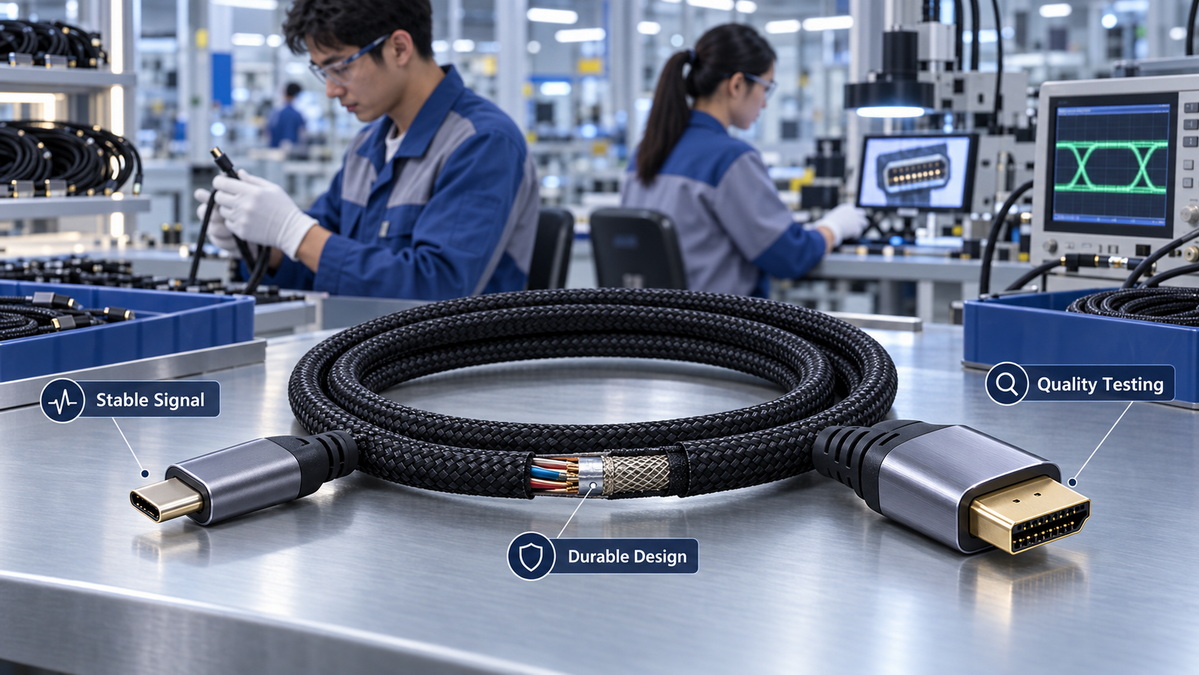
A complete product specification should include:
- USB-C source compatibility requirement
- Supported video-output modes
- Maximum resolution and refresh rate
- HDMI output characteristics
- Audio support
- HDR and HDCP requirements
- Cable length and tolerance
- Jacket material and color
- Connector shell material
- Overmolding style
- Strain-relief requirements
- Cable diameter
- Directional labeling
- Packaging requirements
- Logo printing or private-label branding
- Functional test requirements
- Reliability-test requirements
- Batch inspection standards
Clear product information improves buyer confidence and reduces customer-service issues.
Avoid overly broad claims such as:
- "Works with every USB-C device"
- "Compatible with all phones and laptops"
- "Supports 8K on any display"
- "Creates HDMI output from every USB-C port"
- "Dual-monitor support guaranteed"
Use precise statements that explain the actual compatibility condition. For example:
> "Designed for USB-C source devices with supported video output. Maximum display performance depends on the source device, display, cable specification, and system configuration."
This approach is more transparent and helps buyers choose the right product for their equipment.
As display resolution, refresh rate, and cable length increase, signal quality becomes more demanding. A cable that works at basic resolution may not perform reliably under higher-bandwidth display modes.
For this reason, production testing should focus on functional performance as well as physical construction.
A practical quality-control plan may include:
- Continuity testing
- Open- and short-circuit testing
- USB-C connector inspection
- HDMI connector inspection
- 4K display-output testing
- Display handshake testing
- Audio-output testing
- Repeated plug-and-unplug testing
- Cable-bend testing
- Strain-relief testing
- Long-duration playback testing
- Packaging inspection
- Appearance inspection
- Batch traceability checks
For a branded cable product, consistent performance is often more valuable than an ambitious specification that cannot be delivered reliably across production batches.
If a USB-C to HDMI connection does not work, check the system step by step.
1. Confirm that the USB-C source device supports external video output.
2. Make sure the cable is connected in the correct direction.
3. Check that the HDMI display is powered on and set to the correct input source.
4. Try another HDMI port on the monitor, TV, or projector.
5. Test the cable with another compatible display if available.
6. Check the operating system's display settings.
7. Select a supported resolution and refresh rate.
8. Update the graphics driver, operating system, or device firmware if necessary.
9. Disconnect other USB-C accessories temporarily.
10. Test with a known-compatible USB-C source device.
If the external display appears but is limited to 4K at 30Hz, check whether the source device, HDMI display, HDMI input port, and cable all support 4K at 60Hz. The final output mode is determined by the complete connection path.
USB-C to HDMI cables provide a convenient way to connect compatible USB-C devices to HDMI displays. They are useful for external monitors, televisions, projectors, meeting rooms, classrooms, digital signage, mobile workstations, and industrial display systems.
The most important requirement is source-device compatibility. A USB-C port must support video output before it can send an image to an HDMI display. Resolution, refresh rate, cable design, HDMI input capability, system settings, and production quality all affect the final result.
For product brands, wholesalers, and manufacturers, the strongest USB-C to HDMI product strategy is based on accurate compatibility information, stable performance, clear labeling, tested specifications, and a cable design that matches the real needs of the target market.
Shenzhen Otechkabel Electronic Co., Ltd. provides OEM cable manufacturing support for USB cables, HDMI cables, USB-C to HDMI cables, custom cable assemblies, and cable accessories. Product development can be tailored around target display performance, cable length, connector design, material selection, packaging, logo printing, and market-specific requirements.
No. The USB-C port must support video output. Some USB-C ports support charging and data transfer only, while others support external display output through DisplayPort Alternate Mode, Thunderbolt, USB4, or another compatible technology.
Yes, but only when the source device, USB-C port, cable, HDMI display, HDMI port, and operating-system settings all support 4K at 60Hz.
Common reasons include a USB-C port without video output, incorrect cable direction, unsupported display settings, the wrong HDMI input being selected, outdated drivers, or a compatibility issue with the display.
Most standard USB-C to HDMI cables do not charge a laptop. If charging is required while using an HDMI display, use a USB-C hub or docking station with Power Delivery pass-through.
It depends on the source device, graphics hardware, operating system, and docking solution. Some devices support two independent displays, while others support only one external display or mirrored output.
No. A standard USB-C cable may support charging or data transfer. A USB-C to HDMI cable is designed to transmit or convert a compatible USB-C video signal for HDMI display output.
Usually no. Most USB-C to HDMI cables are directional and are designed for USB-C source devices connecting to HDMI displays. HDMI-to-USB-C monitor connections require a different type of active converter.
1. [USB-IF — Cables and Connectors]
2. [VESA DisplayPort — DisplayPort over USB-C]
3. [HDMI Licensing Administrator — HDMI Alt Mode for USB Type-C]
4. [HDMI Licensing Administrator — HDMI 2.2 Specification Technology Overview]
5. [Eaton Tripp Lite — USB-C to HDMI 4K Adapter Specifications]


