


Views: 239 Author: Otechkabel Publish Time: 2026-09-20 Origin: Site


Content Menu
>> Upstream and Downstream USB Ports
>> Why Real Transfer Speed Varies
● How USB 3.0 Hub Bandwidth Works
● Bus-Powered vs. Powered USB 3.0 Hubs
>> What Is a Bus-Powered USB 3.0 Hub?
>> What Is a Powered USB 3.0 Hub?
>> Bus-Powered vs. Powered USB Hub Comparison
>> 3. Identify Power Requirements
>> 4. Consider High-Speed Data Needs
>> 5. Check Product Construction
● USB 3.0 Hub Manufacturing Considerations
>> Important Product Specifications
>> Customization Options for OEM Projects
>> Quality Checks Before Mass Production
● Why USB 3.0 Hubs Remain Useful
● FAQ
>> 1. Is USB 3.0 the same as USB 3.1 Gen 1?
>> 2. Can a USB 3.0 hub work with USB 2.0 devices?
>> 3. Can all USB 3.0 hub ports run at 5 Gbps at the same time?
>> 4. Do I need a powered USB 3.0 hub?
>> 5. Why is my USB 3.0 hub slow?
>> 6. Does a USB-C hub automatically support high-speed charging?
>> 7. Can a USB 3.0 hub charge a smartphone or tablet?
A USB 3.0 hub expands one USB port into several ports, making it easier to connect keyboards, mice, external drives, flash drives, printers, cameras, card readers, and other accessories at the same time. For laptop users, desktop users, offices, industrial workstations, and commercial environments, it offers a simple way to solve the problem of limited USB ports.
A quality USB 3.0 hub is more than a small device with multiple connectors. Its real-world performance depends on the hub controller, upstream cable, port layout, power design, enclosure material, circuit protection, and compatibility with connected devices. Understanding these factors helps users choose a more reliable hub and helps brands develop products that meet practical market needs.
A USB 3.0 hub is a connectivity device that turns one USB port on a computer into multiple downstream USB ports. It connects to a host device—such as a laptop, desktop computer, monitor, docking station, industrial PC, or tablet—and allows several peripherals to be used through one connection.
For example, a laptop may have only two USB ports, while the user may need to connect:
- A keyboard
- A mouse
- A wireless receiver
- An external SSD
- A USB flash drive
- A webcam
- A printer
- A smartphone cable
Instead of constantly plugging and unplugging devices, users can connect a USB 3.0 hub and keep their workspace organized.
USB 3.0 is also commonly known as SuperSpeed USB 5Gbps, USB 3.1 Gen 1, or USB 3.2 Gen 1×1. While the naming has changed over time, these terms generally describe the same USB performance level: a maximum signaling rate of up to 5 Gbps.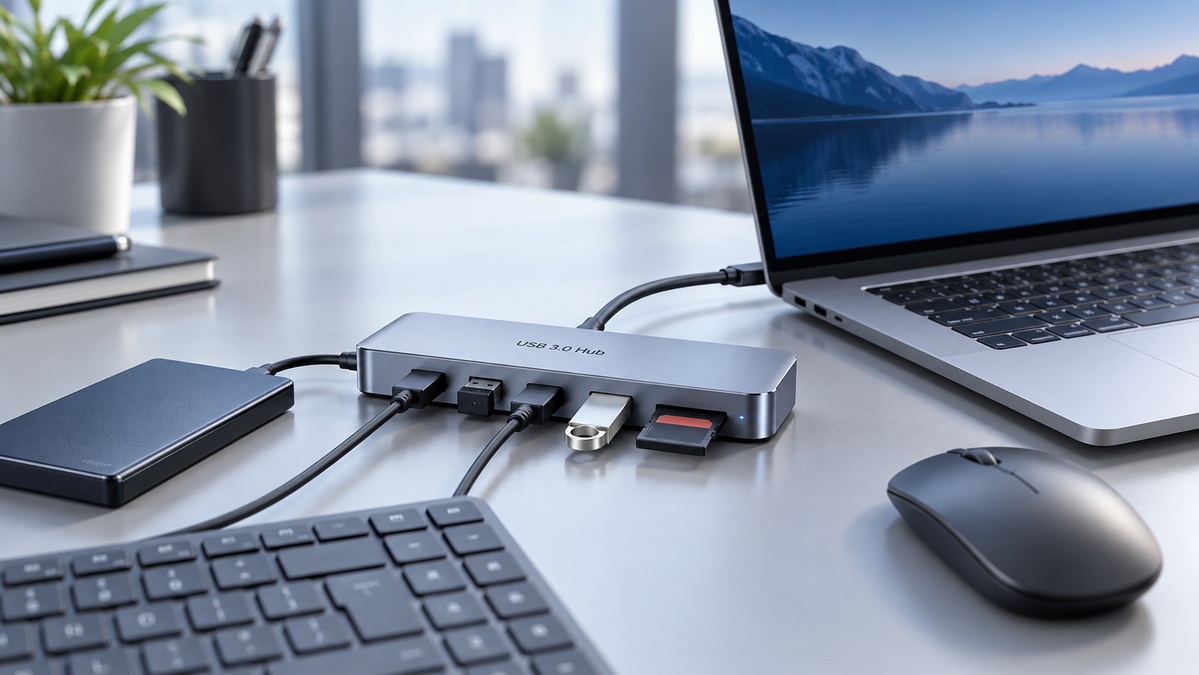
A USB hub typically includes one upstream connection and several downstream ports.
| Port Type | Main Function | Typical Form |
|---|---|---|
| Upstream port | Connects the hub to a host computer or tablet | USB-A, USB-C, Micro-B, or attached cable |
| Downstream port | Connects peripherals to the hub | USB-A, USB-C, or dedicated charging ports |
The upstream connection carries data and, in some designs, power between the hub and the host device. The downstream ports are used for accessories such as storage drives, keyboards, mice, webcams, printers, controllers, and mobile devices.
The internal hub controller identifies connected devices, manages communication, distributes available power, and supports plug-and-play operation when the host system and peripherals are compatible.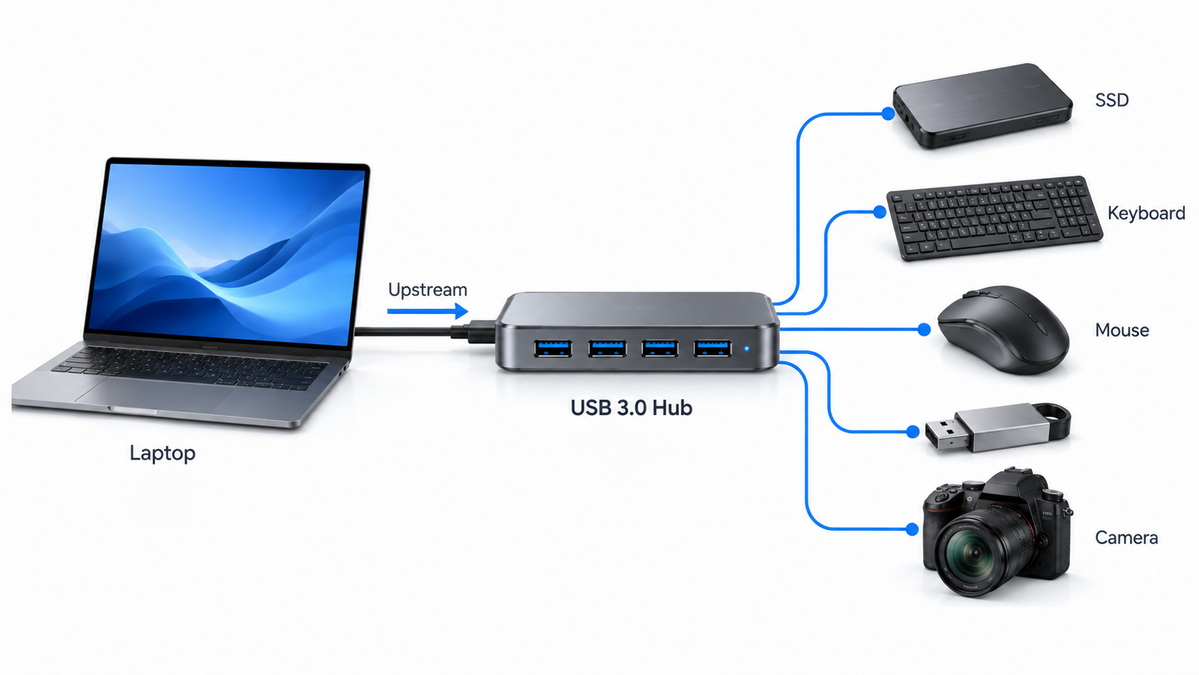
USB 3.0 supports a maximum signaling rate of up to 5 Gbps. This is significantly faster than USB 2.0, which supports a maximum rate of 480 Mbps.
The higher bandwidth makes USB 3.0 hubs more suitable for high-speed peripherals such as external SSDs, USB hard drives, fast USB flash drives, card readers, cameras, and other data-intensive devices.
| Feature | USB 2.0 Hub | USB 3.0 Hub |
|---|---|---|
| Maximum signaling rate | 480 Mbps | Up to 5 Gbps |
| Approximate raw transfer capacity | 60 MB/s | 500 MB/s |
| Typical peripherals | Keyboard, mouse, printer, basic flash drive | External SSD, hard drive, fast flash drive, camera |
| Standard high-power capability | Up to 500 mA at 5 V | Up to 900 mA at 5 V |
| Backward compatibility | USB 1.1 devices | USB 2.0 and USB 1.1 devices |
| Best for | Low-speed and low-power accessories | Faster storage and modern peripherals |
The 5 Gbps figure is a theoretical maximum signaling rate. Actual file-transfer speed will usually be lower because every USB connection includes encoding, protocol overhead, operating-system processes, storage-controller limitations, cable quality, and device performance differences.
For this reason, a product should be described carefully. A reliable technical statement is:
> "Supports data transfer rates of up to 5 Gbps. Actual performance may vary depending on the host device, connected peripherals, cable quality, and system configuration."
This gives users realistic expectations and reduces misunderstandings about performance.
Even when a hub, cable, and computer all support USB 3.0, real speed can vary widely. The most common factors include:
- The speed of the computer's USB port
- The performance of the connected SSD, hard drive, or flash drive
- The cable length and cable construction
- The number of devices connected at the same time
- The file size and file type
- The operating system and background software
- The storage format and available disk space
- The quality of the hub's internal controller and PCB design
- Heat generated during heavy data transfer
- Whether a device falls back to USB 2.0 mode
A USB 3.0 external SSD can transfer data much faster than a standard USB flash drive. However, even the fastest SSD cannot reach its full potential if it is connected through a USB 2.0 host port, a low-quality cable, or an overloaded hub.
A USB 3.0 hub provides multiple physical ports, but it does not create unlimited bandwidth. In most configurations, connected devices share the bandwidth available through the hub's upstream connection.
For example, if a four-port USB 3.0 hub has one 5 Gbps upstream connection, all high-speed devices transferring data at the same time share that available bandwidth.
This is usually not a problem for low-bandwidth accessories such as:
- Keyboards
- Mice
- Wireless dongles
- USB receivers
- Basic printers
- USB charging cables
- Low-speed card readers
However, it becomes more important when users connect several high-bandwidth devices at the same time, such as:
- Multiple external SSDs
- External hard drives
- USB cameras
- Capture cards
- Audio interfaces
- Video-production equipment
- Industrial cameras
- Data-acquisition devices
For example, a keyboard and mouse use very little data bandwidth, so they can normally operate smoothly alongside an external SSD. But if two external SSDs are copying large files at the same time, the total available bandwidth is shared between them.
Imagine a designer using one USB 3.0 hub with the following devices:
- An external SSD for project files
- A USB flash drive for transferring documents
- A keyboard
- A mouse receiver
The keyboard and mouse receiver consume very little bandwidth. The external SSD and flash drive will use most of the available bandwidth when files are moving. If the user starts copying large files between both storage devices, transfer speed may decrease because the hub's upstream connection is being shared.
For high-speed workloads, it is often better to connect the most important storage device directly to the computer and use the hub for lower-bandwidth accessories.
Power is one of the most important factors in USB hub selection. A hub can be powered through the computer's USB port or through a separate external power adapter.
These two designs are commonly called bus-powered hubs and powered hubs.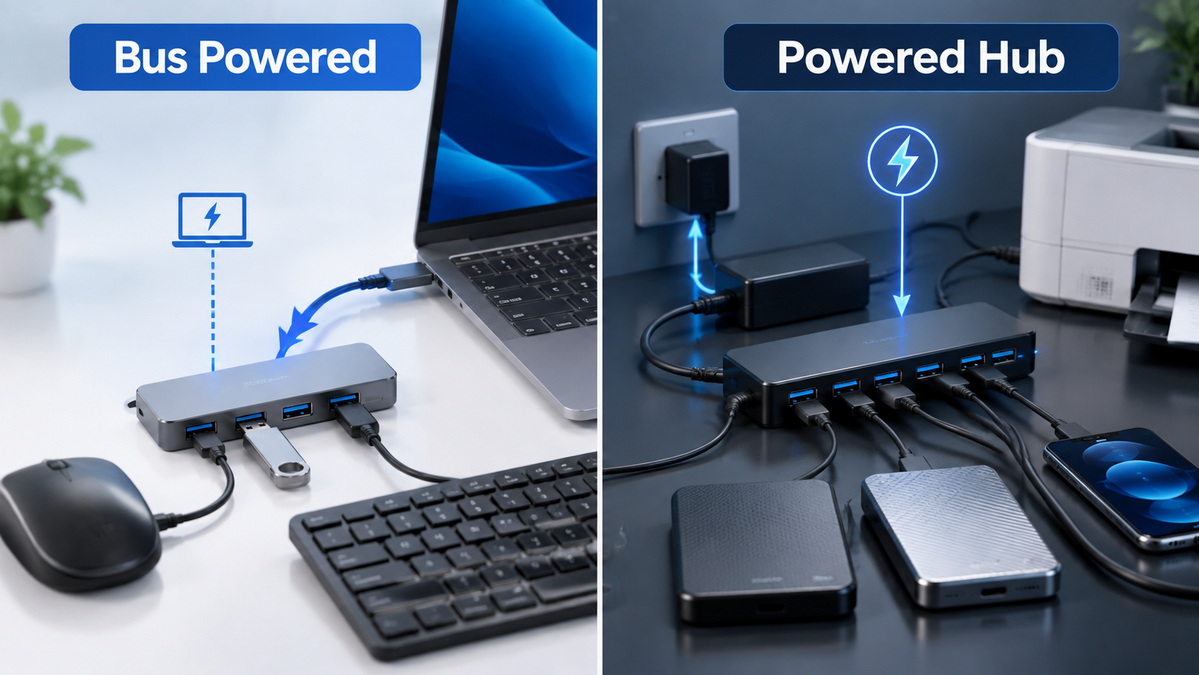
A bus-powered hub receives power directly from the host computer's USB port. It is compact, lightweight, and convenient for travel, mobile work, business trips, and basic home-office use.
A bus-powered USB 3.0 hub is usually suitable for low-power accessories, including:
- Keyboards
- Mice
- USB receivers
- USB flash drives
- Card readers
- Low-power wired devices
- Compact external storage devices
- Smartphone data cables
USB 3.0 can provide more power than USB 2.0 under standard operating conditions. However, the total amount of available power remains limited by the host port, hub design, cable condition, and number of connected devices.
A bus-powered hub may not be the ideal solution for several external hard drives, power-hungry USB accessories, or multiple mobile devices that need charging at the same time.
A powered USB 3.0 hub uses an external power adapter. It does not rely entirely on the computer's USB port for its operating power.
This design is often a better choice for desktop environments, commercial workstations, retail counters, production facilities, and users who connect multiple devices continuously.
A powered hub is recommended for:
- Multiple external hard drives
- Several external SSDs
- USB printers
- Barcode scanners
- POS terminals
- USB audio interfaces
- LED accessories
- Smartphones and tablets
- Desktop workstation setups
- Industrial devices
- High-port-count configurations
A stable external power source can improve the hub's ability to support multiple connected peripherals. It may also reduce the risk of insufficient-power warnings, drive disconnections, unstable charging, or devices repeatedly connecting and disconnecting.
| Selection Factor | Bus-Powered USB Hub | Powered USB Hub |
|---|---|---|
| Main power source | Computer USB port | External power adapter |
| Portability | Very high | Moderate |
| Best use | Travel, basic office work, low-power peripherals | Desktop, commercial, multi-device use |
| External drive support | Suitable for light use | Better for multiple drives |
| Charging capability | Limited | Can be higher depending on design |
| Heavy-load stability | More limited | More stable when properly designed |
| Typical product form | Compact 4-port hub | Desktop 4-port to 10-port hub |
USB hubs are available in many configurations. The best design depends on the target device, user environment, required ports, power requirements, and product positioning.
Standard USB-A hubs are among the most common designs. They often provide four USB-A ports and connect to a computer through a USB-A or USB-C upstream cable.
They are suitable for:
- Desktop computers
- Office laptops
- Home-office workstations
- Schools and classrooms
- Shared workspaces
- Retail electronics products
- Keyboard, mouse, and storage expansion
USB-C to USB-A hubs use USB-C as the upstream connector and provide USB-A ports for traditional accessories.
They are especially useful for newer laptops and tablets that include USB-C ports but no longer offer enough USB-A ports for legacy accessories.
Common users include:
- USB-C laptop owners
- MacBook users
- Business travelers
- Students
- Designers
- Remote workers
- Tablet users
It is important to remember that USB-C describes the connector shape rather than guaranteed performance. A USB-C product may support different data speeds, charging functions, video output features, or data-only operation depending on its internal design.
A multiport USB hub combines USB expansion with additional connectivity functions. It may include:
- HDMI output
- DisplayPort output
- Gigabit Ethernet
- SD card slots
- MicroSD card slots
- USB-C data ports
- USB-C charging input
- Audio ports
- M.2 SSD storage support
These products are often used with slim laptops and mobile workstations. They are more complex than standard USB 3.0 hubs because they may involve display compatibility, charging behavior, Ethernet chips, memory card readers, and operating-system requirements.
Industrial and commercial environments often need higher durability and more stable operation than standard consumer products.
Industrial USB hub features may include:
- Aluminum or metal housing
- Stronger ESD protection
- Over-current protection
- Over-voltage protection
- Short-circuit protection
- Individual port switches
- LED status indicators
- Wall-mount design
- DIN-rail mounting options
- Extended operating-temperature support
- Locking power connectors
- Long-distance cable stability
- High port counts
These designs are suitable for factories, laboratories, retail systems, transportation equipment, security installations, digital signage, automation systems, and professional workstations.
Choosing the right hub starts with understanding the user's actual devices and usage habits. Port quantity alone is not enough.
Make a list of every device that may need to connect at the same time.
For example:
1. Keyboard
2. Mouse
3. Wireless receiver
4. External SSD
5. USB flash drive
6. Webcam
7. Smartphone cable
A four-port hub may work for basic setups, but a seven-port model may be more practical for users with multiple storage devices, cameras, accessories, and charging needs.
Users should confirm whether they need:
- USB-A ports
- USB-C ports
- USB-C upstream connection
- HDMI output
- Ethernet
- SD card slots
- Dedicated charging ports
- Individual power switches
A user with a USB-C laptop and several USB-A devices should select a USB-C upstream hub with sufficient USB-A downstream ports. A photographer may need a hub with card readers, while a business user may need Ethernet and HDMI.
A keyboard and mouse require very little power. An external hard drive, LED accessory, phone, tablet, or audio interface may require much more.
A powered hub is a stronger choice when users connect several high-power devices at once. For portable work, a bus-powered hub may be enough if the connected accessories are light and low-power.
Before selecting a product, consider:
- How many storage devices will be connected?
- Will users charge phones or tablets?
- Will the hub remain connected all day?
- Is an external power adapter acceptable?
- Is the user working while traveling?
- Does the product need to support industrial equipment?
Users working with external SSDs, cameras, large files, or media content should pay close attention to data performance.
A good high-speed hub should include:
- A stable USB 3.0 controller
- Reliable PCB layout
- High-quality upstream cable
- Strong connector retention
- Effective shielding
- Proper thermal design
- Stable power management
- Compatibility with modern computers
For demanding workloads, short and well-constructed cables can help maintain a reliable connection. Excessively long or low-quality cables may create signal loss, poor stability, or lower-than-expected transfer performance.
The hub enclosure, connectors, cable, and internal circuit design all affect long-term durability.
Important construction details include:
- ABS, aluminum alloy, or mixed-material housing
- Reinforced strain relief
- Durable connector shells
- Gold-plated contact options
- Stable base or non-slip design
- Heat-dissipation performance
- Cable flexibility
- Cable length
- Compactness for travel
- LED indicator visibility
A compact hub may be ideal for travel, while an aluminum desktop hub may be better for long-term office use.
Most USB hub issues can be solved by checking power, cables, host ports, device compatibility, and bandwidth usage.
| Problem | Possible Cause | Practical Solution |
|---|---|---|
| Slow transfer speed | USB 2.0 port, slow storage, poor cable | Confirm that the host, hub, cable, and device support USB 3.0 |
| External drive disconnects | Insufficient power | Use a powered hub or connect the drive directly to the computer |
| Hub is not recognized | Cable, port, driver, or power issue | Test another USB port, cable, or computer |
| Camera performance is unstable | Shared bandwidth | Disconnect other high-bandwidth devices and test again |
| Phone charges slowly | Limited port power | Use a dedicated charging hub or compatible power-delivery solution |
| Hub becomes warm | Heavy load or compact enclosure | Reduce connected load and improve ventilation |
| Mouse or keyboard disconnects | Weak cable or unstable port connection | Reconnect the cable and test another host port |
If a USB 3.0 hub does not work as expected, follow these steps:
1. Disconnect all peripherals from the hub.
2. Connect the empty hub directly to the computer.
3. Check whether the computer recognizes the hub.
4. Connect one low-power device, such as a mouse or keyboard.
5. Add devices one at a time.
6. Test high-power devices separately.
7. Try another USB port on the computer.
8. Test a different upstream cable if the design allows it.
9. Connect the external power adapter if the hub supports one.
10. Check whether the computer port, cable, and peripheral all support USB 3.0.
This process helps users identify whether the issue is caused by the computer, the cable, the peripheral, the hub, or insufficient power.
For brands, wholesalers, distributors, and product developers, a USB hub should be evaluated as a complete connectivity system. The chipset, cable, housing, power design, packaging, user instructions, and quality testing all influence customer satisfaction.
A well-prepared product specification should clearly identify:
- Upstream port type
- Number of downstream ports
- USB data standard
- Maximum supported data rate
- Cable length
- Cable material
- Enclosure material
- Total power capacity
- External power input, if available
- Per-port power information
- Over-current protection
- Over-voltage protection
- Short-circuit protection
- Compatibility information
- Operating temperature
- Product dimensions
- Packaging requirements
Clear specifications make it easier for distributors and end users to understand what the product can and cannot do.
USB hub OEM projects can be customized in many ways, including:
- Custom logo printing
- Private-label packaging
- Customized product colors
- Cable-length selection
- USB-A or USB-C upstream connection
- Mixed USB-A and USB-C port configurations
- Aluminum or ABS enclosure
- Individual port switches
- LED indicator design
- Power adapter options
- User manual customization
- Barcode and label design
- Retail, e-commerce, or bulk packaging
The most suitable configuration should reflect the intended market. A travel-focused product may prioritize compact size and lightweight construction. A desktop product may prioritize more ports, stronger power capability, and a stable base. An industrial product may prioritize protection, metal housing, mounting options, and long-term reliability.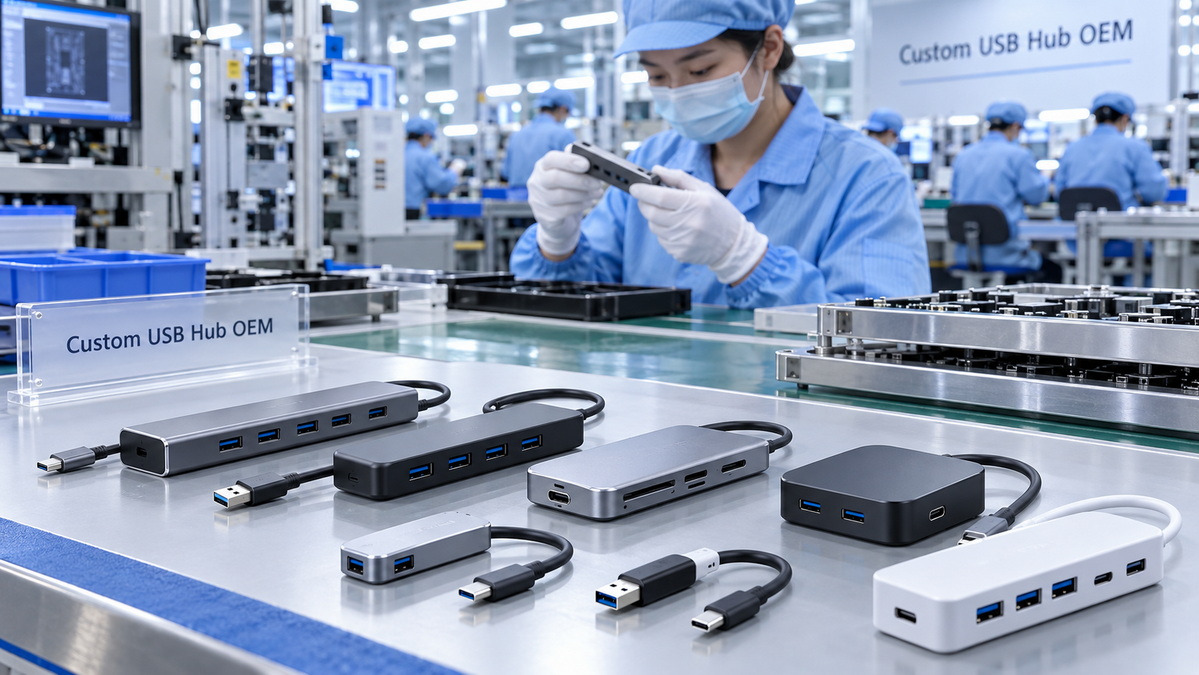
Before finalizing a USB hub project, samples should be evaluated under realistic conditions.
Key inspection and testing points include:
- Data-transfer performance
- Simultaneous multi-device operation
- External-drive stability
- Charging behavior
- Cable pull resistance
- Connector insertion durability
- Over-current protection
- Temperature performance
- Drop-test performance
- Cosmetic inspection
- Logo accuracy
- Packaging accuracy
- Compatibility with target computers and operating systems
Testing early helps reduce quality risks and creates a more reliable product for the final market.
Newer connectivity standards continue to develop, but USB 3.0 hubs remain highly useful because many users still rely on USB-A accessories and SuperSpeed USB storage devices.
They remain practical for several reasons:
- They support a wide range of computers and peripherals.
- They provide meaningful speed for external SSDs and fast storage devices.
- They are backward-compatible with older USB accessories.
- They are cost-effective for office, education, home, and commercial applications.
- They allow brands to create differentiated products through port layout, cable design, power options, enclosure materials, and packaging.
- They help users extend the life and usability of laptops with limited ports.
For many users, the right USB hub is not the product with the highest number printed on the package. It is the product that provides stable connection, useful port combinations, sufficient power, durable cables, and clear performance information.
A USB 3.0 hub is a practical solution for expanding limited USB connectivity and organizing multiple peripherals through one host connection. It can support everyday devices such as keyboards, mice, flash drives, printers, card readers, and external storage devices while delivering significantly faster performance than USB 2.0 when the full connection chain supports SuperSpeed USB.
The best hub depends on the user's real needs. A compact bus-powered hub is suitable for travel and low-power accessories. A powered USB hub is often the better option for multiple drives, desktop workstations, commercial equipment, and demanding multi-device environments. Users should also consider cable quality, power capacity, shared bandwidth, port type, enclosure design, and device compatibility before making a decision.
For brands, wholesalers, and manufacturers planning a USB hub product line, a well-defined product specification and thorough sample testing are essential. Shenzhen Otechkabel Electronic Co., Ltd. can support customized USB hub, USB cable, and connectivity-accessory projects based on required port configurations, cable structures, housing materials, branding, packaging, and intended application environments.
Discuss your USB hub requirements with our team to explore suitable product configurations, customization options, prototype samples, and production solutions for your market.
Yes. USB 3.0 was later renamed USB 3.1 Gen 1 and is also commonly described as SuperSpeed USB 5Gbps or USB 3.2 Gen 1×1. These names generally refer to the same 5 Gbps USB performance category.
Yes. USB 3.0 hubs are backward-compatible with USB 2.0 and USB 1.1 devices. However, older devices will operate at their own supported speed rather than USB 3.0 speed.
Not usually. The connected devices share the bandwidth available through the hub's upstream connection. Low-bandwidth devices such as keyboards and mice have little impact, while multiple SSDs, hard drives, cameras, or capture devices may compete for available bandwidth.
A powered hub is recommended when connecting multiple external hard drives, SSDs, printers, barcode scanners, charging devices, audio interfaces, or other higher-power accessories. A bus-powered hub is usually sufficient for keyboards, mice, wireless receivers, USB flash drives, and light portable use.
Slow performance may be caused by a USB 2.0 host port, a USB 2.0 cable, a slow storage device, shared bandwidth, an overloaded hub, poor cable quality, or system limitations. Confirm that the computer, hub, cable, and peripheral all support USB 3.0.
No. USB-C is a connector type, not a guaranteed charging or data-performance level. A USB-C hub may support data only, standard charging, high-power charging, video output, or other functions depending on its specifications.
A USB 3.0 hub can provide power, but charging speed depends on the hub's power design, total available power, connected devices, charging protocol, and host-device capability. For stable fast charging, choose a model designed specifically for charging or power-delivery applications.
1. USB Implementers Forum. [USB Power Delivery]
2. USB Implementers Forum. [USB-IF Document Library]
3. International Electrotechnical Commission. [IEC 62680-1-2:2024: Universal Serial Bus Interfaces for Data and Power]
4. Plugable. [Need to Know: USB Types Explained]
5. Texas Instruments. [A Primer on USB Type-C and Power Delivery Applications]
6. True Testing. [USB 3.X Specification]
7. Stereolabs. [How to Fix USB 3.0 Bandwidth and Connection Issues]
8. FY Cables. [What Is a USB 3.0 Hub?]


