


Views: 236 Author: Otechkabel Publish Time: 2026-08-10 Origin: Site


Content Menu
>> 1. The cable only supports charging
>> 2. The cable cannot handle the required power
>> 3. The cable does not support the needed data speed
>> 4. The device port is the real issue
>> 5. The cable is physically damaged
>> 6. The cable is poorly manufactured
● How to Troubleshoot a USB-C Cable Not Working
>> 1. Inspect both ends of the cable
>> 2. Try another port or another device
>> 3. Clean the USB-C port gently
>> 5. Test with a known-good charger or host device
>> 6. Check firmware or driver status
● What Makes a Reliable USB-C Cable
>> Important technical factors
>> What OEM buyers should ask suppliers
● Why USB-C Compatibility Is Still Confusing
>> Best practices for OEM cable production
● How to Choose the Right USB-C Cable
● FAQ
>> 1. Why does my USB-C cable charge but not transfer data?
>> 2. Why does my USB-C cable work with one device but not another?
>> 3. Can a bad USB-C cable damage a device?
>> 4. How do I know if my USB-C cable supports video?
>> 5. What should OEM buyers check before ordering USB-C cables in bulk?
USB-C is a connector type, but the cable's actual performance depends on its internal design. Two cables may look almost identical from the outside, yet perform very differently in charging speed, data transfer, and video support.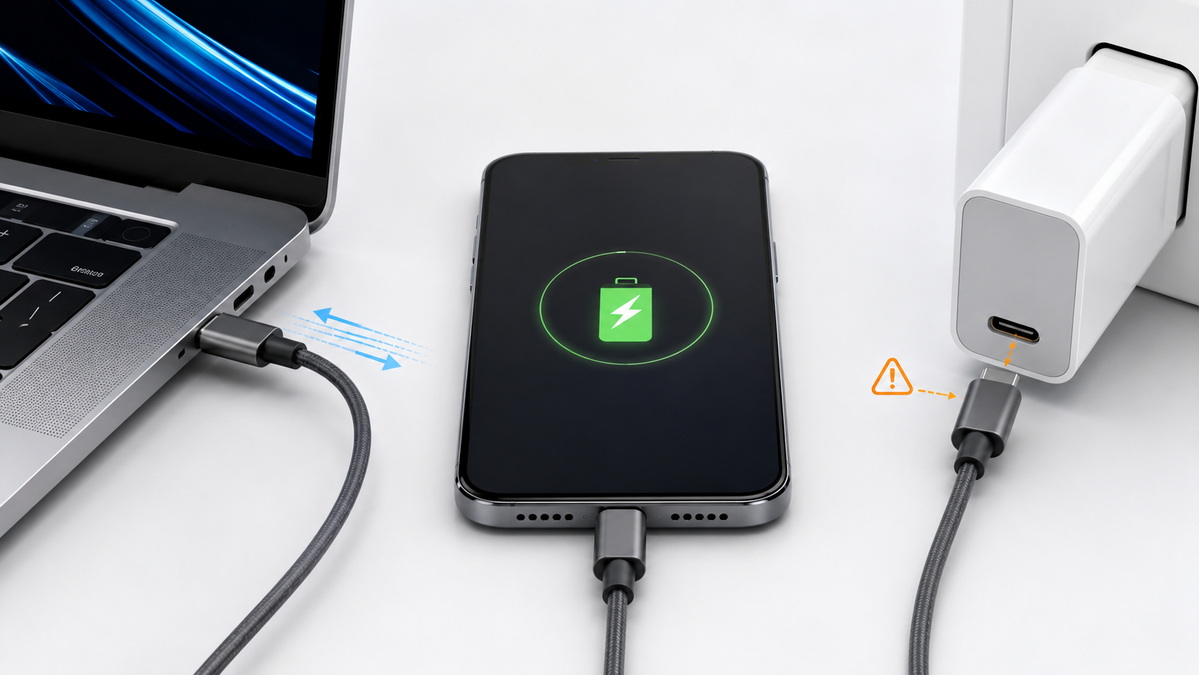
Some USB-C cables are designed for power only. They can charge a phone, tablet, or accessory, but they do not support file transfer, docking, or display output. This is one of the most common reasons users think a cable is broken.
In reality, the cable may be working exactly as intended. The problem is that the user expects a function the cable was never built to provide.
USB-C charging performance depends on the cable's power capacity. A cable that works well for earbuds or small accessories may not be suitable for a laptop or a fast-charging tablet.
Higher-wattage cables often need stronger internal conductors and, in some cases, an E-marker chip to communicate safely with connected devices. If the cable is not designed for the required power level, charging may be slow, unstable, or completely unavailable.
Many users assume every USB-C cable supports high-speed data. That is not true. Some cables only support basic USB 2.0 transfer, while others are built for faster USB 3.x or USB4 performance.
If the cable is used with a dock, SSD, camera, or monitor that requires a higher-speed connection, the result may be slow transfer, no recognition, or unstable operation.
Not every failed connection comes from the cable. Dust, lint, oxidation, bent pins, or wear inside the USB-C port can prevent proper contact. On laptops and PCs, power-management or driver issues may also affect USB-C behavior.
A cable may seem defective when the real problem is the device port.
USB-C cables are used often and bent frequently. Over time, the internal wires, shielding, or connector ends may become damaged. Repeated pulling, twisting, tight wrapping, or sharp bending can all reduce cable life.
Common signs of physical damage include:
- Intermittent charging.
- Loose connection.
- Data dropouts.
- Heat near the connector.
- Visible fraying or cracking.
Low-quality USB-C cables may use weak soldering, thin conductors, poor shielding, or inaccurate internal wiring. These issues can lead to unstable charging, slow data transfer, overheating, or complete failure.
For OEM buyers, this is not just a product problem. It is also a quality-control issue that can affect customer satisfaction and long-term brand reputation.
Before replacing the cable, it helps to isolate the failure mode. This prevents wasted time and unnecessary product returns.
| Symptom | Likely Cause | What to Check |
|---|---|---|
| Charges slowly | Low power rating, weak charger, or poor cable design | Wattage, cable type, charger output |
| No data transfer | Charge-only cable, damaged data lines, or port issue | Cable specs, another device, another port |
| No display output | Cable does not support video | Full-function cable, device compatibility |
| Intermittent connection | Worn port, internal break, or loose connector | Connector wear, port debris, strain relief |
| Device not recognized | Driver issue, port issue, or incompatible cable | Device settings, firmware, cable certification |
This method is especially useful for support teams, product teams, and procurement teams because it separates cable failure from system failure.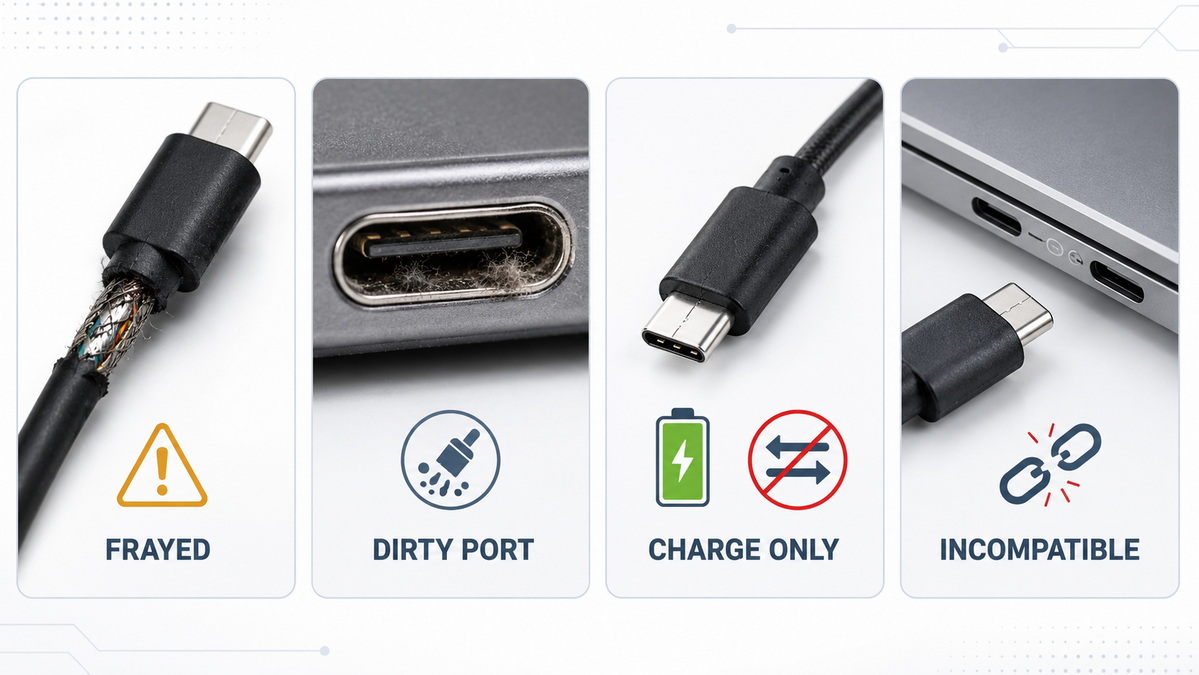
Use the following steps to test whether the cable is really the problem.
Check the connector housing, cable jacket, and plug ends for damage. Look for cracks, bent parts, looseness, or exposed wear. If the cable feels unstable near the connector, internal damage may already be present.
Test the cable with a different device and a different port. If it works elsewhere, the cable may be fine and the original device may be the issue.
Dust and lint can prevent a solid connection. Use compressed air or a soft brush to clean the port carefully. A blocked port can cause charging failure, unstable syncing, or intermittent contact.
Not every USB-C cable supports the same functions. Check whether the cable is:
- Charging only.
- Data-capable.
- High-speed data cable.
- Video-capable full-function cable.
- Built for higher-wattage charging.
A cable can still be "USB-C" even if it only supports one of those functions.
If the cable works with one charger but not another, the issue may involve power negotiation, wattage mismatch, or a compatibility difference between devices.
For laptops, docks, and desktop systems, driver or firmware issues may affect USB-C behavior. In many cases, the cable is fine, but the host device is not configured correctly.
For B2B buyers and OEM brands, cable quality should be judged by performance and construction, not appearance alone.
- Conductor quality affects current delivery and signal stability.
- Shielding helps reduce interference and data errors.
- Connector durability supports longer product life.
- Strain relief helps prevent breakage near the plug.
- Internal wiring accuracy is critical for compatibility.
- Power support must match the intended application.
- E-marker support may be needed for higher-power designs.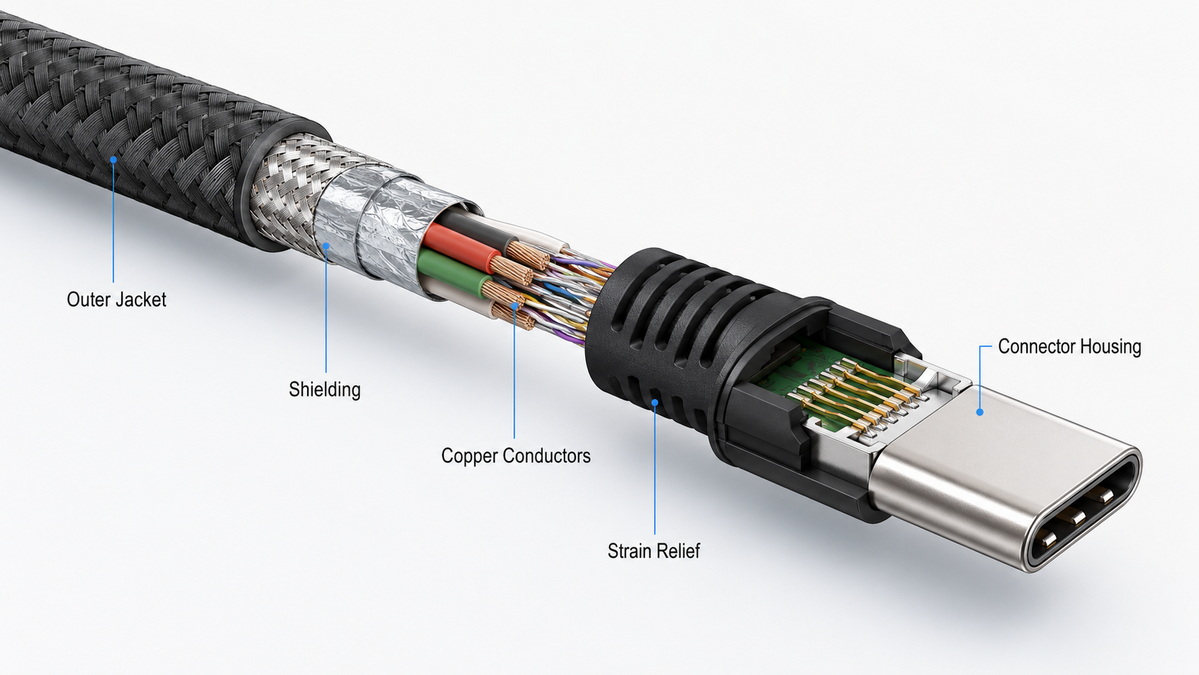
Before placing a bulk order, confirm:
- What power level the cable supports.
- Whether the cable is charging only or data-capable.
- Whether it supports video output.
- Whether an E-marker is included.
- What durability tests were performed.
- What customization options are available.
These details help reduce support issues after shipment.
USB-C is flexible, but that flexibility also creates confusion. Different devices support different combinations of charging, data, and video. A cable may work on one phone and fail on another simply because the required protocol is different.
In practical use, the same cable may:
- Charge one device but not another.
- Transfer data slowly but not at full speed.
- Support charging but not video.
- Work through one port but not through a dock.
That is why product descriptions must clearly state what the cable can and cannot do. Users need more than a connector name. They need function-specific information.
For exporters, distributors, and private-label brands, the best way to reduce cable complaints is to define the use case before production begins.
1. Define the intended function clearly.
- Charging only.
- Charging and syncing.
- High-speed data.
- Video and docking.
2. Match the internal design to the function.
- Select the right wire gauge.
- Use appropriate shielding.
- Reinforce the connector structure.
- Add an E-marker when required.
3. Test the cable before mass production.
- Continuity testing.
- Power stability.
- Bending resistance.
- Heat performance.
- Device compatibility.
4. Label the product honestly.
- Wattage rating.
- Data speed.
- Video capability.
- Compatibility notes.
5. Prepare support materials.
- Product FAQ.
- Troubleshooting guide.
- Compatibility table.
This approach improves the user experience and lowers the risk of after-sales disputes.
Replace the cable if you notice:
- Repeated disconnection.
- Heat around the connector.
- Charging that only works at certain angles.
- Random data loss.
- Visible damage to the cable jacket.
- Failure across multiple devices.
A damaged cable should not be reused. Even if it still works sometimes, unstable performance usually gets worse over time.
Use this simple guide:
- For phones and earbuds, choose a cable that matches the required charging specification.
- For tablets, confirm power delivery support.
- For laptops, choose a cable built for higher wattage and stable current flow.
- For docks and monitors, choose a cable that explicitly supports the required data and video functions.
- For OEM distribution, request a full specification sheet before order confirmation.
The right cable is not just the one that fits the port. It is the one that fits the device's actual power and data needs.
A USB-C cable that does not work is often a sign of mismatch, damage, or incomplete specification, not just a defective product. The best results come from choosing the right cable for the right application, testing compatibility before deployment, and working with a manufacturer that understands both performance and quality control.
For brands, wholesalers, and OEM buyers, a reliable USB-C cable is more than an accessory. It is part of the product experience your customers remember.
It may be a charge-only cable. Some USB-C cables are built only for power and do not support data transmission.
Different devices may require different charging, data, or video support. A cable can be compatible with one device and incompatible with another.
Yes. A poor-quality cable may cause unstable charging, overheating, or connection problems, especially if it is not built for the correct power level.
Check the product specification. If the cable is not designed for video output, it will not support monitor connection or display transmission.
They should confirm power rating, data speed, video support, E-marker requirement, durability testing, and customization options.
1. Microsoft Support. Fix USB-C problems in Windows https://support.microsoft.com/en-us/windows/hardware/fix-usb-c-problems-in-windows
2. EDN. USB-C cable needs to overcome five problems https://www.edn.com/5-problems-usb-c-needs-to-overcome/
3. KTC Play Support. USB-C Monitor Connection Troubleshooting Guide https://us.ktcplay.com/blogs/support-tips/usb-c-monitor-not-working-troubleshooting-guide
4. PrimeCables Blog. How to Choose the Right USB-C Cable (2026) https://blog.primecables.ca/2017/08/how-to-choose-the-right-usb-type-c-cable-to-prevent-device-homicide/
5. Wandkey. Why do some USB C cables not work? https://www.wandkey.com/usb-c-cable-not-work/


